The Fluent Booking integration tracks appointments from the Fluent Booking scheduling plugin. When someone books an appointment on your WordPress site, Conversion Bridge sends that booking to your analytics and ad platforms automatically.
- Setup Instructions
- How It Works
- Tracked Data
- Paid vs. Free Bookings
- Enhanced Conversions
- Conversion Journeys
- Custom Event Labels
Setup Instructions
Step 1: Enable the Integration
- In your WordPress admin, go to Settings → Conversion Bridge → Integrations
- Find Fluent Booking in the list of integrations
- Check the box to enable it
Step 2: Choose What to Track
Each event has a checkbox to turn it on and an optional field where you can set a custom label. Fluent Booking tracks two events:
- Track completed bookings — fires when a visitor finishes booking an appointment. Default label: "Appointment Booked"
- Track booking form started — fires when a visitor begins the booking form. Default label: "Started Booking"
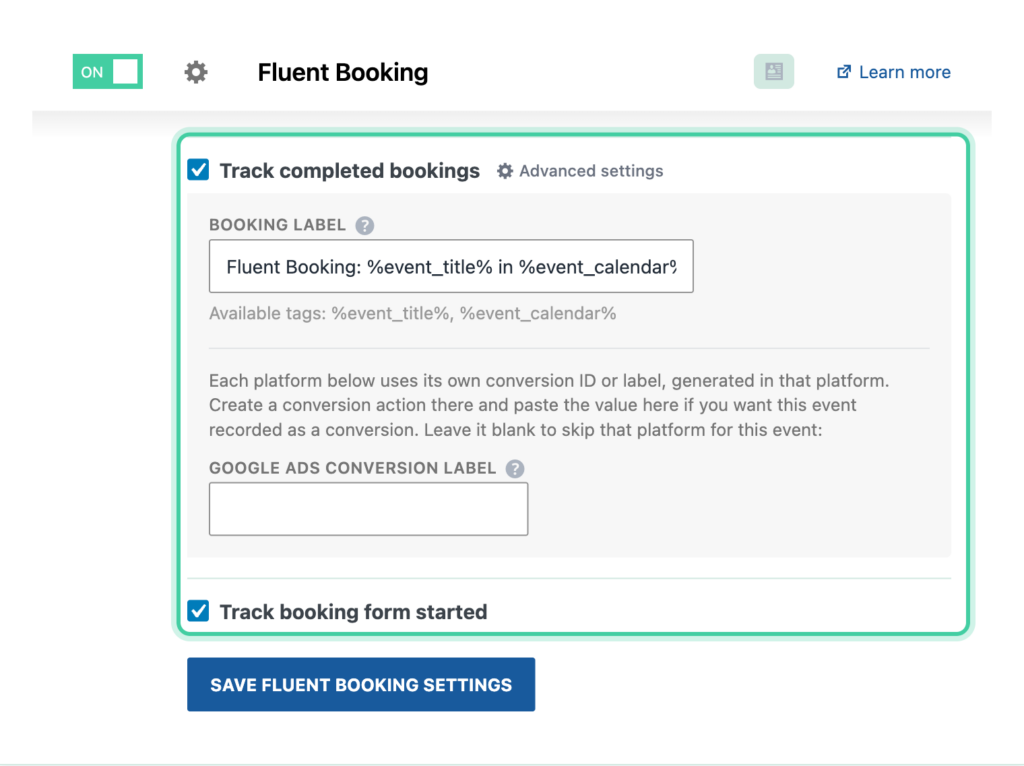
For more on labels and values, see What are the Conversion Label and Conversion Value fields?
Step 3: Save Settings
Click Save Changes to start tracking your conversions.
How It Works
Fluent Booking loads its booking form as an interactive app, so Conversion Bridge watches the page for the confirmation screen and fires the booking event the moment it appears. This works whether the form is placed on a normal page with a shortcode or block, or on Fluent Booking's own booking page.
- The started booking event fires when a visitor begins the booking form.
- The completed booking event fires when the booking is confirmed.
- Each booking is only tracked once, even if the visitor reloads the confirmation page.
- If a booking sends the visitor to another page on your site after they finish (a custom redirect or a payment step), Conversion Bridge carries the booking event over to that next page so it still gets tracked.
If a booking redirects the visitor to a different website to finish, that step happens off your site and can't be tracked.
Tracked Data
Every event includes a conversion label and conversion value. See What are the Conversion Label and Conversion Value fields? for details.
Completed Booking Event
transaction_id— the booking's unique IDvalue— the booking total (only for paid bookings)currency— the currency code (only for paid bookings)items— the booked service, including name, price, and quantity (only for paid bookings)- Event title and calendar name are available as merge tags for the label
Enhanced conversion data (sent when available):
email— the customer's email addressfirst_name— the customer's first namelast_name— the customer's last namephone— the customer's phone number
Started Booking Event
The started booking event fires at the very beginning of the booking form, so it does not include appointment or customer details.
Paid vs. Free Bookings
Conversion Bridge handles paid and free bookings differently so each one maps to the right event on your platforms.
- Free bookings (no payment) are sent as a lead. This is the right fit for consultations, discovery calls, and other appointments where nothing is charged.
- Paid bookings include the amount, currency, and service details, so your platforms record them as a purchase with revenue.
If a paid booking collects payment through Fluent Cart, the visitor is sent to Fluent Cart's checkout to pay. In that case the purchase is tracked by Conversion Bridge's Fluent Cart integration, so make sure that integration is also enabled. The Fluent Booking integration still tracks the started booking and the booking itself as a lead.
Enhanced Conversions
When enhanced conversions is enabled, Conversion Bridge includes the customer's email, name, and phone number with booking events. This data is securely hashed and sent to platforms that support it (such as Google Ads and Meta Ads) to improve conversion matching and attributionThe process of determining which channels, campaigns, or actions contributed to a conversion, helping you understand what influenced a visitor’s decision to take action.. No raw personal data is sent.
Conversion Journeys
Every booking is linked to the visitor's conversion journey — the page-by-page path they took before booking. This helps you see which pages, posts, and campaigns lead to the most appointments.
Custom Event Labels
You can rename either event to make it easier to spot in your analytics platforms:
- Booking label — default is "Appointment Booked"
- Started booking label — default is "Started Booking"