
Enabling Conversion Tracking on WPForms
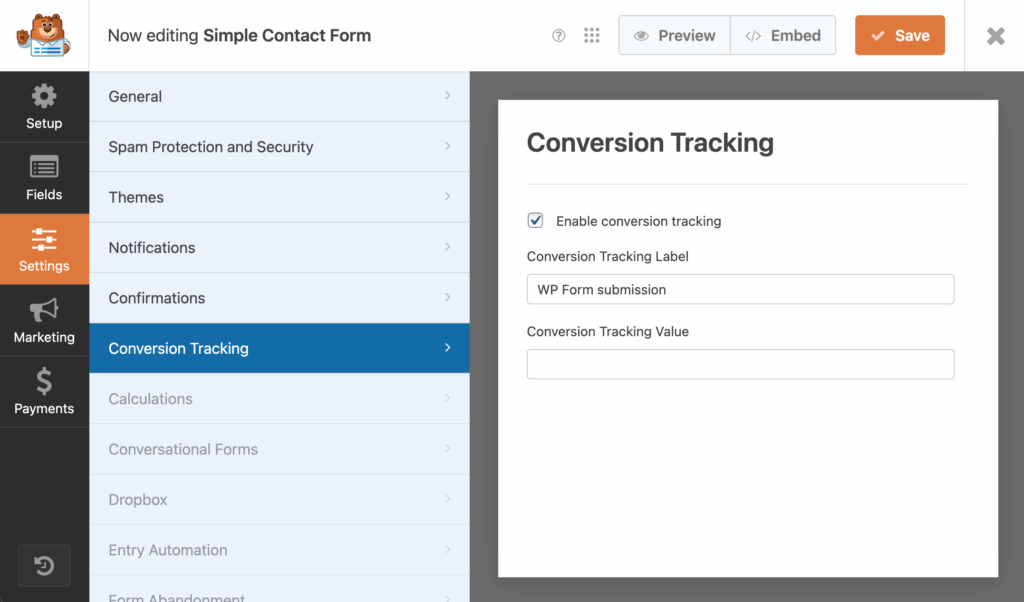
- Edit your form
- In the Settings tab, find the Conversion Tracking section
- Check the option to enable Conversion Tracking
- (Optional) Include additional labels and values
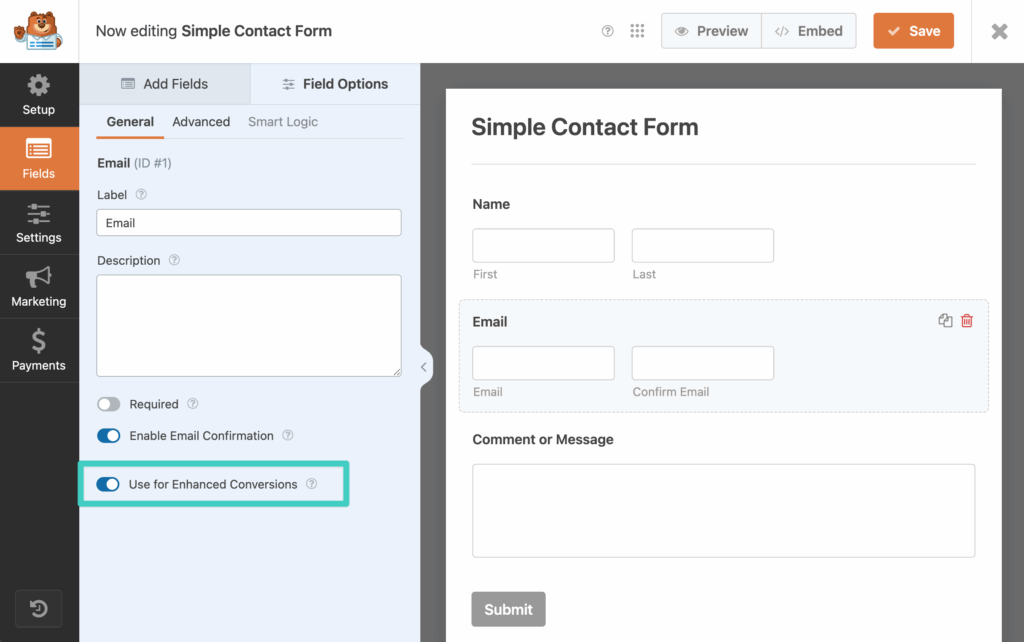
Enabling Enhanced Conversions for WPForms
You can decide which email field you want to securely send as Enhanced Conversion data. Edit the email field you wish to assign and toggle the "Use for Enhanced Conversions" option.
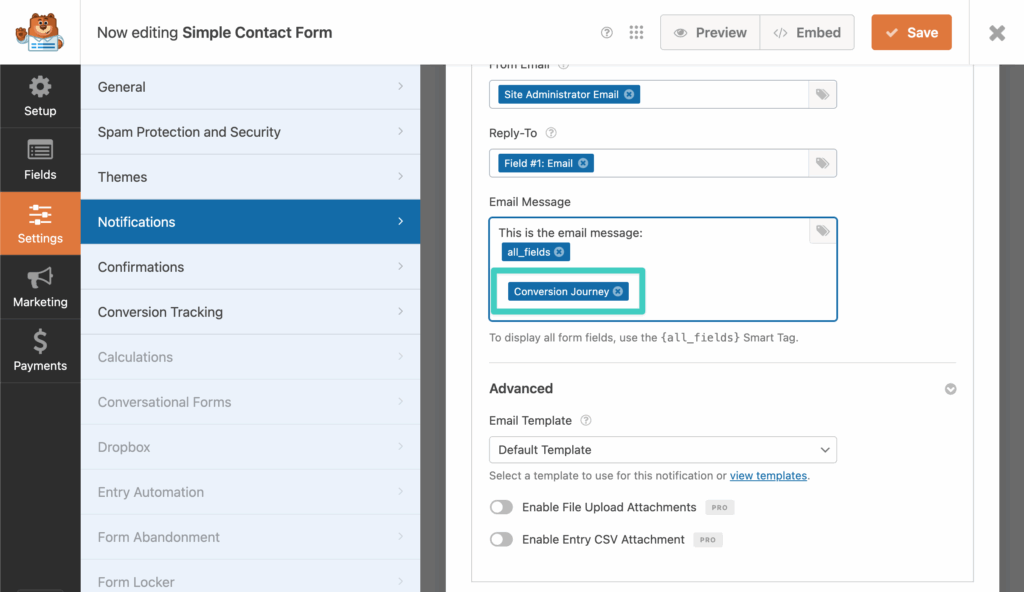
Including Conversion Journey in Emails
To include the Conversion Journey in the any of the emails (recommend only Admin notification emails), you can insert (or find it in the list of available Smart tags) the {conversion_journey} Smart tag within the content of the email you would like it to appear.
Pass UTM Parameters and Ad Click IDs
WPForms lets you save a visitor's UTM parameters and ad click IDs by adding a Hidden field and setting its default value (Smart Tag) to a Conversion Bridge tag, such as {cb_utm_campaign}. The value gets saved with the entry, included in notification emails, and passed to any CRM or webhook feed connected to the form.
The tag reads from the visitor's conversion journey, not from the URL of the page the form is on. So the campaign still fills in when the visitor browsed several pages before submitting, or came back days later on a URL with no tags. First touch gets the credit by default; you can switch to last touch in the Conversion Bridge settings.
This is useful for offline conversion imports or for conditional logic based on how the visitor arrived. Ad click IDs like {cb_gclid} only fill in when the visitor has granted marketing consent. UTM parametersUTM parameters are tags added to a link that show where traffic comes from and which campaigns lead to real conversions. don't need consent on their own, but Conversion Bridge only remembers them from page to page once the visitor has accepted your banner, so before that they only fill in on the page that has them in the URL. See the full guide on passing UTM parameters and ad click IDs into forms for the complete list of tags.