
The Everest Forms integration tracks form submissions from the Everest Forms plugin. Everest Forms is a drag-and-drop form builder for WordPress that lets you create contact forms, surveys, registration forms, and more.
This integration automatically tracks:
- Form submissions: When users submit any form you configure
Conversion tracking is configured on a per-form basis, giving you complete control over which forms track conversions and how they're labeled. You can customize the conversion label and value for each form. The integration also automatically detects email and phone fields for enhanced conversions.
Setup Instructions
Step 1: Enable the Integration
- In your WordPress admin, go to Settings > Conversion Bridge > Integrations
- Find Everest Forms in the list of available integrations
- Enable the integration by clicking the toggle
Step 2: Configure Form Tracking
For each form you want to track:
- Go to Everest Forms in your WordPress admin
- Click on the form you want to configure
- In the form builder, click the Settings tab
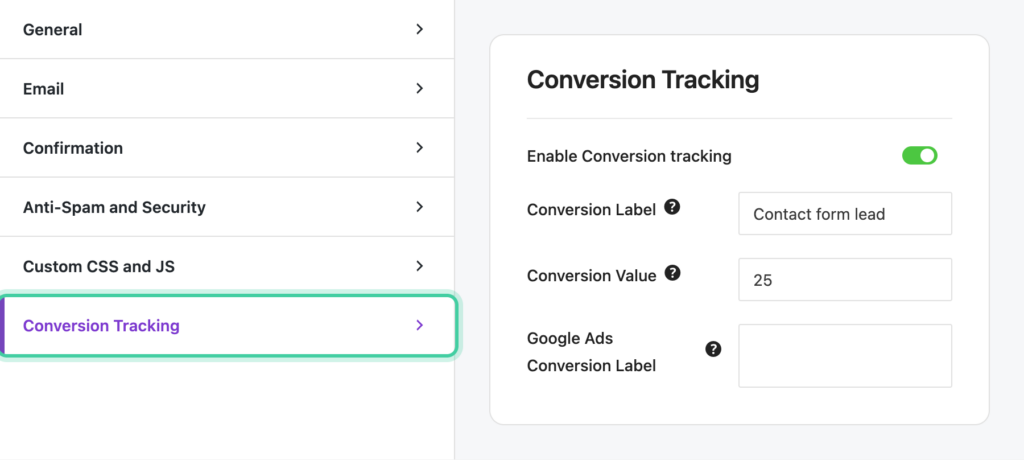
- Click Conversion Tracking in the settings sidebar
- Toggle Enable Conversion tracking on
- Optionally set a Conversion Label (default: "Form Submission")
- Optionally set a Conversion Value (can be a number or currency like "10 USD")
- If you're using ad platforms that require conversion labels/IDs, configure those in the platform-specific fields that appear below
Step 3: Save Settings
- Click Save to save your form settings and start tracking conversions
How It Works
The integration tracks form submissions using different methods depending on how your form is configured:
AJAX Forms
For forms with AJAX submission enabled:
- Form Submission: User submits the form via AJAX
- Event Detection: Conversion Bridge receives the submission result from the server
- Enhanced Data Capture: Email and phone field values are captured from the form data
- Event Tracking: A conversion event is tracked with all configured data
Non-AJAX Forms
For forms without AJAX that show a success message:
- Form Submission: User submits the form (page reloads)
- Server-Side Detection: Conversion Bridge detects the successful submission on the server
- Enhanced Data Capture: Email and phone field values are captured from the submission data
- Event Tracking: A conversion event is tracked server-side with all configured data
Tracked Data
Every event includes a conversion label and conversion value. Learn more about conversion labels and values.
Form Submission
title-- Form titlelabel-- Conversion label (default: "Form Submission")id-- Form ID
Enhanced conversion data
The integration automatically detects email and phone fields from your form and includes them with the conversion event. This data is only used by platforms that support enhanced conversions.
_email-- Email address (auto-detected from email fields)_phone-- Phone number (auto-detected from phone fields)
Platform-specific conversion labels or IDs you configure for the form are also included.
Custom Event Labels
You can customize the conversion label for each form to better identify events in your analytics platforms. The label appears in your analytics dashboards and reports.
Default Label: "Form Submission"
Custom Labels: You can use any text you want, such as:
- "Contact Form Submission"
- "Newsletter Signup"
- "Quote Request"
- "Support Ticket"
Conversion Values
You can optionally set a conversion value for each form. This value is sent to platforms that support it and can be used to measure the worth of different form submissions.
Value Formats:
- Number:
10or25.50 - Currency:
10 USDor25.50 EUR
The currency is automatically detected and passed to platforms that support currency-specific values.
Conversion Journey
Conversion Bridge automatically saves a session ID to each form entry. This links the submission to the visitor's full conversion journey, so you can see exactly what path they took before filling out the form.
To view the journey for a specific entry:
- Go to Everest Forms > Entries in your WordPress admin
- Click on the entry you want to inspect
- Scroll down to the Conversion Journey section
The journey shows the pages visited, traffic source, and other session data leading up to the form submission.
Form Submission Methods
AJAX Forms (Recommended)
AJAX forms provide the best tracking experience:
- No page reload required
- Tracks conversions without interrupting the user
- Captures enhanced conversion data reliably
To enable AJAX: In the Everest Forms builder, go to Settings > General and enable Ajax Form Submission.
Non-AJAX Forms
Non-AJAX forms that show a success message are also supported:
- Tracks conversions server-side after the page reloads
- Captures enhanced conversion data from the submission
Pass UTM Parameters and Ad Click IDs
You can capture a visitor's UTM parametersUTM parameters are tags added to a link that show where traffic comes from and which campaigns lead to real conversions. and ad click IDs (like Google's gclid) right in the form entry. Add a Hidden field to your form and set its default value to a Conversion Bridge tag, such as {cb_gclid}. The value fills in automatically when the form loads, so it's saved with the entry, included in notification emails, and passed along to any CRM or webhook connected to the form.
Ad click IDAn ad click ID is a code an ad platform adds to your link when someone clicks your ad. It lets you connect a later conversion back to the exact ad. tags only fill in when the visitor has granted marketing consent. UTM tags like {cb_utm_source} and {cb_utm_campaign} don't need consent on their own, but Conversion Bridge only remembers them from page to page once the visitor has accepted your banner, so before that they only fill in on the page that has them in the URL. See Pass UTM Parameters and Ad Click IDs into Forms for the full list of available tags.