The Bit Form integration tracks form submissions as conversions. Each form on your site can be tracked individually, with custom labels and enhanced conversion data sent to every connected analytics and ad platform.
Overview
Bit Form lets you build forms in WordPress with a drag-and-drop builder. With this integration enabled, every form on your site shows up in your Conversion Bridge settings with its own toggle, so you can pick exactly which forms count as conversions. Each tracked submission fires a form_submit event with the form name and ID, plus any matched email, name, phone, or country data for enhanced conversions.
Setup Instructions
- In your WordPress admin, go to Settings > Conversion Bridge > Integrations.
- Find Bit Form in the list of available integrations.
- Enable the integration by clicking the toggle.
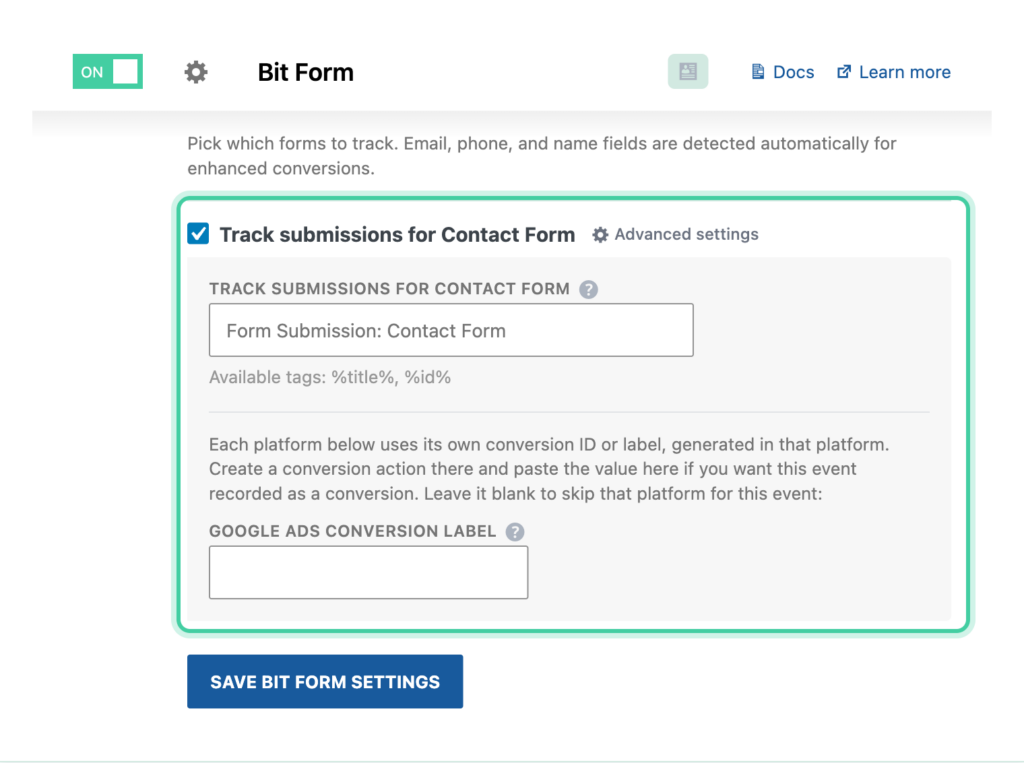
- Each form you've built in Bit Form appears as its own option. Enable the checkbox for any form you want to track. Each one has its own optional label field if you want to override the default.
- The default label for each form is Form Submission: [Form Name]. You can customize it using the
%title%and%id%placeholders. See Custom Event Labels below. - Refer to the Conversion Label and Conversion Value documentation for details on how labels and values are used.
- Click Save Changes to start tracking your conversions.
How It Works
The integration listens for successful form submissions in real time on the page. When a visitor submits a tracked form, the event fires immediately so your analytics and ad platforms get the data without waiting on page reloads.
Each form is tracked independently, so you can pick high-intent forms (like demo requests or quote forms) to send to your ad platforms while keeping general contact forms separate.
Tracked Data
Every event includes a conversion label and conversion value.
Form submission events also include:
title-- The form nameid-- The Bit Form form ID
Enhanced conversion data
When available, the integration automatically captures and sends matching fields for enhanced conversions:
_email-- From any email field_phone-- From any phone number field_country-- From any country field_first_name-- From a text field labeled "First Name"_last_name-- From a text field labeled "Last Name"
Custom Event Labels
Each tracked form has its own label field. The default is Form Submission: [Form Name]. Two placeholders are available:
%title%-- Replaced with the form name%id%-- Replaced with the form ID
For example, setting a label to Lead: %title% (#%id%) would produce labels like Lead: Contact Form (#3) in your analytics reports.
Conversion Journeys
Every tracked submission is automatically tied to the visitor's conversion journey. The session ID is saved with the form entry so you can see the full path the visitor took before submitting.
You can also include the conversion journey directly inside Bit Form notification emails. Add the {conversion_journey} shortcode anywhere in your email body, and it will be replaced with the visitor's journey when the email sends.
Pass UTM Parameters and Ad Click IDs
You can capture a visitor's UTM parametersUTM parameters are tags added to a link that show where traffic comes from and which campaigns lead to real conversions. and ad click IDs (like Google's gclid) right in the form entry. Add a Hidden field to your form and set its value to a Conversion Bridge tag, such as {cb_gclid}. The value fills in automatically when the form loads, so it's saved with the entry, included in notification emails, and passed along to any CRM or webhook connected to the form.
Ad click IDAn ad click ID is a code an ad platform adds to your link when someone clicks your ad. It lets you connect a later conversion back to the exact ad. tags only fill in when the visitor has granted marketing consent. UTM tags like {cb_utm_source} and {cb_utm_campaign} don't need consent on their own, but Conversion Bridge only remembers them from page to page once the visitor has accepted your banner, so before that they only fill in on the page that has them in the URL. See Pass UTM Parameters and Ad Click IDs into Forms for the full list of available tags.