
The FluentCart integration tracks the full customer shopping journey from product browsing through purchase. It gives you detailed conversion data across all your connected analytics and ad platforms without writing any code.
This integration automatically tracks:
- Purchases: When a customer completes an order
- Individual product purchases: Each product in an order tracked as its own event
- View product: When a customer views a single product page or opens a product modal
- View product variation: When a customer selects a variation on a variable product
- Add to cart: When a customer adds a product to their cart
- View cart: When a customer views the cart page
- Begin checkout: When a customer lands on the checkout page
Setup Instructions
Step 1: Enable the Integration
- In your WordPress admin, go to Settings > Conversion Bridge > Integrations
- Find FluentCart in the list of available integrations
- Enable the integration by checking the checkbox
Step 2: Configure Event Tracking
Each event type can be turned on or off independently. For each event you want to track:
- Track purchases -- Enable this to track completed orders. This includes the order total, currency, and all line item details.
- Track each product in order as separate event -- Enable this to fire a separate event for every product in the order. This is useful when you want per-product conversion data.
- Track each single product page view -- Enable this to track when a customer views a product page. This also tracks product views when a customer opens a product in a modal popup.
- Track when variant is selected on single product page view -- Enable this to track when a customer selects a specific variation on a variable product page or in a product modal.
- Track item add to cart -- Enable this to track when a customer adds a product to their cart, both from shop/archive pages and single product pages.
- Track cart view -- Enable this to track when a customer views the cart page. This includes the cart total and all items in the cart.
- Track begin checkout -- Enable this to track when a customer reaches the checkout page. This includes the cart total and all items.
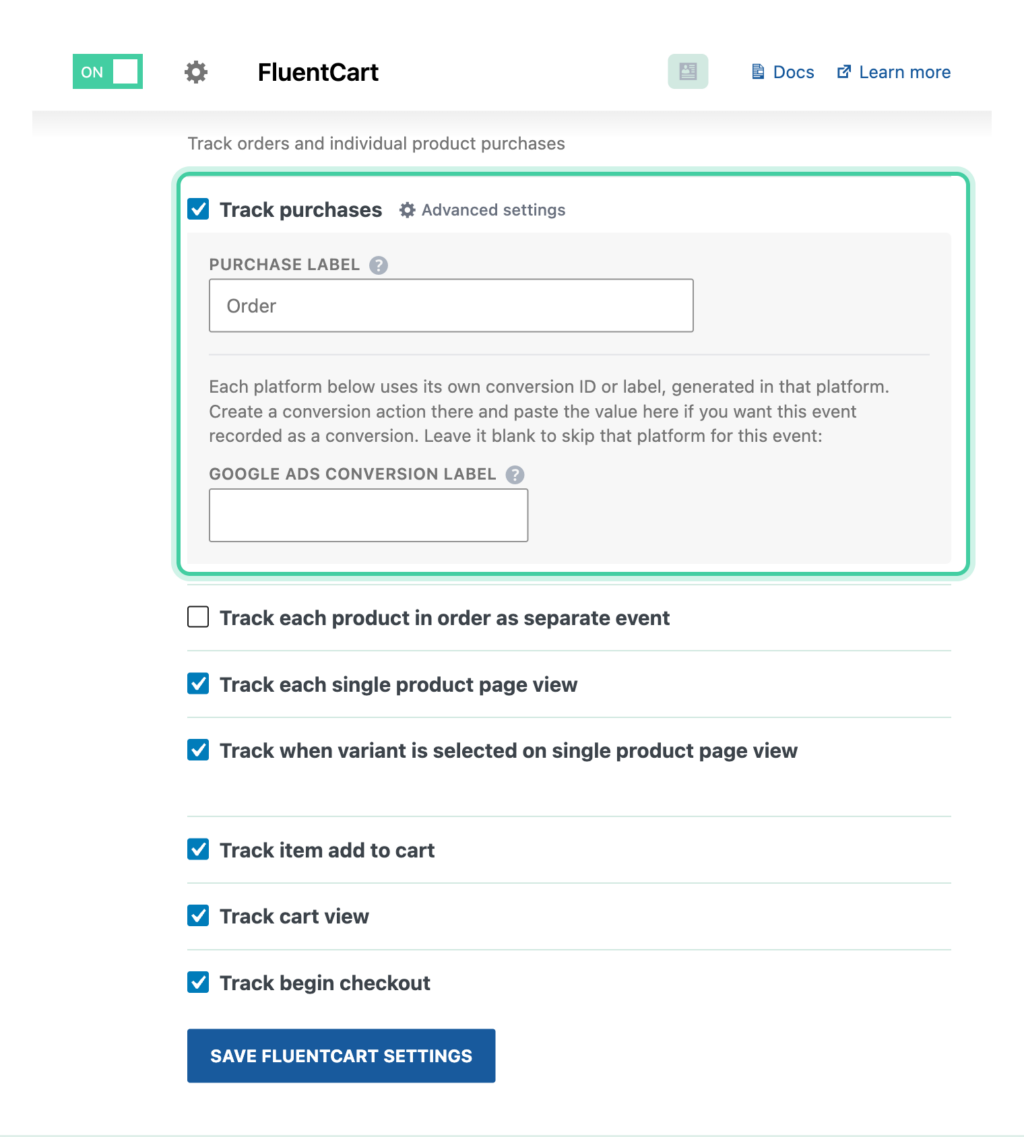
Each event also has an optional custom label field. You can customize the label that appears in your analytics platforms or leave it blank to use the default. For more about how labels and values work, see Conversion Label and Value.
Step 3: Save Settings
Click Save Changes to start tracking your conversions.
How It Works
Purchase Tracking
When a customer completes an order and reaches the receipt page:
- Order received: FluentCart fires the receipt after the order is processed
- Event data built: The integration collects the order total, currency, transaction ID, all line items with product details, and customer information
- Event fired: Conversion Bridge sends a purchase event to all your connected platforms
- Session saved: The conversion session ID is saved to the order so you can view the conversion journey later
If you also enable individual product tracking, each line item in the order fires as its own separate event right after the main purchase event.
View Product Tracking
View product tracking works in two situations:
- Product page: When a customer visits a single FluentCart product page, Conversion Bridge fires a view item event on page load. The event includes the product name, price, categories, and brand (if available).
- Product modal: When a customer opens a product in a popup modal (such as from a product listing), the event fires when the modal opens. The product data is fetched automatically so the event includes the same details as a product page view.
View Product Variation Tracking
When a customer selects a variation on a variable product (for example, choosing a plan or size), Conversion Bridge fires a view item event with the updated variation details. This works on both single product pages and in product modals.
Add to Cart Tracking
Add to cart tracking works in two ways depending on where the customer adds the product:
- Shop/archive pages: When a customer clicks an "Add to cart" button on a shop page or category page, the event fires on click. This works for simple products on archive pages.
- Single product pages: When a customer clicks the "Add to cart" button or "Buy now" button on a product page, the event fires on click. For variable products, the event includes the selected variation details and updated price.
Both methods capture the product name, price, quantity, categories, and brand.
View Cart Tracking
When a customer visits the cart page, Conversion Bridge fires a view cart event on page load. The event includes the cart total, currency, and full details of every item in the cart including variant information.
Begin Checkout Tracking
When a customer reaches the checkout page (but has not yet completed the order), Conversion Bridge fires a begin checkout event on page load. The event includes the cart total, currency, all cart items, and any applied coupon codes.
Tracked Data
Every event includes a conversion label and conversion value. The sections below describe the additional data sent with each event type.
Purchase Event
The purchase event includes:
transaction_id-- The FluentCart order IDcurrency-- The order currency codeitems-- Array of all products in the order, each including:item_id-- Product ID (parent product ID for variations)item_name-- Product name (parent product name for variations)price-- Unit pricequantity-- Quantity ordereditem_category-- Product categories (multiple levels:item_category,item_category2, etc.)item_brand-- Product brand (if available)item_variant_id-- Variant ID (for variable products)item_variant-- Variant attributes (for variable products)item_variant_name-- Full variant name (for variable products)coupon-- Coupon code(s) if used, comma-separatedshipping-- Shipping total if applicabletax-- Tax total if applicable (includes shipping tax)
Enhanced conversion data
_email-- Customer email address_first_name-- Customer first name_last_name-- Customer last name_phone-- Customer phone number_city-- Customer billing city_state-- Customer billing state_zip-- Customer billing zip/postal code_country-- Customer billing country
Individual Product Purchase Event
Each product event includes:
item_id-- Product ID (parent product ID for variations)item_name-- Product name (includes variant name for variations)price-- Unit pricequantity-- Quantity purchaseditem_variant_id-- Variant ID (for variable products)category-- Product categories (multiple levels:category,category2, etc.)brand-- Product brand (if available)
View Product Event
The view product event includes:
currency-- Store currency codeitems-- Single-item array with:item_id-- Product IDitem_name-- Product nameprice-- Product pricequantity-- Always 1item_category-- Product categoriesitem_brand-- Product brand (if available)
View Product Variation Event
The view product variation event includes:
currency-- Store currency codeitems-- Single-item array with:item_id-- Parent product IDitem_name-- Product nameprice-- Variation pricequantity-- Always 1item_category-- Product categoriesitem_brand-- Product brand (if available)item_variant_id-- Variant IDitem_variant-- Variant name/attributes
Add to Cart Event
The add to cart event includes:
currency-- Store currency codeitems-- Single-item array with:item_id-- Product ID (parent product ID for variations)item_name-- Product nameprice-- Product price (variation price for variable products)quantity-- Quantity addeditem_category-- Product categoriesitem_brand-- Product brand (if available)item_variant_id-- Variant ID (for variable products on single product pages)item_variant-- Variant attributes (for variable products on single product pages)item_variant_name-- Full variant name (for variable products on single product pages)
View Cart Event
The view cart event includes:
currency-- Store currency codeitems-- Array of all cart items, each including:item_id-- Product IDitem_name-- Product nameprice-- Product pricequantity-- Quantity in cartitem_category-- Product categoriesitem_brand-- Product brand (if available)item_variant_name-- Full variant name (for variable products)item_variant-- Variant attributes (for variable products)
Begin Checkout Event
The begin checkout event includes:
currency-- Store currency codecoupon-- Applied coupon code(s) if any, comma-separateditems-- Array of all cart items, each including:item_id-- Product IDitem_name-- Product nameprice-- Product pricequantity-- Quantity in cartitem_category-- Product categoriesitem_brand-- Product brand (if available)item_variant_name-- Full variant name (for variable products)item_variant-- Variant attributes (for variable products)
Enhanced Conversions
The FluentCart integration automatically includes customer data from the order with purchase events. This data is sent to platforms that support enhanced conversions (such as Google Ads and Meta Ads) to improve conversion tracking accuracy and attributionThe process of determining which channels, campaigns, or actions contributed to a conversion, helping you understand what influenced a visitor’s decision to take action..
The following customer fields are sent:
- Email address -- from the customer profile
- First name -- from the customer profile
- Last name -- from the customer profile
- Phone number -- from the billing phone field
- City -- from the billing city field
- State -- from the billing state field
- Zip/Postal code -- from the billing zip field
- Country -- from the billing country field
Enhanced conversion data is only sent to platforms that support it and is handled according to each platform's privacy requirements. Phone and address fields allow platforms like Google Ads and Meta Ads to match conversions more accurately.
Conversion Journeys
Conversion Bridge automatically saves the session ID to each FluentCart order. When you have conversion journeys enabled, this allows you to see the full path a customer took before placing their order -- including their landing page, the pages they visited, UTM parametersUTM parameters are tags added to a link that show where traffic comes from and which campaigns lead to real conversions., and referral source.
Conversion Journey in FluentCart Emails
You can include the conversion journey in FluentCart's order notification emails by adding the {{conversion_journey}} smartcode to your email template. When included, the email will show the customer's full conversion journey so you can see how they found your store without leaving your inbox.
UTM Parameters and Ad Click IDs
Conversion Bridge automatically saves the customer's UTM parameters and ad click IDs (like gclid, fbclid, and msclkid) to each FluentCart order. No setup is needed. You can export this data to use for offline conversion imports in your CRM or ad platform. See Passing UTM Parameters and Click IDs into Forms for details.
Custom Event Labels
You can customize the label for each event type to better identify events in your analytics platforms. Each event has a default label and supports a %title% placeholder that gets replaced with the product name.
| Event | Default Label | Supports %title% |
|---|---|---|
| Purchase | "Order" | No |
| Product item purchase | "Order Item: %title%" | Yes |
| View product | "View item: %title%" | Yes |
| View product variation | "View variable item: %title%" | Yes |
| Add to cart | "Add to cart: %title%" | Yes |
| View cart | "View cart" | No |
| Begin checkout | "Begin checkout" | No |
Variable Product Support
The integration fully supports FluentCart variable products across all event types. When a customer interacts with a variable product, the tracked data includes:
- Item ID: The parent product's ID
- Item variant ID: The specific variation's ID
- Item variant: The selected variant attributes (e.g., "Monthly")
- Item variant name: The parent product name combined with the variant (e.g., "Pro Plan - Monthly")
- Price: The variation's specific price, not the parent product's price
Product Brand Tracking
If your store uses a product brand taxonomy (product-brands), Conversion Bridge automatically includes the brand name with all product events. This works with plugins that register a brand taxonomy for FluentCart products.