
UTM Tracking for WordPress
WordPress UTM tracking that follows the visitor
Know which campaigns actually convert. UTM parameters and ad click IDs are captured the moment a visitor arrives and saved with every form entry and order they go on to make, even ten pages later or on a return visit.
How It Works
The campaign follows the visitor

Conversion Journey
×
Page View: Spring Sale
/sale/?utm_campaign=spring_sale
Mon 2:34 PM
Page View: Pricing
/pricing/
Mon 2:36 PM
Page View: Reviews
/reviews/
Mon 2:39 PM
Returned 2 days later
Page View: Contact
/contact/
Wed 9:12 AM
Form Submission
Submitted form “Contact Us” at Contact
Wed 9:14 AM

NameAlex Rivera
Email[email protected]
Conversion Data
utm_campaignspring_sale
Most form plugins only see the UTM if it's in the URL of the page the form is on. Conversion Bridge saves it with the visitor's conversion journey, so it's still there on the contact page, ten pages later, or on a return visit.
Captured for every visitor:utm_sourceutm_mediumutm_campaignutm_termutm_content
Plus ad click IDs likegclidfbclidmsclkidttclid
UTM parameters saved to every form entry
Many form plugins get UTM parameters and click IDs saved to entries automatically. No fields to add, no setup.
Most form plugins can fill a hidden UTM field on their own, but only when the tag is in the URL of the page the form sits on. Conversion Bridge fills it from the journey instead, so the campaign is still there ten pages later or on a return visit days after the click.
Want the data in notification emails, your CRM, Zapier, or a webhook? Add a hidden field with a Conversion Bridge tag like cb_utm_source and it fills in at submission, ready for any feed or action your form plugin runs.
NameAlex Rivera
Email[email protected]
Conversion Data
utm_sourcegoogle
utm_mediumcpc
utm_campaignspring_sale
gclidCj0KCQjw…
Ad PlatformGoogle Ads
#2418 Alex Rivera$86.00
#2417 Jamie Lee$49.00
#2416 Priya Shah$132.00
UTM tracking for WooCommerce orders too
The same campaign data is saved to orders and transactions in your ecommerce, membership, donation, and course plugins.
In WooCommerce and Easy Digital Downloads you'll see UTM and journey columns right in the order list, so you know which campaign earned each sale without opening a report.
UTM Reports inside WordPress
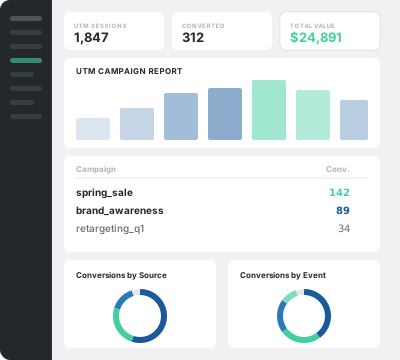
See sessions, conversions, and revenue by source, medium, campaign, term, and content. Track performance over time, view your top source and medium combinations, and export any report to CSV. Every row links straight to the matching conversion journeys.
Your weekly report email includes your top UTM sources, so the numbers come to you.
Form plugins
UTM parameters and click IDs saved with every submission, filled from the visitor's journey rather than the page URL. Field tags send them anywhere your form data goes.


















Ecommerce, membership & donation plugins
UTM parameters and click IDs saved to the order or transaction, ready for reports and exports.












Why It Matters
What this does for you
Spend where it works
See which campaigns produce sales and leads, not just clicks. Put your budget and your time into the ones that earn.
Revenue tied to campaigns
Reports show the total value each source and campaign generated, so ROI is a number you can read instead of a guess.
Smarter follow-up
With the source on every lead, your CRM can segment and route by campaign, and you know what a lead responded to before you reply.
Every entry answers "where did this come from?"
No cross-referencing analytics against timestamps. The campaign is right on the entry or order.
Ready for offline conversion imports
Ad click IDs like gclid are saved with the conversion, so you have what ad platforms need when you import offline or delayed conversions.
Proof for clients
Running sites for others? Show exactly which campaigns brought the orders and leads, with exports to back it up.
Built In
More than capture
First touch or last touch
Choose whether the campaign that first brought a visitor gets the credit, or the most recent one before they converted. The setting applies to the values saved with entries, orders, and form tags, and reports have their own toggle so you can compare both views.
Consent handled correctly
Ad click IDs like gclid and fbclid are marketing data, so Conversion Bridge only captures and passes them when the visitor has given marketing consent. UTM parameters aren't personal data and keep working either way.
UTM Link Builder
Build tagged links right from your WordPress admin, with a quick link on every post and page. No spreadsheet of campaign URLs, no third-party generator.
Cross-domain forwarding
Run more than one site? Conversion Bridge can carry a visitor's UTM parameters and click IDs onto links pointing at your other domains, so the campaign survives the hop. Nothing to install on the receiving site.
The Difference
UTM data that reaches the conversion
Typical UTM tracking
- Gone by the time they convert
A form plugin's built-in UTM fields only read the URL of the page the form is on. Browse a few pages first, or come back tomorrow, and the field is blank. - Trapped in analytics
Your analytics may know the source of a session, but the lead in your CRM and the order in your inbox say nothing about the campaign that earned them. - Stitched together by hand
Campaign links live in a spreadsheet, and tying a sale or lead back to one means cross-referencing reports by hand.
With Conversion Bridge
- Saved with the conversion
Arrival data is stored server-side with the visitor's journey, so the campaign lands on the entry or order no matter how long they took to convert. - Flows into your CRM
Field tags put the campaign and click IDs on the submission itself, so they travel with the lead into emails, CRM feeds, Zapier, and webhooks. - One plugin, every step
Link builder, capture, form entries, order data, and reports in the same plugin that already handles your conversion tracking.
Plans & Pricing
One plugin Every conversion Setup in minutes
Starting at only $79/year, every plan includes all integrations & features
- 14-day money back guarantee
- Premium 1-on-1 support
- No tag manager needed
Common questions
No. Conversion Bridge reads the UTM parameters when the visitor first lands on your site and saves them with that visitor's journey. When they submit a form later, on any page, the campaign data is added to the entry. The URL of the form page does not matter.
Yes. The visitor's journey is stored on your server, not just in the page, so a visitor who clicks an ad on Monday and fills out a form on Wednesday still gets the Monday campaign saved with their entry. You choose whether the first campaign or the most recent one gets the credit.
Every form plugin integration, including WS Form, Gravity Forms, WPForms, Fluent Forms, Ninja Forms, Formidable Forms, Contact Form 7 and Elementor forms, plus ecommerce, membership, donation and course plugins like WooCommerce, Easy Digital Downloads, MemberPress and GiveWP. The full list is on this page.
No. UTM capture, ad click IDs, form and order data, a link builder, and UTM reports are all part of Conversion Bridge, in the same plugin that handles your conversion tracking for analytics and ad platforms.
Yes, Conversion Bridge is a WordPress plugin and only works on WordPress-powered websites.
Yes! I am very proud of the quality and speed of support offered should you run into any issues.
Conversion Bridge supports 71 plugins, 19 analytics platforms, and 11 ad platforms. If what you need is not yet supported, send a request and I will take a look — I am always looking to grow the integration list.
Yes! Agencies are highly encouraged to check out our Agency Partner Program where you can get a free license for your own site and earn money by referring new clients to Conversion Bridge.
Yes, but using GTM will require additional setup and configuration. Conversion Bridge is a much easier way to setup analytics and ad platform conversion tracking.
Conversion Bridge can be considered a GTM replacement — one that is much easier to setup, more accurate in tracking, gives you more insights, and works directly with the analytics platforms, ad platforms and plugins in use on your WordPress website.
Yes! At any time you can upgrade to a pricing plan that includes more sites.
Absolutely. Conversion tracking is not just for ad campaigns — it is how you figure out what is actually working in your business. Without it, you are guessing which pages, emails, blog posts, and organic traffic sources are driving signups and sales.
Conversion Bridge tracks form submissions, memberships, downloads, and purchases across your WordPress site, so you can confidently decide where to spend your time, what content to double down on, and what to cut — whether you ever run a paid ad or not.
Yes. Conversion Bridge integrates with many consent management platforms, so tracking respects visitor consent decisions before anything fires.

Hi, I'm Derek. I've been building WordPress plugins for over a decade, and my goal with Conversion Bridge is to make analytics and conversion tracking setup as painless as possible. If the FAQ didn't cover it — pre-sales, an integration you wish existed, or you're stuck on setup — send it over. I read every message.