Enabling Conversion Tracking on Contact Form 7 Forms
- Edit your form in Contact Forms 7
- Find the "Conversion Tracking" tab
- Check the option to enable Conversion Tracking
- (Optional) Include additional labels and values
Enabling Enhanced Conversions for Contact Form 7
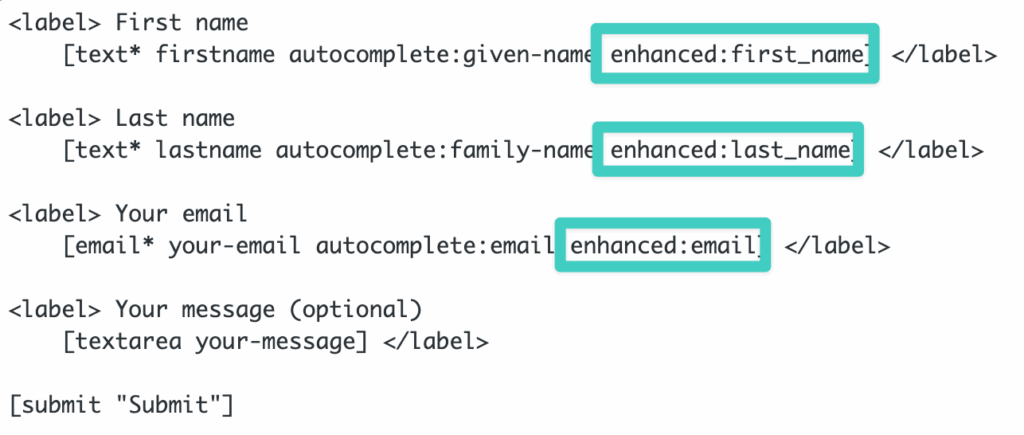
Enhanced Conversions are supported for Contact Form 7 form fields. Add the matching tag option to each field you want to send as enhanced data — Conversion Bridge picks it up automatically at form submission:
- enhanced:email
- enhanced:first_name
- enhanced:last_name
- enhanced:phone
- enhanced:address
- enhanced:city
- enhanced:state
- enhanced:postal
- enhanced:country
For example:
[email* your-email enhanced:email]
[text* your-fname enhanced:first_name]
[text* your-lname enhanced:last_name]
[tel your-phone enhanced:phone]
[text* your-address enhanced:address]
[text* your-city enhanced:city]
[text* your-state enhanced:state]
[text* your-postal enhanced:postal]
[text* your-country enhanced:country]
email and tel tag types are also auto-detected without the enhanced: option, so you only need to add the option to text fields where the tag type doesn't already tell us what the field is.
Including Conversion Journey in Emails
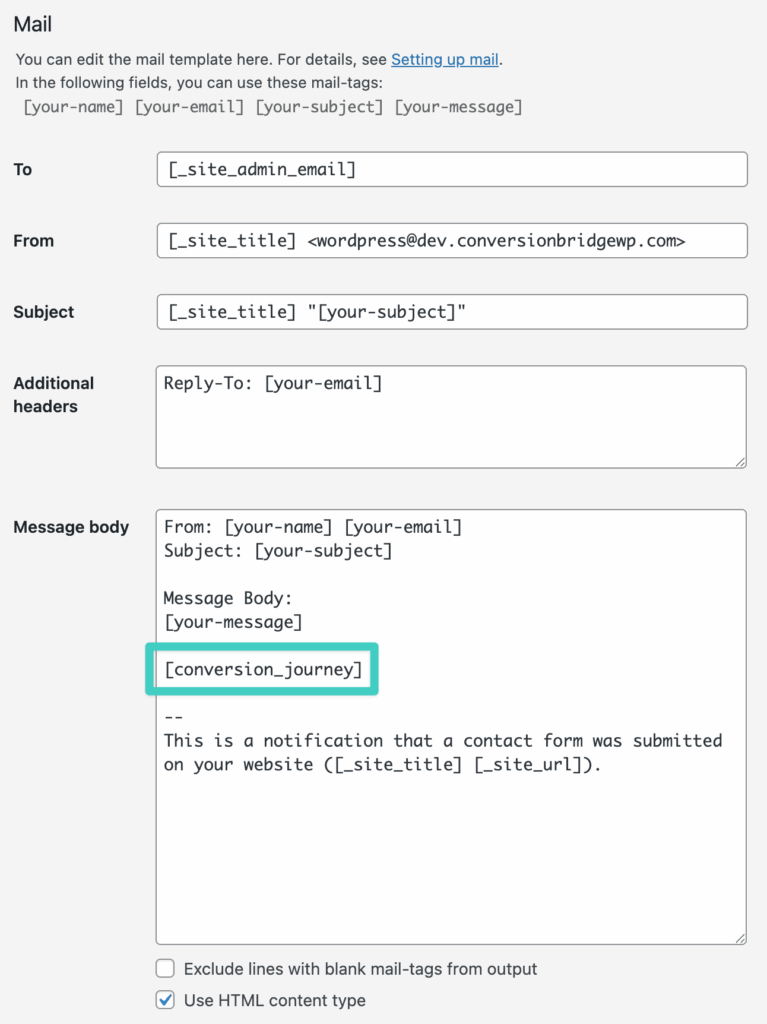
To include the Conversion Journey in the any of the emails (recommend only Admin notification emails), you can insert the [conversion_journey] template tag within the content of the email you would like it to appear.
Pass UTM Parameters and Ad Click IDs
Add a hidden field to your form and set its value to a Conversion Bridge tag, like [hidden gclid "cb_gclid"]. Conversion Bridge fills in the real value at submission, so it flows into the stored entry, notification emails, and any connected CRM, Zapier, or webhook feed.
Swap gclid and cb_gclid for any other UTM parameter or click ID, such as [hidden utm_source "cb_utm_source"]. Ad click IDs (gclid, fbclid, msclkid, ttclid, li_fat_id, epik, gbraid, wbraid) only fill in once the visitor has given marketing consent. UTM parametersUTM parameters are tags added to a link that show where traffic comes from and which campaigns lead to real conversions. don't need consent on their own, but Conversion Bridge only remembers them from page to page once the visitor has accepted your banner, so before that they only fill in on the page that has them in the URL. See Pass UTM Parameters and Ad Click IDs into Forms for the full list of tags.