
Conversion Bridge makes it easy to setup conversion tracking for Elementor widgets. It currently supports:
- Form Widget
- Button Widget
- Call to ActionA prompt that encourages users to take a specific action, such as clicking a button, submitting a form, or making a purchase.
- PayPal Button
- Stripe Button
- Video
Enabling conversion tracking on an Elementor widget
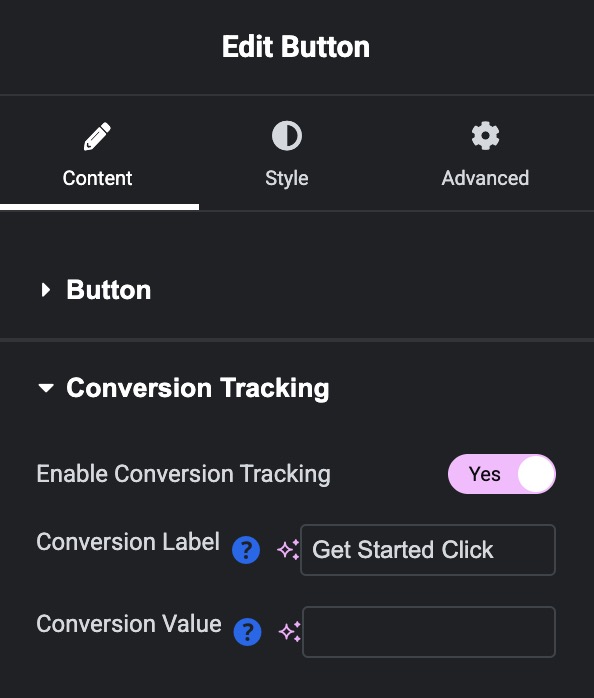
Conversion Bridge adds a new settings section to every supported Elementor widget called "Conversion Tracking" as seen in the screenshot below. Open the new settings section and click the "Enable Conversion Tracking" toggle.
That's it! Conversions will be tracked on the respective button click, form submission, or video play in every analytics or ad platform you have configured with Conversion Brige.
You can optionally enter a Conversion Label and Value
Sending Enhanced Conversion Data in Elementor Forms
Enhanced conversions send personal details like an email address, name, or mailing address to your ad platforms so they can match a conversion to a real customer. Elementor Forms doesn't have built-in name or address field types, so every field other than Email and Phone shows up as a generic Text field.
To fix this, Conversion Bridge adds a "Conversion Bridge Data" dropdown to each form field. Edit any field in the form editor, open its Content tab, and choose what that field collects: Email, First Name, Last Name, Phone, Address, City, State, Zip / Postal Code, or Country. Email and Phone fields are detected automatically, but mapping the rest of your fields lets Conversion Bridge send that data along with the conversion for more accurate enhanced conversion matching.
Including Conversion Journey in Form Notification Emails
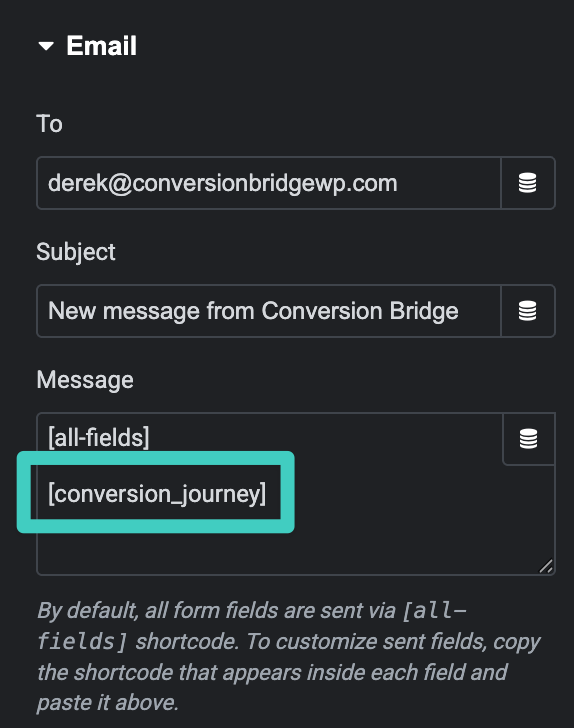
To include the Conversion Journey in the any of the emails (recommend only Admin notification emails), you can insert the [conversion_journey] template tag within the content of the email you would like it to appear.
Pass UTM Parameters and Ad Click IDs into Elementor Forms
You can capture a visitor's UTM parameters or ad click IDs (like Google's gclid) directly in an Elementor form. Add a Hidden field to the form, then set its Default Value to a Conversion Bridge tag, like {cb_gclid} or {cb_utm_source}.
Conversion Bridge fills the hidden field in when the form is submitted, so the value is saved with the entry and passed along to notification emails, your CRM, or any connected webhook. Ad click IDs only fill in when the visitor has given marketing consent. UTM parametersUTM parameters are tags added to a link that show where traffic comes from and which campaigns lead to real conversions. don't need consent on their own, but Conversion Bridge only remembers them from page to page once the visitor has accepted your banner, so before that they only fill in on the page that has them in the URL. See Pass UTM Parameters and Ad Click IDs into Forms for the full list of supported tags.