
Conversion Bridge tracks form submissions from weForms as conversions. Each form can be individually configured with its own conversion tracking settings.
Setup Instructions
- In your WordPress admin, go to Settings > Conversion Bridge > Integrations.
- Find weForms in the list and enable the integration.
- Click See Forms or go to the weForms form editor to configure tracking on individual forms.
Configuring Tracking on a Form
Each form has its own conversion tracking settings within the weForms form editor:
- Edit a form in weForms.
- Go to the Settings tab.
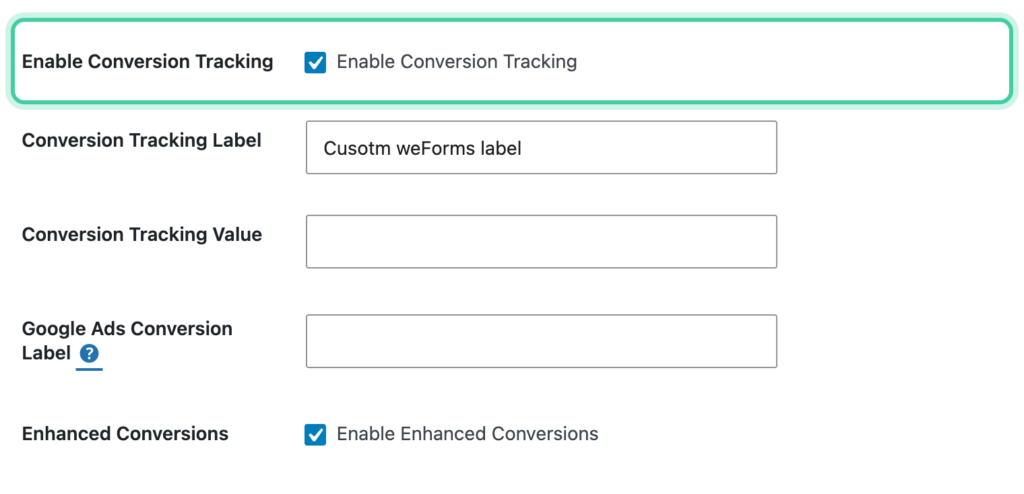
- Check Enable Conversion Tracking to turn on tracking for this form.
- Optionally enter a Conversion Tracking Label (default: "Form Submission"). Learn more about conversion labels and values.
- Optionally enter a Conversion Tracking Value.
- Optionally check Enable Enhanced Conversions to capture the subscriber's email and phone from the form.
- Save the form.
How It Works
- When a visitor submits a form with conversion tracking enabled, Conversion Bridge fires a form submission event.
- The event fires on the client side when the form is submitted, so no page reload is needed.
- Only forms with conversion tracking enabled will fire events. Forms without it enabled are not tracked.
Tracked Data
Every event includes a conversion label and conversion value.
Form submission events include:
title— The form namelabel— The conversion labelid— The form ID
Enhanced conversion data
When enhanced conversions is enabled on a form, Conversion Bridge captures the visitor's email and phone from the form fields and includes them as enhanced conversion data:
_email— Email address from the form's email field_phone— Phone number from the form's phone field
Pass UTM Parameters and Ad Click IDs
Add a Custom Hidden Field to your form and set its meta value to a Conversion Bridge tag, like {cb_gclid}. Conversion Bridge fills in the real value at submission, so it flows into the stored entry, notification emails, and any connected CRM, Zapier, or webhook feed.
UTM parameters, like {cb_utm_source}, don't need consent on their own, but Conversion Bridge only remembers them from page to page once the visitor has accepted your banner, so before that they only fill in on the page that has them in the URL. Ad click IDs, like {cb_gclid}, {cb_fbclid}, or {cb_msclkid}, only fill in once the visitor has given marketing consent. See Pass UTM Parameters and Ad Click IDs into Forms for the full list of tags.