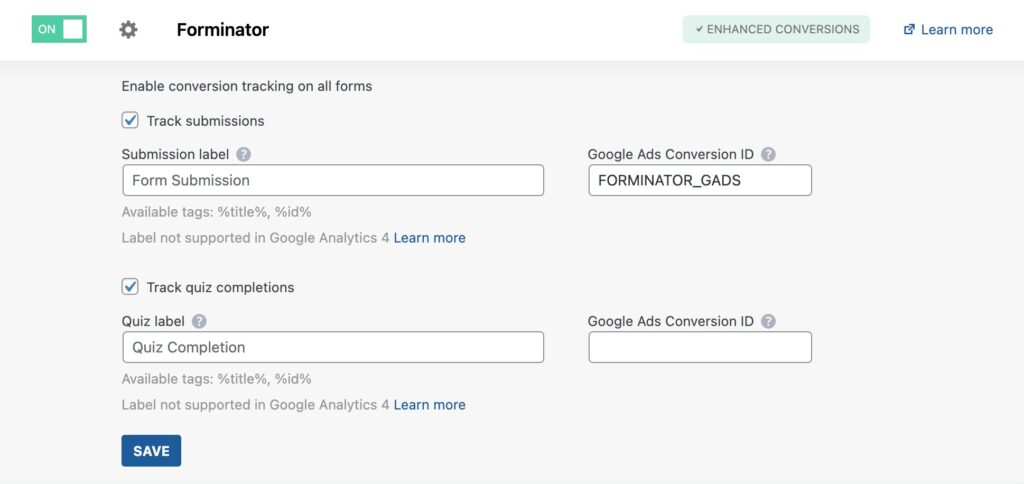
At this time, the Forniator integration does not allow settings on a per form basis and instead only allows overall settings integration.
To setup the integration:
- In your WordPress admin, go to Settings > Conversion Bridge > Integrations
- Enable the toggle for Forminator
- Check the option for "Track submissions" or "Track quiz completions"
- (Optional) Enter your ad platform conversion IDs as needed (Note: These will apply to all forms)
Enhanced Conversions
If you have enabled an ad platform and the respective Enhanced Conversions setting for it, then Conversion Bridge will use the first email field found in the form to use for Enhanced Conversions.
Including Conversion Journey in Emails
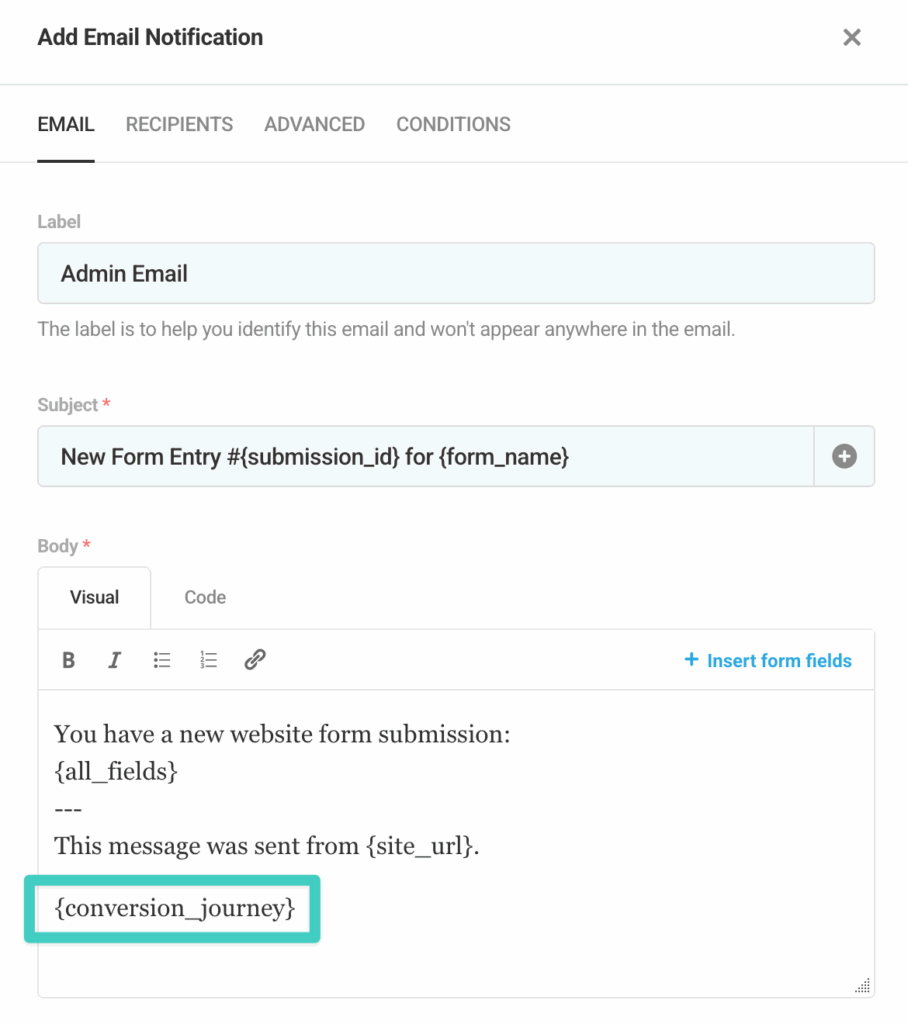
To include the Conversion Journey in the any of the emails (recommend only Admin notification emails), you can insert the {conversion_journey} shortcode within the content of the email you would like it to appear.
Pass UTM Parameters and Ad Click IDs
You can capture a visitor's UTM parameters and ad click IDs (like gclid or fbclid) in a form entry. Add a Hidden field to your form, then choose the Conversion Bridge value you want from the field's Default Value dropdown, instead of typing a tag.
Ad click IDAn ad click ID is a code an ad platform adds to your link when someone clicks your ad. It lets you connect a later conversion back to the exact ad. values only fill in when the visitor has granted marketing consent. UTMUTM parameters are tags added to a link that show where traffic comes from and which campaigns lead to real conversions. values like source and campaign don't need consent on their own, but Conversion Bridge only remembers them from page to page once the visitor has accepted your banner, so before that they only fill in on the page that has them in the URL. See Pass UTM Parameters and Ad Click IDs into Forms for the full list of available values.