
Conversion Bridge tracks photo orders from Sunshine Photo Cart as conversions. When a customer completes a purchase, a conversion event with the full order details is sent to all your connected analytics and ad platforms.
Setup Instructions
- In your WordPress admin, go to Settings > Conversion Bridge > Integrations.
- Find Sunshine Photo Cart in the list and enable the integration.
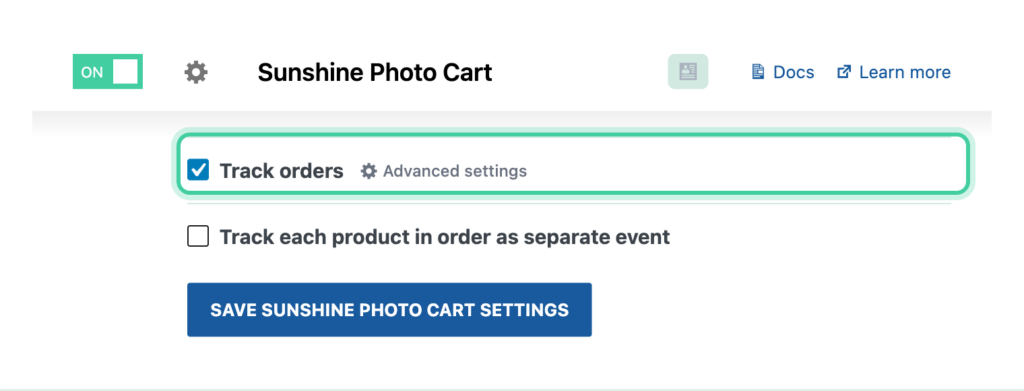
- Check Track orders to track completed purchases. Optionally customize the Order label (default: "Order"). Learn more about conversion labels and values.
- Optionally check Track each product in order as separate event to fire an additional event for each item in the order. You can customize the Product item purchase label (default: "Order Item: %title%"). Use
%title%to include the product name. - Click Save Changes to start tracking your conversions.
How It Works
- When a customer completes a purchase, Conversion Bridge reads the order details from the receipt page and fires a purchase event.
- The purchase event includes the full order total, currency, shipping, tax, and a breakdown of every item in the order.
- If individual item tracking is enabled, a separate event is fired for each product in the order alongside the main purchase event.
- Each order is only tracked once to prevent duplicate conversions.
Tracked Data
Every event includes a conversion label and conversion value.
Purchase event
transaction_id— The order IDcurrency— The order currencyshipping— Shipping amounttax— Tax amountitems— Array of products in the order:item_id— Product IDitem_name— Product namecategory— Gallery nameprice— Product pricequantity— Quantity ordered
Individual item event
id— Product IDname— Product namequantity— Quantity orderedprice— Product price
Enhanced conversion data
Conversion Bridge automatically includes customer data with purchase events as enhanced conversion data:
_email— Customer email address_first_name— Customer first name_last_name— Customer last name_phone— Customer phone number
Custom Event Labels
You can customize the labels for each event type:
- Order label: Default is "Order". Used for the main purchase event.
- Product item purchase label: Default is "Order Item: %title%". Use
%title%to insert the product name. For example, "Photo: %title%" would produce "Photo: Family Portrait 8x10".