The Paid Memberships Pro integration sends membership events to your enabled analytics and ad platforms. It tracks each step a new member takes, from viewing your levels to completing checkout.
Enabling Paid Memberships Pro Conversion Tracking
- In your WordPress admin, go to Settings → Conversion Bridge.
- Click the Integrations tab.
- Click the toggle next to Paid Memberships Pro.
- Check the box for each event you want to track. Each event also has an optional custom label field.
- Click Save Changes to start tracking your conversions.
These are the events you can turn on, with their default labels:
- Track membership purchases (Membership Purchase): someone completes checkout for a level. Free levels count too, with a value of 0.
- Track begin checkout (Begin checkout): someone opens the checkout page for a level.
- Track membership levels page views (Membership levels): someone views your Levels page.
- Track membership level selection (Select level: %title%): someone clicks Select or Renew on a level. This is sent as an add to cart event, since Paid Memberships Pro doesn't have a cart.
%title%is replaced with the level name. - Track registrations (Membership registration): someone creates a new account during checkout.
How It Works
- The levels page view lists the levels your visitors can actually see. Hidden levels are left out.
- Level selection works with the standard Levels page and with any custom page that links to your checkout with a level.
- The registration event is sent on the first page the new member sees after checkout. That's usually the confirmation page. If they pay on another site, like PayPal, it's sent when they come back.
- Each purchase is only tracked once, even if the member reloads the confirmation page.
Registration vs. Login
When someone creates an account at checkout, Paid Memberships Pro logs them in right away. Conversion Bridge counts that as a registration, not a login, so a new member isn't counted twice.
Logins on your Paid Memberships Pro login page are tracked by the Core WordPress integration. Turn on Track logins there if you want them.
Tracked Data
Every event includes a conversion label and conversion value.
Membership purchase
transaction_id: order codecurrency: your Paid Memberships Pro currencyitems: the level purchased, withitem_id(level ID),item_name(level name),price, andquantitycoupon: discount code, if one was usedtax: tax amount, if any
Enhanced conversion data: email, first_name, last_name, phone, city, state, zip, country
Begin checkout and level selection
currency: your Paid Memberships Pro currencyitems: the level, withitem_id,item_name,price, andquantity
Levels page view
currency: your Paid Memberships Pro currencyitem_list_name: the title of your Levels pageitems: every level shown, withitem_id,item_name,price,quantity, andindex(its position on the page)
Registration
Enhanced conversion data: email, first_name, last_name
User Information
The integration can include data to analytics platforms which support custom properties regarding your users. It will pass the following:
- is_member: yes/no
- membership: Name of the membership for the current logged in user
Enhanced Conversions
The integration will automatically include the member's email and name (plus phone and address on purchases, when you collect them) to ad platforms which support Enhanced Conversions and have it enabled in your Conversion Bridge settings for the ad platform.
Including Conversion Journey in Emails
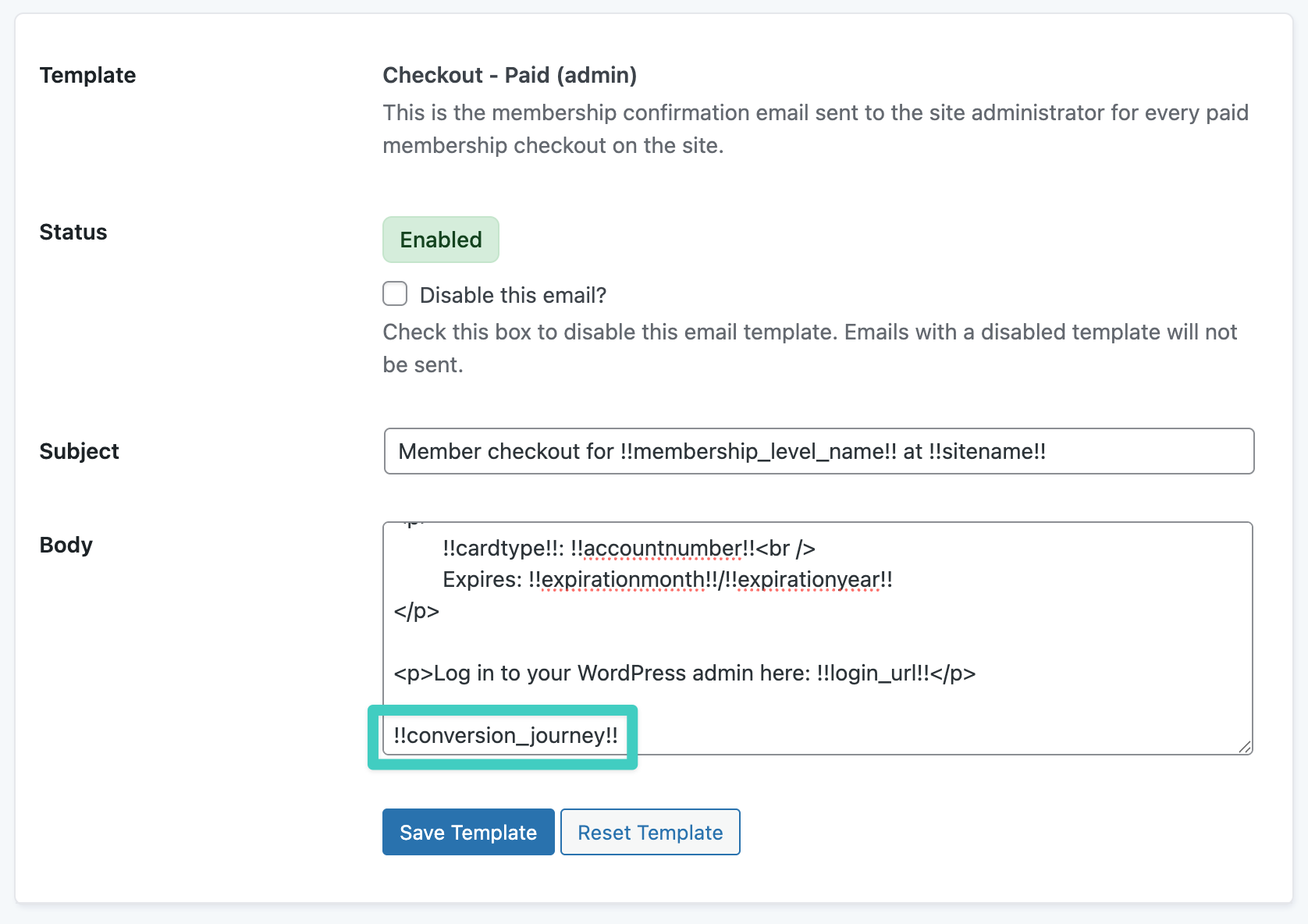
You can use the !!conversion_journey!! variable where you would like to include the Conversion Journey in your notification email (Recommended only in admin emails).
UTM Parameters and Ad Click IDs
Conversion Bridge automatically saves the member's UTM parameters and ad click IDs (like gclid, fbclid, and msclkid) to each membership order. No setup is needed. You can export this data to use for offline conversion imports in your CRM or ad platform. See Passing UTM Parameters and Click IDs into Forms for details.