
The MemberPress integration tracks membership purchases and file downloads from the MemberPress membership plugin. MemberPress is a popular WordPress plugin for selling memberships, online courses, and digital content.
This integration automatically tracks:
- Membership purchases: When a member completes a membership purchase
- File downloads: When a member downloads a file (requires the MemberPress Downloads addon)
It also sends membership status and membership name as user info properties to your connected analytics platforms.
Setup Instructions
Step 1: Enable the Integration
- In your WordPress admin, go to Settings > Conversion Bridge > Integrations
- Find MemberPress in the list of available integrations
- Enable the integration by checking the checkbox
Step 2: Configure Purchase Tracking
- Enable Track purchases to track completed membership purchases
- Optionally customize the Order label (default: "Order")You can use
%title%in the label to include the membership name (for example, "Order - %title%") - Optionally enable Enhanced conversions to send customer email and name data to supported platforms
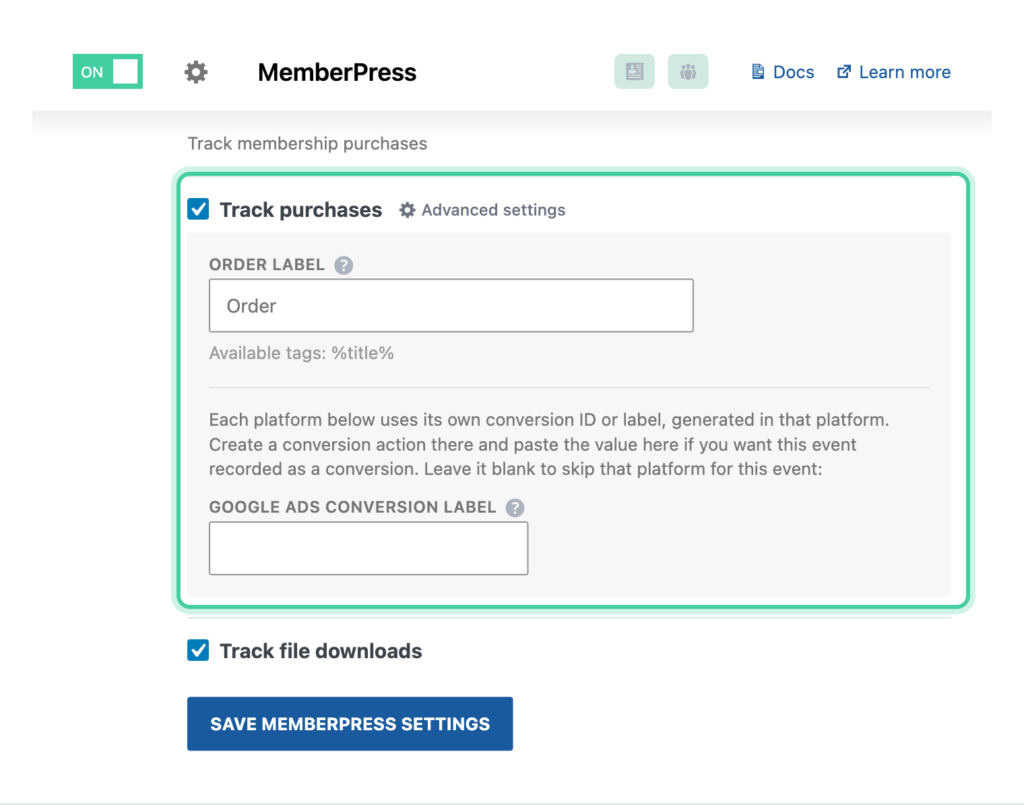
Step 3: Configure File Download Tracking
- Enable Track file downloads to track when members download files
- This requires the MemberPress Downloads addon to be installed and active
- Optionally customize the Download label (default: "Download")
- You can use
%title%in the label to include the file name (for example, "Downloaded %title%")
Step 4: Save Settings
Click Save Changes to activate the integration.
How It Works
Purchase Tracking
When a member completes a membership purchase:
- Thank You Page: MemberPress redirects the member to a confirmation page with transaction details in the URL
- Transaction Lookup: Conversion Bridge reads the transaction data from MemberPress using the transaction ID, subscription ID, or transaction number
- Duplicate Prevention: Each transaction is marked after tracking so the same purchase is never tracked twice
- Event Data: The event includes the transaction ID, total amount, currency, membership item details, and customer information (if enhanced conversions is enabled)
- Session Saved: Conversion Bridge saves the session ID to the MemberPress transaction for conversion journey tracking
File Download Tracking
When a member clicks a file download link:
- Click Detection: Conversion Bridge listens for clicks on MemberPress Downloads file links
- File Data Captured: The file URL and file name are captured from the download link
- Event Tracked: A file download event is sent to your connected analytics platforms
User Info Tracking
On every page load, Conversion Bridge checks the current visitor's membership status and sends the following user info properties to your analytics platforms:
- is_member: Set to "yes" if the visitor has an active membership, or "no" if they do not
- membership: The name of the visitor's active membership (if they have one)
This data is available as user properties in platforms like Google Analytics 4, so you can segment your reports by membership status.
Tracked Data
Purchase Event
The membership purchase event includes:
- Transaction ID: The MemberPress transaction number
- Amount: Total purchase amount
- Currency: Currency code from your MemberPress settings
- Tax: Tax amount (if applicable)
- Items: Array containing the purchased membership:
- Item ID (membership product ID)
- Item name (membership title)
- Price
- Quantity (always 1)
- Customer Data (if enhanced conversions enabled):
- Email address
- First name
- Last name
- Phone number
- City
- State
- Postal / ZIP code
- Country
File Download Event
The file download event includes:
- File URL: The URL of the downloaded file
- File Title: The display name of the downloaded file
User Info Properties
The following properties are set on every page load:
- is_member: "yes" or "no"
- membership: The name of the active membership plan
Enhanced Conversions
When enhanced conversions is enabled, Conversion Bridge automatically includes the customer's email address, first name, last name, phone number, and full billing address (city, state, postal code, and country) with purchase events. This data is sent to platforms that support enhanced conversions (such as Google Ads and Meta Ads) to improve conversion tracking accuracy and attributionThe process of determining which channels, campaigns, or actions contributed to a conversion, helping you understand what influenced a visitor’s decision to take action..
The email and name come from the WordPress user account associated with the MemberPress transaction. The phone, city, state, postal code, and country come from the standard MemberPress billing address fields on the user profile.
Recurring Subscriptions
For recurring MemberPress subscriptions where the initial transaction total is $0 (free trial, prorated upgrade, etc.), Conversion Bridge reports the subscription amount as the conversion value instead of $0. This ensures recurring purchases show up with their real value in your analytics.
Note: Enhanced conversion data is only sent with purchase events, not file download events. The data is only sent to platforms that support it and is handled according to each platform's privacy requirements.
Conversion Journeys
Conversion Bridge automatically saves the session ID to each MemberPress transaction. This powers conversion journeys, which let you see exactly how a customer found your site and what pages they visited before purchasing a membership.
You can view the conversion journey directly from the MemberPress transactions list:
- Go to MemberPress > Transactions in your WordPress admin
- Find the transaction you want to review
- Click View Journey in the row actions to see the full conversion journey
This shows you the traffic source, landing page, pages visited, and timeline leading up to the purchase.
UTM Parameters and Ad Click IDs
Conversion Bridge automatically saves the customer's UTM parametersUTM parameters are tags added to a link that show where traffic comes from and which campaigns lead to real conversions. and ad click IDs (like gclid, fbclid, and msclkid) to each MemberPress transaction. No setup is needed. You can export this data to use for offline conversion imports in your CRM or ad platform. See Passing UTM Parameters and Click IDs into Forms for details.
Custom Event Labels
You can customize both event labels to better identify events in your analytics platforms:
- Order Label: Default is "Order". Use
%title%to include the membership name. - Example: "MemberPress - %title%" would output "MemberPress - Gold Membership"
- Download Label: Default is "Download". Use
%title%to include the file name. - Example: "File Downloaded: %title%" would output "File Downloaded: Getting Started Guide"
Custom labels help you tell MemberPress events apart from other conversion events when you have multiple integrations active.