
The LatePoint integration tracks appointment bookings and orders from the LatePoint appointment scheduling plugin. LatePoint is a comprehensive WordPress plugin for managing appointments, bookings, and service-based businesses.
This integration automatically tracks:
- Completed bookings/orders: When customers successfully book an appointment
- Booking form started: When customers begin the booking process (begin checkout)
Setup Instructions
Step 1: Enable the Integration
- In your WordPress admin, go to Settings → Conversion Bridge → Integrations
- Find LatePoint in the list of available integrations
- Enable the integration by checking the checkbox
Step 2: Configure Booking Tracking
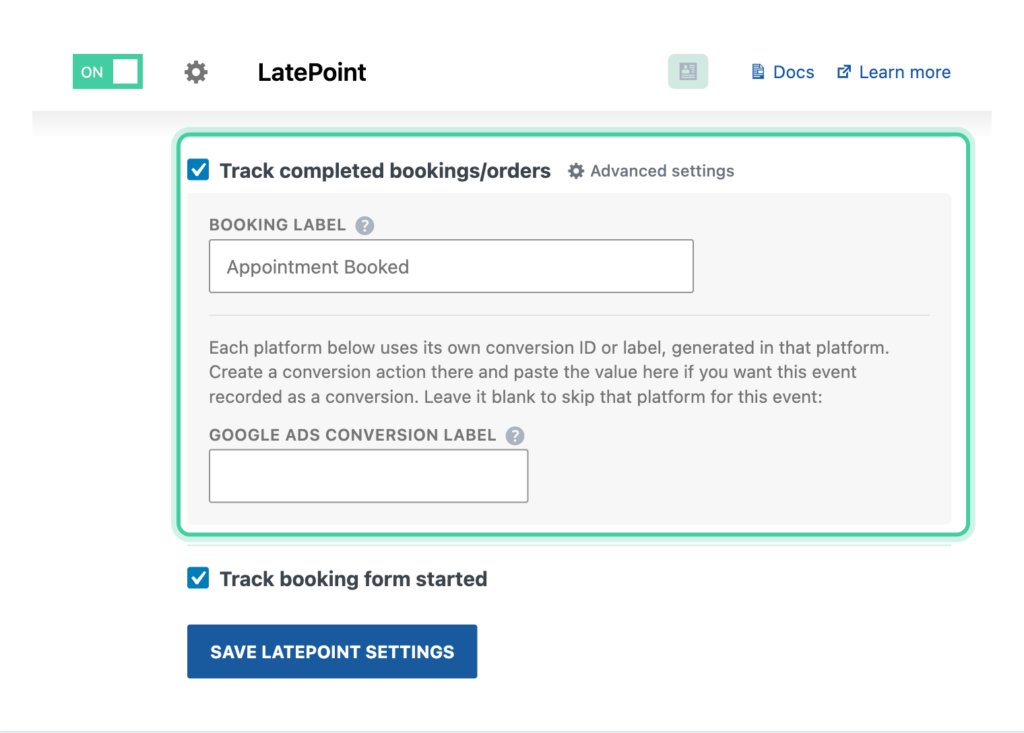
- Enable Track completed bookings/orders to track successful appointment bookings
- Optionally customize the Booking label (default: "Appointment Booked")
- Enable Track booking form started to track when customers begin the booking process
- Optionally customize the Begin booking label (default: "Started Booking")
- Optionally enable Enhanced conversions to send customer email, name, and phone data to supported platforms
Step 3: Save Settings
Click Save Changes to activate the integration.
How It Works
Booking Completion Tracking
When a customer completes a booking:
- Booking Created: LatePoint creates the booking and fires the
latepoint_booking_createdhook - Session ID Saved: Conversion Bridge saves the session ID to the booking for conversion journey tracking
- Confirmation Step: When the confirmation step is displayed, Conversion Bridge tracks the booking event
- Event Data: The event includes:
- Transaction ID (confirmation code or order ID)
- Total amount
- Currency
- Service items (bookings and bundles)
- Customer information (if enhanced conversions enabled)
- Coupon code (if used)
- Tax amount (if applicable)
Begin Checkout Tracking
When a customer starts the booking form:
- Form Initialization: LatePoint fires the
latepoint:initBookingFormJavaScript event - Event Tracking: Conversion Bridge listens for this event and tracks a "begin checkout" event
- Currency: The event includes the currency from your LatePoint settings
Tracked Data
Booking Completion Event
The booking completion event includes:
- Transaction ID: Confirmation code or order ID
- Amount: Total booking amount
- Currency: Currency code from LatePoint settings
- Items: Array of booked services, bundles, and extras including:
- Service ID
- Service name
- Price
- Quantity
- Service extras (requires LatePoint Pro Features addon) — each extra is tracked as its own line item with name, price, and quantity
- Customer Data (if enhanced conversions enabled):
- Email address
- First name
- Last name
- Phone number
- Coupon: Coupon code if used
- Tax: Tax amount if applicable
Begin Checkout Event
The begin checkout event does not include any product information due to it being triggered at the very start of the booking process.
Enhanced Conversions
When enhanced conversions is enabled, Conversion Bridge automatically includes customer email, name, and phone data with booking events. This data is sent to platforms that support enhanced conversions (such as Google Ads, Meta Ads and more) to improve conversion tracking accuracy and attributionThe process of determining which channels, campaigns, or actions contributed to a conversion, helping you understand what influenced a visitor’s decision to take action..
Enhanced conversion data is only sent to platforms that support it and is handled according to each platform's privacy requirements.
Conversion Journey Tracking
Conversion Bridge automatically saves the session ID to each booking and order to associate the conversion journey. This allows you to:
- View Conversion Journey: See the conversion journey in the LatePoint order quick edit form
- Email Templates: Use the
{{conversion_journey}}variable in LatePoint email templates to include the conversion journey
Using Conversion Journey in Email Templates
In your LatePoint email templates, you can use:
{{conversion_journey}}
This will be replaced with the conversion journey text showing how the customer found your site and what pages they visited before booking.
Custom Event Labels
You can customize both event labels to better identify events in your analytics platforms:
- Booking Label: Default is "Appointment Booked"
- Begin Booking Label: Default is "Started Booking"