Setting up LinkedIn Ads has a few extra steps that is ideal because of their Campaign Manager UI. These steps will walk you through the initial setup to make it as easy as possible for you:
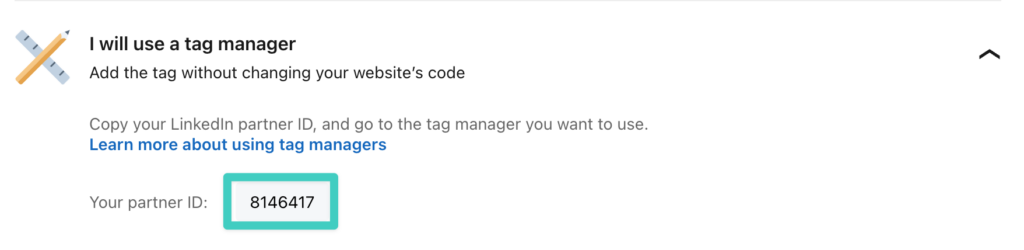
Setup Insights Tag & Get Partner ID
- Go to LinkedIn Campaign Manager
- Go to Data > Website Actions
- Click on the "Create Insight Tag" button
- Click on "I will use tag manager"
- Copy the Partner ID and paste it into the Conversion Bridge settings for LinkedIn Ads
You do not actually need to use any tag manager, Conversion Bridge just needs your Partner ID to properly integrate and this is the easiest place to find it
First-Party Cookies
LinkedIn can add a click ID (li_fat_id) to your ad landing page URLs. The Insight Tag stores that ID in a first-party cookie on your domain for 30 days and uses it to match conversions back to the ad click. This keeps conversion matching accurate as browsers phase out third-party cookiesA small piece of data stored in a user’s browser that helps websites remember user activity, preferences, or sessions across visits..
LinkedIn calls this setting "Enhanced conversion tracking." Despite the similar name, it is not the same as Enhanced Conversions below. This setting handles the click ID cookie. Enhanced Conversions send first-party user data, like an email address, with a conversion.
New Insight Tags have it enabled by default. To confirm it is on:
- Go to LinkedIn Campaign Manager
- Go to the Data section, then Signals manager
- Open your Insight Tag settings
- Check "Enable enhanced conversion tracking" and save
No Conversion Bridge configuration is needed. The Insight Tag that Conversion Bridge loads manages the cookie on its own. Conversion Bridge also captures the li_fat_id click ID into your conversion journey data automatically, so your attributionThe process of determining which channels, campaigns, or actions contributed to a conversion, helping you understand what influenced a visitor’s decision to take action. reports and offline conversion form fields include it even when an ad blocker stops the Insight Tag from loading.
Creating Conversion IDs
Every conversion event you track in LinkedIn Ads needs a unique conversion ID. When the integration is active, you will see an extra field wherever you enable conversion tracking for the plugin integration.
- Go to LinkedIn Campaign Manager
- Go to Measurement > Conversion Tracking
- Click on"Create Conversion"
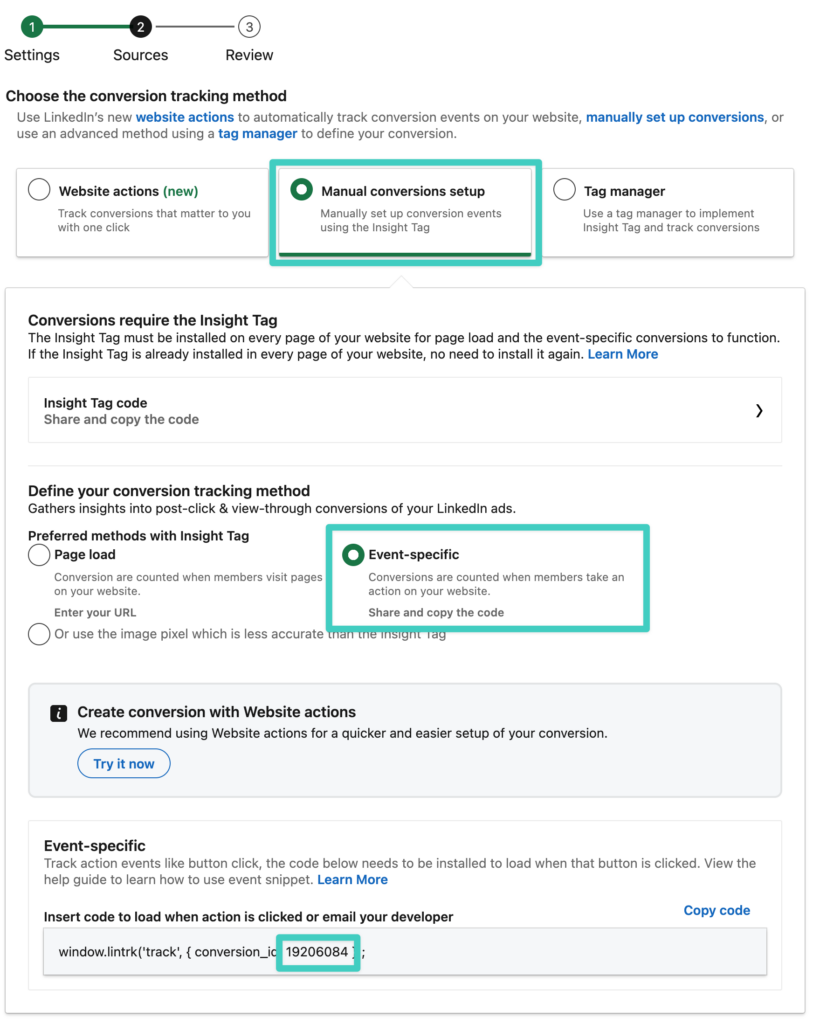
- Select "Insight Tag Conversion"
- Provide as much information as you can about the conversion event to match what it will be tracking, click "Next Step"
- Select "Manual conversions setup", select "Event specific"
- Copy the unique numerical ID from the code and paste into the Conversion Bridge field for your LinkedIn Ads Conversion ID
- Continue to next step to complete saving the Conversion
Choose or Create Conversions From Conversion Bridge
Once you've saved a Conversions API access token (see the next section), you don't have to copy IDs out of Campaign Manager anymore. A Choose from LinkedIn button shows up under every LinkedIn Ads Conversion ID field.
- Use existing lists the Insight Tag conversions already in your LinkedIn ad account. Search for one and click Use this one.
- Create new makes a new conversion in LinkedIn for you. Give it a name and pick a type. Conversion Bridge guesses the type from the event, like Purchase for an order or Lead for a form. Add to all my campaigns is checked by default, so the conversion counts for your campaigns right away. LinkedIn adds it to up to 200 campaigns.
Either way, the conversion ID is filled in for you. Click save on that settings screen to keep it.
Server-Side Tracking (Conversions API)
The Insight Tag runs in the visitor's browser, so ad blockers and privacy tools can stop it. LinkedIn's Conversions API lets Conversion Bridge also send each conversion from your own server, straight to LinkedIn. That way LinkedIn still hears about conversions the browser missed.
Step 1: Get an Access Token
- Go to LinkedIn Campaign Manager
- Go to the Data section, then Signals manager
- Open Direct API and generate an access token
- Copy the token
Tokens made this way don't expire, so you only do this once.
Step 2: Add the Token to Conversion Bridge
- Go to Settings → Conversion Bridge → Ads and open the LinkedIn settings
- Paste the token into Conversions API Access Token
- Save your LinkedIn settings
Leave Ad Account ID empty, since Conversion Bridge fills it in the first time you use Choose from LinkedIn. You only need to enter it yourself if your token can see more than one ad account.
Step 3: Set Up Each Conversion With Choose From LinkedIn
For each event you track, click Choose from LinkedIn under its LinkedIn Ads Conversion ID field and pick or create the conversion, then save.
LinkedIn wants the browser and the server to report to two separate conversions. When you pick or create a conversion, Conversion Bridge also creates its server-side copy in LinkedIn, named after the original with "(server)" on the end, and adds it to the same campaigns. You don't need to touch the server copy.
Only conversions set up with Choose from LinkedIn are sent from your server. If you typed in a conversion ID by hand before, it keeps working in the browser. To send it server-side too, click Choose from LinkedIn and pick that same conversion.
How It Works
- Each conversion is sent from both the browser and your server, with the same event ID. LinkedIn sees the two copies and only counts it once.
- LinkedIn needs something to match the conversion to a person. Every server-side conversion includes the LinkedIn click ID (when the visitor came from a LinkedIn ad) and the visitor's IP address.
- With Enhanced Conversions turned on, the visitor's email, name and other details go along too, hashed first. LinkedIn only uses names when it has both a first and last name.
- If there's nothing to match on, like a visitor with no click ID, no email and a newer style (IPv6) IP address, the conversion isn't sent server-side. It still goes through the browser.
- If you use a cookie banner, server-side conversions wait for the visitor to allow marketing cookies, just like the Insight Tag.
- If LinkedIn turns down a conversion, for example because the token was removed, you'll see a notice in your WordPress admin that links to Conversion Bridge's Health screen with the reason.
Enhanced Conversions
LinkedIn allows for Enhanced Conversions to be tracked. This allows your website to send first-party dataInformation collected directly from your website visitors, customers, or users—such as form submissions, purchase history, and behavior on your site. securely along with your conversion data to better associate an initial user click with a conversion.
Most plugin conversion tracking integrations will automatically send enhanced conversion tracking data without any additional configuration. However, learn how to configure Enhanced Conversions for form integrations.