
Snapchat conversion tracking means telling Snapchat when someone who saw or clicked one of your ads completes a valuable action on your site, like a purchase or a form submission. Conversion Bridge handles all of the Snapchat tracking code for you. It adds the Snap Pixel to every page and fires the right conversion event when someone converts, so you can see which ads actually lead to sales and sign-ups.
Setting Up the Snap Pixel
The Snap Pixel is a small piece of JavaScript that runs in your visitor's browser and reports page visits and conversions back to Snapchat. Conversion Bridge adds it to every page of your site once you enter your Pixel ID.
- Go to ads.snapchat.com
- Open Events Manager
- Select your event source, or create one if you don't have it yet
- Copy your Snap Pixel ID. It looks like a long string of letters and numbers separated by dashes
- Paste it into the Snap Pixel ID field in Settings → Conversion Bridge → Platforms
- Click Save Changes to start tracking your conversions

Snapchat Conversions API
The Snapchat Conversions API sends conversions from your server straight to Snapchat, instead of relying only on the browser pixel. Conversion Bridge can send both at once: the pixel event from the browser, and a matching copy from your server. That second copy still arrives when an ad blocker or a browser privacy setting stops the pixel, so fewer conversions go missing.
Both copies carry the same ID, so Snapchat matches them up and counts the conversion once.
To turn it on:
- In Events Manager, open your event source, click Set Up Conversions API, choose Manual Setup, and click through to the Event Source Setup step
- Copy the value shown under Your Access Token
- Paste it into the Access Token field in Conversion Bridge
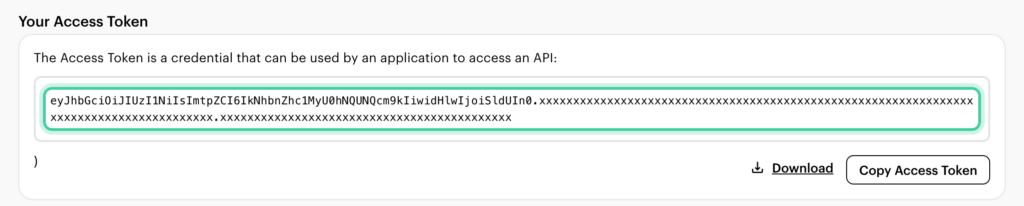
Snapchat issues one token per account, so the same token works for every event source you have.
The Access Token is optional. Without it, your conversions still track through the Snap Pixel. The token only adds the server-side copy.
Events Conversion Bridge Sends
Snapchat uses its own set of event names. Conversion Bridge translates each conversion into the closest Snapchat event automatically, so you don't have to map anything yourself.
| What happens on your site | What Snapchat records |
|---|---|
| Purchase or donation | PURCHASE |
| Booking with a value | PURCHASE |
| Booking without a value | RESERVE |
| Add to cart | ADD_CART |
| Product view | VIEW_CONTENT |
| Category or list view | LIST_VIEW |
| Begin checkout | START_CHECKOUT |
| Form submission, registration, or enrollment | SIGN_UP |
| Subscribe | SUBSCRIBE |
| Trial | START_TRIAL |
| Search | SEARCH |
| Login | LOGIN |
| Share | SHARE |
| Page view | PAGE_VIEW |
Anything that doesn't match one of these, like a button click, is sent as a custom event with a tag naming what it was.
Every event also includes a conversion label and a conversion value. You can read more about those in the Conversion Label and Conversion Value guide.
Enhanced Conversions
When someone converts, you can send enhanced conversion data along with the event so Snapchat can match the conversion to the person who saw your ad. This improves your attribution, which means more of your real conversions get credited to the ads that caused them.
Conversion Bridge can send the visitor's email address, phone number, first and last name, city, state, ZIP code, and country. Every one of these is scrambled into an unreadable code on your own site before it is sent. Snapchat only ever receives the scrambled version, never the raw details.
Conversion Bridge also passes along Snapchat's own click identifier and first-party cookie when they are available, which helps Snapchat connect the conversion back to the original ad click.
Page View Tracking
The Snap Pixel already reports page views from the browser. The Track all Page Views? setting additionally sends every page view from your server through the Conversions API, deduplicated against the pixel.
This makes page view measurement more resistant to ad blockers, but it adds a request on every single page load, which increases the load on your server. It is off by default, and most sites do not need it. Conversion tracking works fine without it.
Test Mode
Test Mode sends your Conversions API events to Snapchat's validation address instead of the live one. Your events get checked and you get a real response back showing whether they were accepted, but nothing is recorded in your reporting.
Use it while you are confirming your setup works, then turn it off. Leaving it on means none of your conversions are recorded.