
If you're running Meta ads to a WordPress site, you need the Meta Pixel on it, and that part takes about a minute. I've seen plenty of people paste the pixel snippet in, see it light up in Pixel Helper, and reasonably think they're done, when what they have is page view tracking. The part that pays off is getting the pixel to report the events Meta optimizes on: a form submitted, an order placed, an account created.
That payoff is money, because Meta's ad delivery learns from the conversions your pixel reports, so once it sees real leads and real orders it can find more people like the ones who bought instead of the ones who merely visited. Better tracking means better-optimized ads, which means less ad spend per conversion and more conversions from the same budget.
I build Conversion Bridge, a WordPress plugin whose whole job is that second part, so the events are where most of this post goes.
Installing the Meta Pixel on WordPress
Out of the box the Meta Pixel does one thing: it fires PageView on every page and sets a cookie so Meta can recognize the browser again. That is enough for retargeting and nothing more. Meta has no idea that /thank-you/ means a form was submitted or that /order-received/ means someone paid, so the base tracking pixel is table stakes, and the real job is getting from PageView to the events that matter.
To install it, create a pixel in Meta Events Manager (Connect Data Sources, then Web) and copy the Pixel ID. Meta now calls the container a dataset, so you may see "Dataset ID" instead; it's the same number. Then put it on the site one of three ways:
- Meta's own Meta Pixel for WordPress plugin. Free, official, paste your ID and done. It fires PageView everywhere, the store events for WooCommerce, Easy Digital Downloads and WP eCommerce, and Lead for six form builders. I read through its code while writing this, and that is the whole list.
- A code snippet plugin or your theme's header settings. Works everywhere, tracks nothing beyond PageView.
- A conversion tracking plugin that handles the pixel and the events together. With Conversion Bridge you paste the Pixel ID once in Settings → Conversion Bridge → Ad Platforms → Meta, and it loads the pixel and fires conversion events from 71 WordPress plugins.
Whichever route you take, install the Meta Pixel Helper extension in Chrome (recently renamed Meta Ads Data Advisor, same tool) and confirm you see exactly one PageView per page. Two means the pixel is installed twice, which happens more often than you'd think when a theme, a page builder and a plugin each offer to add it.
Conversion Bridge supports more than one Meta Pixel on the same site, each with its own access token, which is handy for agencies. See the Meta Ads setup guide.
One plugin for Meta, or one plugin for everything
Meta's plugin can only fire conversion events for the plugins it knows how to listen to, and that list is three store plugins and six form builders. If your conversions come through a membership plugin, a course plugin, a booking plugin, a donation plugin, a popup, or any other form builder, Meta's plugin has no way to know they happened, so they never reach Meta. Conversion Bridge fires events from 71 WordPress plugins, and the list grows with nearly every release.
The other limit is that Meta's plugin only talks to Meta. Most sites running Meta ads also run Google Analytics or a privacy-focused tool like Plausible, and many run Google Ads too, and each wants the same conversions in its own format. One plugin per platform quickly becomes a plugin for Meta, a plugin for GA4, a snippet for Plausible and a tag for Google Ads, each with its own settings and each covering a different subset of your plugins.
Conversion Bridge is built to be the one tracking plugin in the stack. It connects to 11 ad platforms and 19 analytics platforms, and every one of them can receive events from every one of the 71 plugin integrations. A conversion is detected once and sent everywhere you've turned on, mapped to each platform's own event names, so one form submission reaches Meta as Lead, Google Ads as your conversion action, and GA4 as generate_lead from a single setting.
See the full list of supported platforms and plugins.
The events Meta actually cares about
Meta optimizes ad delivery around its fixed list of standard events. When you tell a campaign to optimize for Purchase or Lead, it looks for an event with exactly that name. A custom event named form_sent shows up in Events Manager, but you can't optimize a campaign on it without extra setup. The standard events that matter for most WordPress sites:
| What happened on your site | The Meta event to send |
|---|---|
| A contact or lead form was submitted | Lead |
| Someone created an account or joined a membership | CompleteRegistration |
| Someone started a free trial | StartTrial |
| Someone joined an email list | Subscribe |
| Someone viewed a product | ViewContent |
| Something went in the cart | AddToCart |
| Checkout started | InitiateCheckout |
| An order was paid | Purchase (with the value and currency) |
| A donation was made | Donate |
Getting those events to fire from your plugins
Every conversion on a WordPress site happens inside some other plugin. The form plugin knows when a form was submitted, the store plugin knows when an order was paid and for how much, the membership plugin knows when a member joined, and the pixel on its own knows none of that. Something has to carry the news from the plugin that saw the conversion to the pixel that reports it.
The usual shortcut is to fire the event on the thank-you page: put fbq('track', 'Lead') on /thank-you/ and every visit counts as a lead. This can technically work as long as every conversion lands on its own URL, and it falls apart when one person loads that page more than once. They refresh it, their browser restores the tab the next day, or they bookmark it, and each load is another Lead or Purchase in Meta's eyes. A form that redirects elsewhere never fires at all, and an order value has to be scraped out of the page with custom code.
Meta's own plugin has this problem for purchases. I checked version 5.2.1, the current release: it fires Purchase on every load of the WooCommerce thank-you page and again when the payment gateway reports payment complete, with no check for whether that order was already sent and a fresh random event ID each time, so the copies can't be matched up. Its deduplicationDeduplication prevents the same conversion from being counted twice. It keeps your data accurate and is handled automatically by Conversion Bridge. pairs a browser event with its own server copy, never one page load with the next.
The better way is to listen to the plugin itself and count the conversion, not the page load. When a form plugin confirms a submission, fire Lead right then with the form name as the label. When the store marks an order paid, fire Purchase with the real total, currency and line items from the order record. Conversion Bridge does exactly that, and it writes a flag onto the order or entry the first time the event fires and checks for it before firing again, so reloading the confirmation page ten times still means one Purchase. You turn on the events you want per plugin, the Meta mapping above is applied automatically, and the change default event types guide covers cases where you want a different one.
Add the Conversions API, and deduplicate it
The browser pixel misses conversions when an ad blocker is on, when browser privacy settings get in the way, or when the visitor closes the tab before it finishes sending. Meta's Conversions API sends the same event from your web server, so it doesn't have those problems, and Meta recommends running both. The plain-language Conversions API guide goes into why.
Running both means every purchase reaches Meta twice, and if Meta counts both your reported conversions double and your cost per result looks half of what it really is. The fix is deduplication: both copies carry the same event ID and event name, and Meta keeps one. Conversion Bridge generates that ID for every conversion and attaches it to both the pixel call and the API call, so this works as soon as you add your access token.
The event name matters as much as the ID, because Meta matches on both together. If the pixel says Purchase and the server says purchase, deduplication fails without any error, the event is counted twice, and Events Manager shows the server copy on its own "Conversions API only" row, which makes it look like the pixel is broken when it isn't. Conversion Bridge uses a single event mapping for both the pixel and the API, so the names always match.
Send customer data with the events
Meta matches conversions to people better when the event carries hashed customer details. That's what Meta calls advanced matching and what the wider industry calls enhanced conversions: email, name, phone and address hashed with SHA-256 before they leave your server. On a WordPress site that data is right there at the moment of conversion, in the form entry, the order or the new account. Conversion Bridge collects it from the plugin that saw the conversion, hashes it, and sends it with both the pixel and the API event. You can see the effect as the Event Match Quality score in Events Manager, and the event match quality guide walks through reading it.
Consent and the Meta Pixel
If your site shows a cookie banner, the pixel should wait for marketing consent before it does anything. Most cookie banners can block a script until consent, but blocking the pixel outright also blocks the events, so a form submitted before consent is lost. With a supported cookie banner active, Conversion Bridge loads the pixel but holds its PageView and events until the visitor grants marketing consent, using Meta's own consent controls rather than a blunt script block. The cookie banner integrations page lists which banners are supported.
Checking that it all works
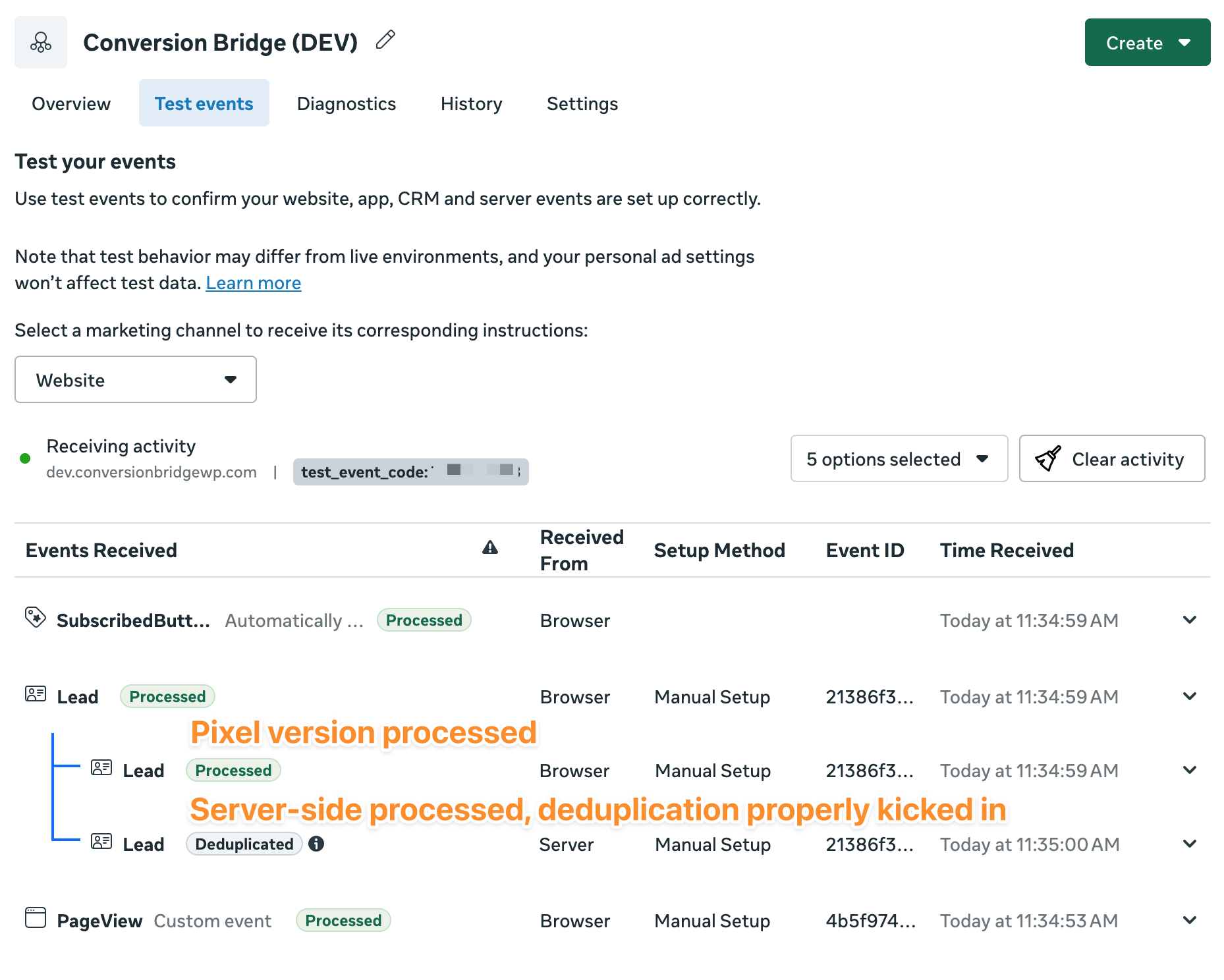
Pixel Helper shows what the browser pixel fired on the page in front of you, so submit a test form and you should see Lead next to PageView. The Test Events tab in Events Manager shows browser and server events arriving together; Conversion Bridge has a Test Event Code field in the Meta settings so your server-side tests show up there without touching real data. Submit that same test form and you should see one Lead arrive from the browser and one from the server, with the server copy marked as deduplicated. The confirming conversions are tracking guide covers the rest of the checklist.
Turn on server and console logging in Settings → Conversion Bridge → Advanced while you test. Every event the plugin fires, and every Conversions API response, is written to the log.
Where to go from here
If you've only ever had the base pixel installed, adding real conversion events is the single biggest improvement you can make to how Meta spends your budget, and if Meta is one of several platforms you report to, doing it once for all of them is the second. The Meta Ads page lists everything Conversion Bridge does with Meta, and the integrations list shows which of your plugins it can fire events from. Happy tracking!