You've set up Conversion Bridge and connected your platforms. Now you want to make sure everything is actually working. This guide walks you through how to verify that tracking scripts are loading, events are firing, and data is reaching your platforms.
Note: By default, the most common reason you are not seeing events tracked is because you run a test while logged in as an administrator. By default, Conversion Bridge does not load any tracking or conversion scripts for Administrator level users (you can change this in settings). See more common reasons tracking may not be working on your site.
Use Console Logging to Watch Events in Real Time
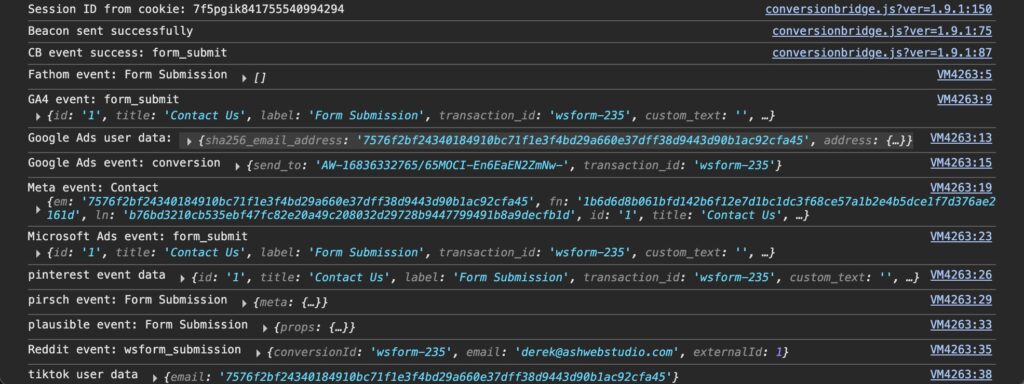
Console logging is the fastest way to confirm that conversion events are firing and reaching each platform. In Settings > Conversion Bridge > Options, scroll to the Advanced section and turn on Console logging. See How to debug events: Enable logging for details.
- Open your site in a private/incognito browser window
- Open your browser's developer tools (F12 or right-click > Inspect) and go to the Console tab
- Perform your conversion action (submit a form, complete a purchase, click a button, etc.)
You'll see messages from Conversion Bridge showing:
- Which events were queued and tracked
- Which platforms successfully received the data
- What data was sent to each platform
- Any errors or rejections (for example, if consent was not granted)
This gives you immediate confirmation that your conversion events are working, without waiting for data to appear in your platform dashboards.
Check Conversion Journeys
If you have conversion journey tracking turned on, you can confirm a conversion was recorded without opening developer tools at all.
- Do your test conversion
- Go to Settings > Conversion Bridge > Journeys
- Click the Refresh button above the table. The table is cached for an hour, so a conversion you just made won't show up until you refresh
- Click the session ID to open the journey and see the pages that were viewed, plus the conversion event and its timestamp
Only sessions that ended in a conversion show up here. A visit with pageviews but no conversion won't appear, so an empty table before your test is normal.
One important limit: seeing the journey means Conversion Bridge recorded the conversion. It does not mean your analytics or ad platform received it. Use console logging or check the platform itself to confirm that part.
Journey tracking is turned on in Settings > Conversion Bridge > Options under Conversion Tracking, with the "Enable conversion journey tracking" checkbox.
Use Platform Browser Extensions
Most ad and analytics platforms offer free Chrome extensions that show you exactly what data their pixel is sending from your site. Install one or more of these and visit your site to confirm tracking is active:
- Google Tag Assistant — Google Analytics and Google Ads
- Meta Pixel Helper — Meta (Facebook) Ads
- TikTok Pixel Helper — TikTok Ads
- Microsoft Ads UET Tag Helper — Microsoft Ads
- Reddit Pixel Helper — Reddit Ads
- Pinterest Tag Helper — Pinterest Ads
- X Pixel Helper — X (Twitter) Ads
These extensions show a badge on your browser toolbar when the pixel is detected. Click it to see the events and data being sent. They're especially helpful for confirming that conversion events (not just pageviews) are being received by the platform.
Check Your Platform Dashboards
After triggering a test conversion, check your platform's dashboard to confirm the data arrived.
How quickly data appears depends on the platform:
- Most analytics platforms are near real time. Plausible, Fathom, Umami, Pirsch, Simple Analytics, PostHog, Microsoft Clarity, and ad platforms like Meta, TikTok, and LinkedIn all show data within a minute or two. Run your test conversion, wait about a minute, then refresh the platform's dashboard and look for it
- Analytics plugins that report inside WordPress (Independent Analytics, AnalyticsWP, Koko Analytics) show the data in wp-admin almost instantly
- Google Analytics (GA4): The Realtime report shows data within seconds, but standard reports can take 24-48 hours to process
- Google Ads: Conversion data can take 24-48 hours to appear in your Google Ads reports. This is normal, so don't assume something is broken if you don't see data right away
For Google products, use the GA4 Realtime report or console logging to confirm events are firing. Then give the standard reports a day or two to catch up.
GA4 debug mode
GA4 also has a debug mode that sends your events to a separate DebugView screen, so you can watch them arrive one by one instead of hunting through the Realtime report. Turn on the Debug mode checkbox in your Google Analytics settings in Conversion Bridge, then open Admin > DebugView in GA4. Turn it back off when you're done testing.
See Google Analytics: Debug Mode for the full steps.
Test Conversion Events
Some conversions, like purchases, membership signups, or subscription payments, are designed to track only once per transaction. If you've already completed a test purchase and want to test again without creating a new order, Conversion Bridge has URL parameters that help.
Re-trigger a tracked event
Add ?cb_force_event=1 to the confirmation or thank-you page URL. This tells Conversion Bridge to fire the event again even if it has already been tracked for that order. Useful for testing purchase confirmation pages, form submissions, or any one-time event without needing a fresh transaction.
Start a fresh tracking session
Add ?cb_restart=1 to any page URL. This clears your current tracking session and starts a new one. Use this when you want to test the full first-visit experience, including conversion journey tracking and landing page attributionThe process of determining which channels, campaigns, or actions contributed to a conversion, helping you understand what influenced a visitor’s decision to take action., as if you were a brand-new visitor.
If You're Using a Cookie Consent Banner
When a consent banner is active, tracking is paused until the visitor accepts cookiesA small piece of data stored in a user’s browser that helps websites remember user activity, preferences, or sessions across visits.. To test the full consent flow:
- Turn on Console logging in Settings > Conversion Bridge > Options, under Advanced
- Open your site in a private/incognito browser window
- Open the browser console
- You should see messages indicating that tracking is waiting for consent
- Accept cookies through the consent banner
- The console should now show consent being granted and events starting to fire
- Perform your conversion action and confirm events are tracked
If tracking doesn't start after accepting cookies, check your consent configuration in Settings > Conversion Bridge > Consent.
Still Not Seeing Data?
If you've worked through the steps above and events still aren't showing up, these guides cover the most common causes:
- Tracking not showing on my site, which covers the role and environment settings that turn tracking off
- A security plugin or firewall is blocking the REST API
- Performance plugins and delayed JavaScript
- How to test for conflicts with other plugins