
Free Chrome Extension
A pixel helper for every tracking pixel
Pixel Helper & Tag Inspector is a free Chrome extension that shows what each page sends to Meta, Google Analytics, Google Ads, TikTok and more than 25 other analytics and ad platforms, all in one side panel.
What It Shows
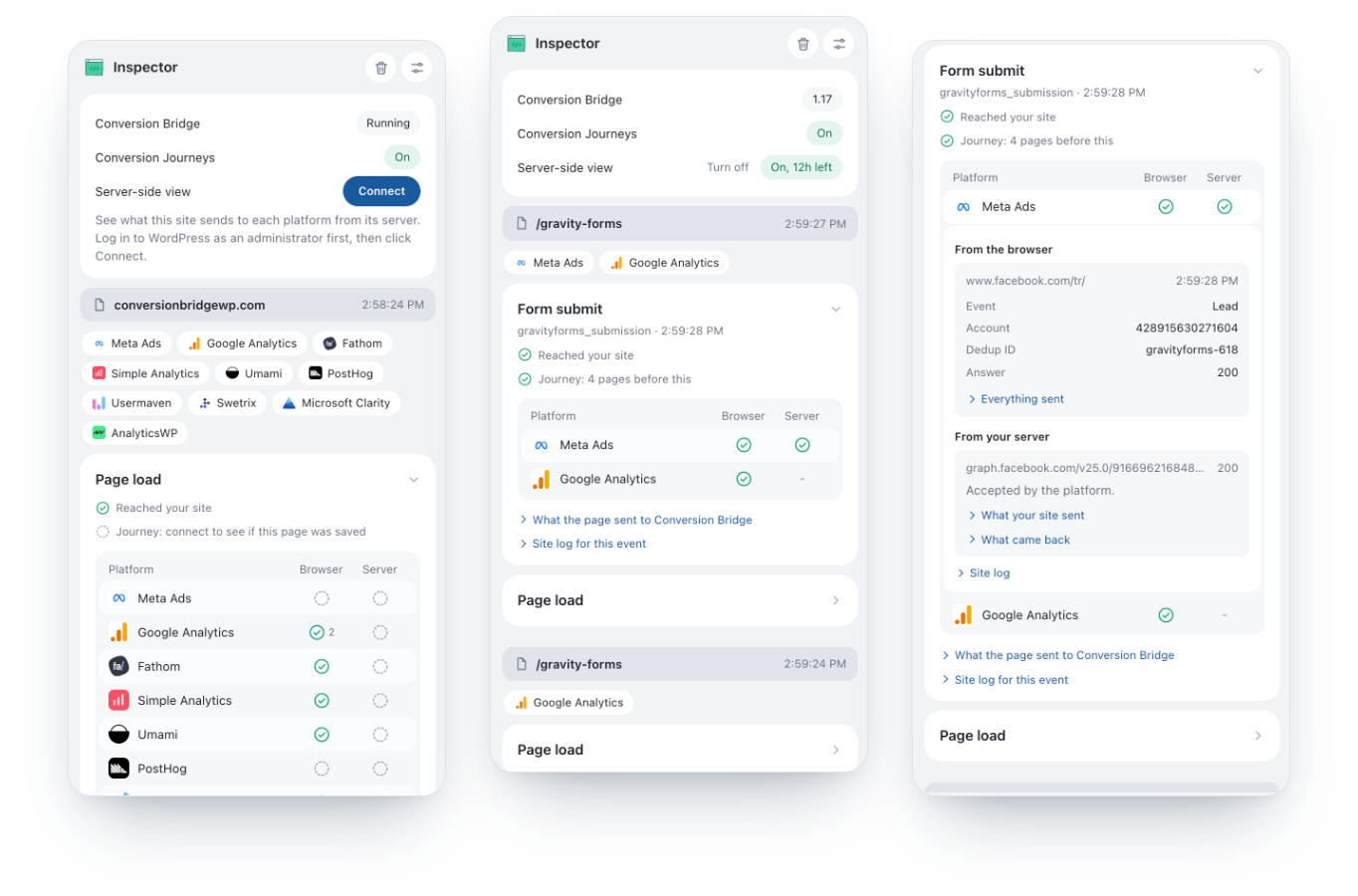
Everything a page sends, in one list
Every platform on the page
Each analytics and ad platform the page loads shows up as a chip. Click chips to show only the platforms you care about.
One card per event
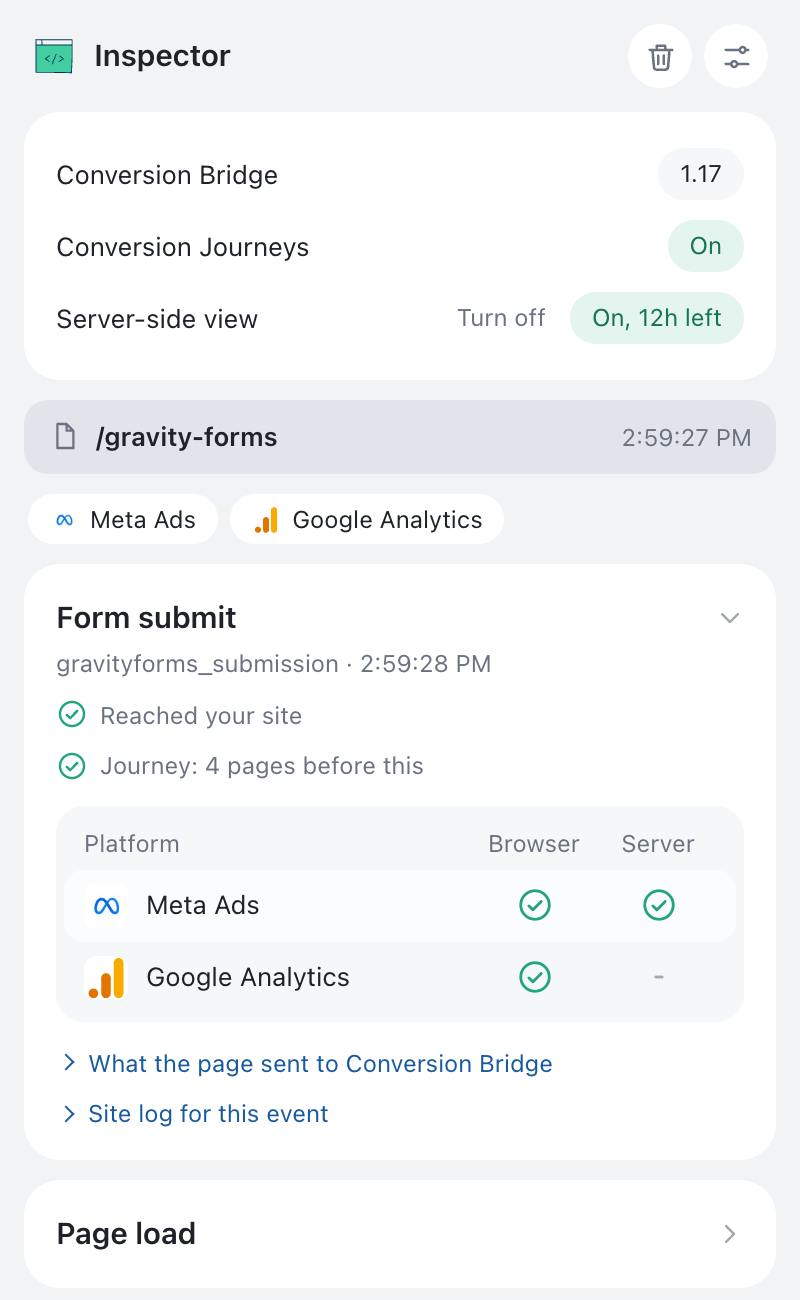
Form submits, purchases and other events each get their own card, with a row for every platform that received them.
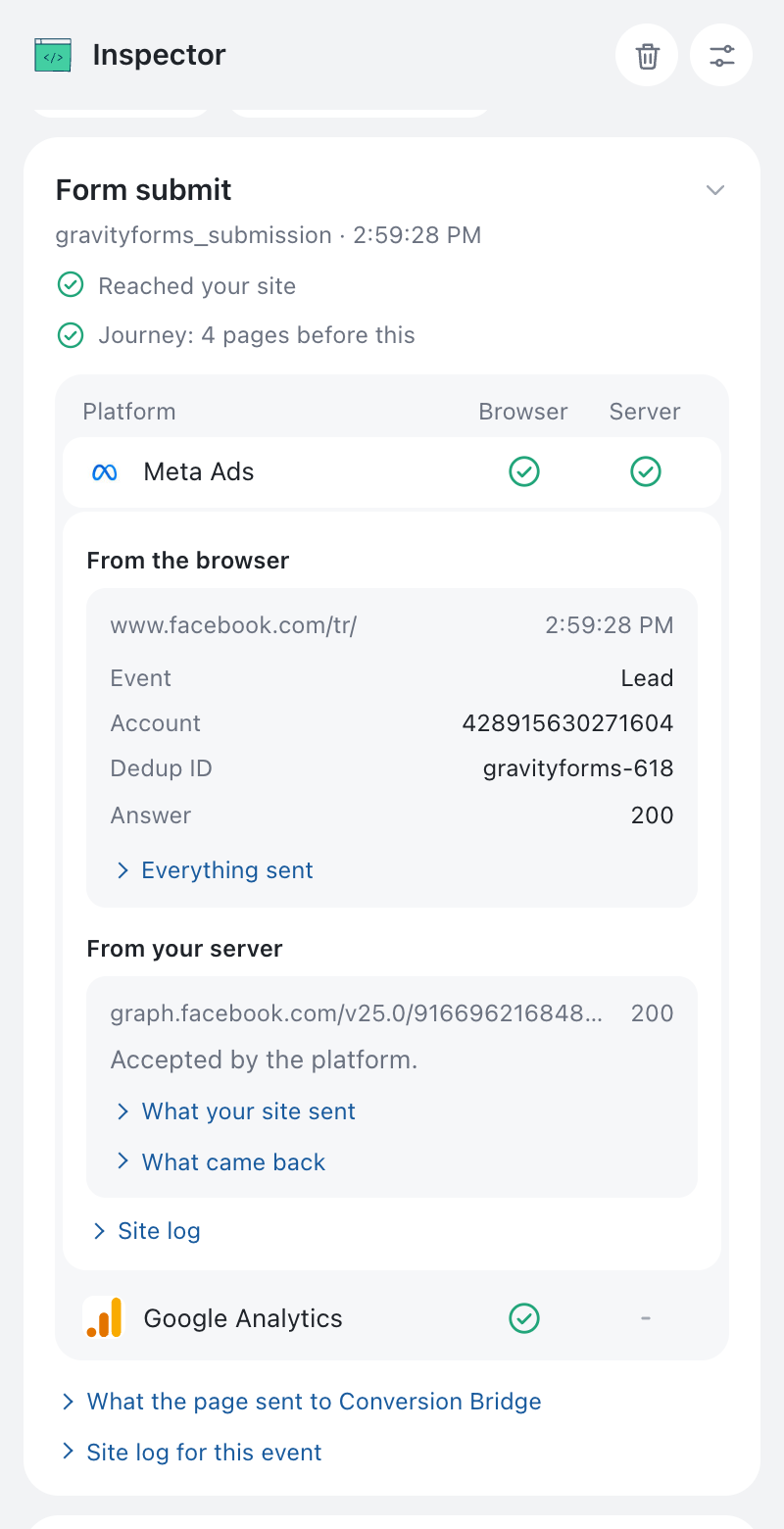
The exact data sent
Open any row to see the event name, account ID, value, currency and dedup ID, plus everything else that went with it.
Blocked and broken scripts
A red chip means a tracking script was blocked by an ad blocker or didn’t load, which usually points to a wrong ID.
Every page of a visit
Each page view gets its own section, so you can follow a visit from the landing page all the way to the thank-you page.
Works on any website
Open it on your own site, a client’s site or any other site to see which platforms it uses and what they receive.
Find out why a pixel isn’t firing
When a conversion doesn’t show up in your ad platform, the panel shows you where it stopped.
- Blocked by the browser: the platform’s chip turns red and its row says the request was blocked. Ad blockers and privacy extensions cause most of these.
- A wrong or missing ID: the script didn’t load, or the account shown in the row isn’t the one you set up.
- Waiting for consent: the script loaded but nothing was sent, because the visitor hasn’t accepted the cookie banner yet.
- The wrong event: each row shows the exact event name the platform received, so a lead sent as a page view stands out right away.
On Conversion Bridge Sites
See what your server sent, too
Server-side tracking sends conversions to your ad platforms from your website’s server, where ad blockers can’t stop them. No browser extension can see those sends on its own, so on sites running Conversion Bridge 1.17 or later, the extension asks the site.
Log in as an administrator, click Connect, and every event gets a Server column next to the Browser one.
- What your site sent to each platform, and the platform’s answer, including its error message if it turned the event down
- Whether each page was added to the visitor’s Conversion Journey
- Your own test conversions, even when your site doesn’t track logged-in administrators
19 Analytics Platforms
The extension shows what each page sends to these analytics platforms, and which events they received.


















11 Ad Platforms
See every conversion these ad platforms received from the browser, and on Conversion Bridge sites, from your server.








Your data stays in your browser
Everything the extension reads stays on your computer. Nothing is sent to me or anyone else, and the extension has no tracking of its own. You can read the details in the privacy policy.
Common questions
Yes, it’s free to install and works on any website. The server-side view also needs Conversion Bridge on the site you’re checking.
No, it shows what every page sends to its analytics and ad platforms on any site. Conversion Bridge adds the server-side view, the journey check and admin testing on sites that run it.
Something else on the site loads it. A theme, a plugin or Google Tag Manager can add a platform, and a Google Analytics tag can be linked to a Google Ads account in Google’s own settings, so its tag sends to both.
No, everything stays in your browser, and the extension has no tracking of its own. When you connect to your own WordPress site, it only talks to that site.
It works in Google Chrome 116 or later. Install it from the Chrome Web Store, then click its icon to open the side panel.

Hi, I’m Derek. I built this extension to check tracking on my own sites and my customers’ sites without switching between a different helper for every platform. If something in the panel doesn’t look right, send me a message with the page you were testing. Setup help is in the documentation.
Plans & Pricing
One plugin Every conversion Setup in minutes
Starting at only $79/year, every plan includes all integrations & features
- 14-day money back guarantee
- Premium 1-on-1 support
- No tag manager needed