
Cross-Domain Forwarding carries a visitor's UTM parametersUTM parameters are tags added to a link that show where traffic comes from and which campaigns lead to real conversions. and ad click IDs across to another domain you own, so the campaign that brought them in isn't lost when they move from your content site to a separate store, checkout, or booking site.
Overview
Conversion Bridge tracks each site on its own. If your marketing pages live on one domain and your store or checkout lives on another, the campaign details that brought a visitor in (like utm_source or a Google Ads gclid) normally stop at the domain boundary. The order gets recorded on the store, but with no idea which campaign, ad, or post led to it.
Cross-Domain Forwarding fixes that. When a visitor lands on your site with campaign parameters, Conversion Bridge adds those same parameters to any links pointing at the other domains you list. When the visitor clicks through, the destination site sees the campaign details in its own web address and can attribute the conversion correctly.
This is different from the _gl parameter you may notice on your links. That one is added by Google's own tag, and it only works between pages on the same site. Cross-Domain Forwarding is Conversion Bridge carrying your UTMs and click IDs to a different domain.
Setup Instructions
- In your WordPress admin, go to Settings > Conversion Bridge > Options.
- Find the Cross-Domain Forwarding section.
- Check Forward UTMs & click IDs.
- In the Domains box, enter each destination domain on its own line (for example,
store.example.com). List only the domains you own and want to send campaign data to. - Click Save Changes.
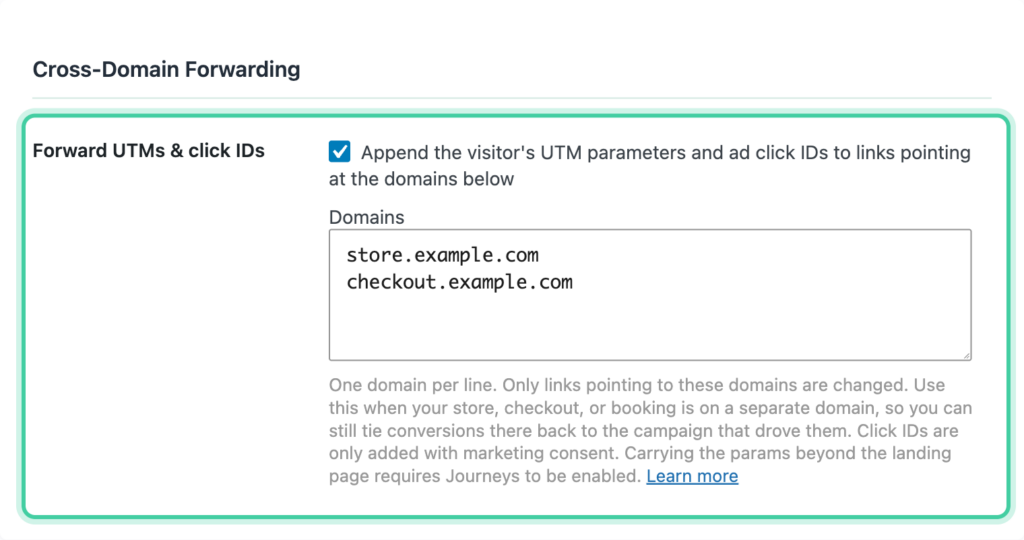
Only links pointing to the domains you list are ever changed. Every other link on your site is left alone.
How It Works
- When a visitor arrives with campaign parameters in the web address, those values are added to any link that points to one of your listed domains.
- On later pages, where the parameters are no longer in the address, Conversion Bridge fills them in from the visitor's session, so the links stay tagged as the visitor moves around your site.
- Parameters already on a link are never overwritten. Forwarding only adds what's missing.
- This all happens on your site. The destination site reads the parameters from its own incoming address, exactly as it would for any visitor arriving with UTM tags. Nothing needs to be installed on the other domain for it to receive them, though it does need its own tracking set up to record them.
What Gets Forwarded
- UTM parameters —
utm_source,utm_medium,utm_campaign,utm_term, andutm_content. - Ad click IDs — the click identifiers from the ad platforms you have enabled, such as
gclidandgbraid/wbraid(Google Ads),fbclid(Meta),msclkid(Microsoft), andttclid(TikTok). These let the destination site match the visit back to the exact ad click for conversion reporting.
Click IDs are only captured and forwarded for ad platforms you have enabled in Conversion Bridge. For example, gclid is only forwarded when Google Ads is enabled.
Consent and Privacy
Cross-Domain Forwarding follows the same principle as the rest of Conversion Bridge: nothing about the visit is stored until the visitor gives consent. Forwarding doesn't store anything. It adds values that are already in the visitor's address bar to links pointing at your own domains.
- UTM parameters are campaign labels, not personal data, so they're forwarded from the current page's URL with or without consent. Before consent that only helps on the landing page, since deeper pages have a clean URL and there's no saved session to fill in from until the visitor accepts.
- Ad click IDs are only forwarded after the visitor grants marketing consent through your cookie banner. Until then, the UTMs are carried but the click IDs are held back.
Once the visitor accepts, UTMs and click IDs are also filled in from their saved journey, so they forward from any page, not just the one they landed on.
Only domains you own and list yourself ever receive this data. Conversion Bridge never adds parameters to links pointing anywhere else.
Requirements and Limits
- Journeys must be enabled for forwarding to work on pages past the one the visitor first landed on. On that first page the parameters are still in the web address, so forwarding works either way. Beyond it, Conversion Bridge relies on the visitor's session to remember them.
- Click-ID forwarding needs the matching ad platform enabled, since that platform is what captures the click ID in the first place.
- Forwarding is added to standard links. Buttons and forms that submit to another domain aren't changed.