
Conversion Journeys is a powerful feature in Conversion Bridge that tracks and displays the complete path a user takes from their first visit to conversion. This feature provides detailed insights into how visitors interact with your website, which pages they visit, and what ultimately leads them to convert.
By tracking the full customer journey, you can:
- Understand which pages contribute to conversions
- Identify the most effective user paths
- Analyze traffic sources and UTM parametersUTM parameters are tags added to a link that show where traffic comes from and which campaigns lead to real conversions.
- Optimize your website based on actual user behavior
- Make data-driven decisions about content and navigation
What Are Conversion Journeys?
A conversion journey is the complete sequence of events (pageviews, conversions, and other tracked events) that occur during a user's session on your website, from their first pageview until they complete a conversion.
Key Components:
- Session ID: A unique identifier for each user session
- Pageviews: Every page the user visited
- Events: Conversion events and other tracked interactions
- UTM Parameters: Marketing attributionThe process of determining which channels, campaigns, or actions contributed to a conversion, helping you understand what influenced a visitor’s decision to take action. data (source, medium, campaign, etc.)
- Referrer: Where the user came from
- Timestamps: When each event occurred

Why Conversion Journeys Are Important
Complete Customer Understanding
Unlike simple conversion tracking that only shows the final action, Conversion Journeys reveal the entire customer path. This helps you understand:
- How many pages users visit before converting
- Which pages are most influential in the conversion process
- Where users might be getting stuck or dropping off
Marketing Attribution
Conversion Journeys capture UTM parameters from the first pageview, allowing you to see:
- Which marketing campaigns drive conversions
- How different traffic sources perform
- The relationship between marketing touchpoints and conversions
Content Optimization
By analyzing journey patterns, you can:
- Identify high-performing content that leads to conversions
- Discover content gaps or friction points
- Optimize your site structure and navigation
- Improve conversion rates by understanding user behavior
Troubleshooting and Support
When customers have issues or questions, you can:
- Review their exact journey to understand their experience
- Identify where problems might have occurred
- Provide better customer support with context
Getting Started
Enabling Conversion Journeys
Before you can use Conversion Journeys, you need to enable the feature:
- Navigate to Settings → Conversion Bridge in your WordPress admin
- Go to the Options tab
- Check the box for "Enable conversion journey tracking"
- Choose your tracking method (CookiesA small piece of data stored in a user’s browser that helps websites remember user activity, preferences, or sessions across visits. or Privacy-friendly fingerprinting)
- Click Save Changes
Accessing Conversion Journeys
- Navigate to Settings → Conversion Bridge in your WordPress admin
- Click on the Journeys tab
- You'll see a table listing all conversion journeys
Understanding the Conversion Journeys Table
The Conversion Journeys table displays all sessions that resulted in conversions, with detailed information about each journey.

Table Columns
Session
The unique session identifier for each conversion journey.
- Clickable links that open a detailed journey view
- Truncated display for long session IDs (shows first 30 characters)
- Clicking opens a modal (thickbox) with the complete journey timeline
Last Conversion
The type of conversion event that occurred (e.g., "Purchase", "Form Submission", "Signup").
- Shows the human-readable label for the conversion event type
- Only appears when viewing all journeys (not filtered by post)
- Helps you quickly identify what type of conversion occurred
Value
The monetary or numeric value associated with the conversion (if applicable).
- Shows the
event_valuefrom the conversion event - Useful for e-commerce conversions (order totals)
- May be empty for non-value conversions (like form submissions)
Date
When the conversion occurred displayed in your WordPress date/time format settings.
UTMs
UTM parameter values from the first pageview of the session.
- Source: Traffic source (e.g.,
google,facebook,newsletter) - Medium: Marketing medium (e.g.,
email,cpc,social) - Campaign: Campaign name
- Term: Search term (for paid search)
- Content: Content variation identifier
Source
The referrer URL or "Direct" if no referrer.
- Shows where the user came from (the referrer)
- Displays "Direct" for direct traffic (no referrer)
- Helps identify traffic sources beyond UTM parameters
Using Filters
The Conversion Journeys feature includes powerful filtering options to help you analyze specific subsets of journeys.
Date Range Filters
Preset Duration Options
Quick access buttons for common date ranges:
- Day: Shows conversions from today only
- Week: Shows conversions from the last 7 days
- Month: Shows conversions from the last 30 days
- Year: Shows conversions from the last 365 days
- All time: Shows all conversions since tracking began
How to use:
- Click on any duration button (Day, Week, Month, Year, All time)
- The table automatically refreshes with that date range
- The active duration is highlighted
Custom Date Range
For more precise date filtering, open the date range picker at the top of the screen.
- Pick a start date and an end date on the calendar
- Click Apply
The picker also has ready-made ranges you can choose instead: Today, Yesterday, Last 7 days, Last 30 days, Last 90 days, This month, Last month, Year to date, and Last 12 months. These are the same ranges used by the Overview report, so the two screens line up.
Features:
- Dates are limited to your earliest recorded event and today
- Both dates are inclusive (includes the full day)
- Custom ranges are preserved when using other filters
- Choosing your own dates switches the quick filter to a custom range
Event Type Filter
Filter journeys by the type of conversion event.
How to use:
- Click on the "Event Type" dropdown
- Check the boxes for the event types you want to see
- You can select multiple event types
- Click Apply Filters to apply
Available Event Types:
- Only shows event types that have actually occurred in your data
- Common types include: Purchase, Form Submission, Signup, Download, etc.
- Event types are displayed with their human-readable labels
UTM Parameter Filters
Filter journeys by UTM parameters from the first pageview. This is one of the most powerful filtering features.
How to use:
- Click on "Filter by UTM" dropdown
- The dropdown opens to show columns for each UTM parameter type
- Check boxes for the values you want to filter by
- You can select multiple values within each parameter type
- Multiple parameter types can be selected simultaneously (AND logic)
- Click Filter to apply
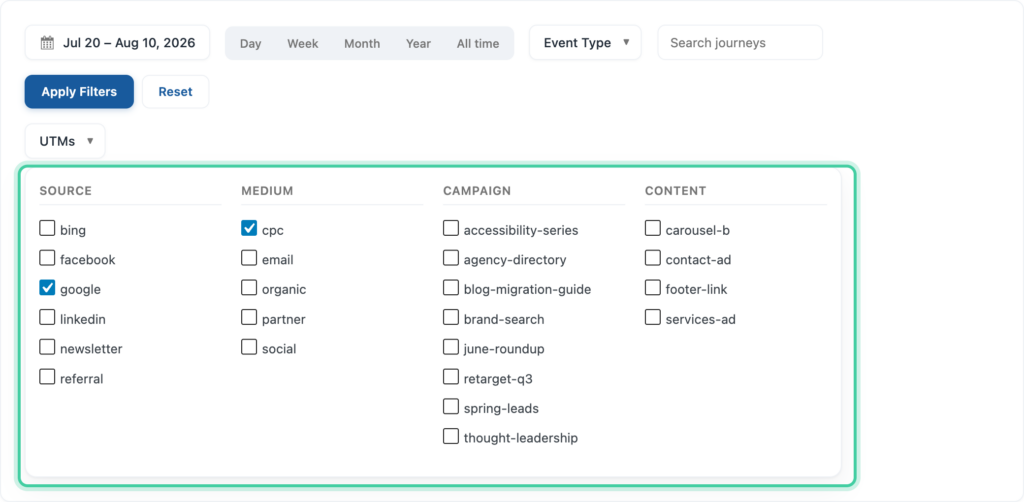
UTM Parameter Types:
- Source: Filter by traffic source (e.g.,
google,facebook,newsletter) - Medium: Filter by marketing medium (e.g.,
email,cpc,social) - Campaign: Filter by campaign name
- Term: Filter by search terms (for paid search campaigns)
- Content: Filter by content variation identifiers
- ID: Filter by UTM ID values
Filter Logic:
- Within a parameter type: Multiple selections use OR logic (shows journeys matching any selected value)
- Across parameter types: Multiple parameter types use AND logic (journey must match all selected parameter types)
- Example: Selecting "google" in Source AND "cpc" in Medium shows journeys from Google paid ads
Search Functionality
Search across multiple fields in the journey data.
Searchable Fields:
- Event name
- Event parameters
- Event value
- Event title (page title)
- Event URL
- Event referrer
How to use:
- Enter your search term in the search box
- Press Enter or click the search icon
- Results are filtered to show only journeys containing your search term
Use Cases:
- Find journeys containing a specific product name
- Search for specific URLs or page titles
- Find journeys from specific referrers
- Locate journeys with specific event values
Filtering by Post/Page
View journeys specifically for a particular post or page.
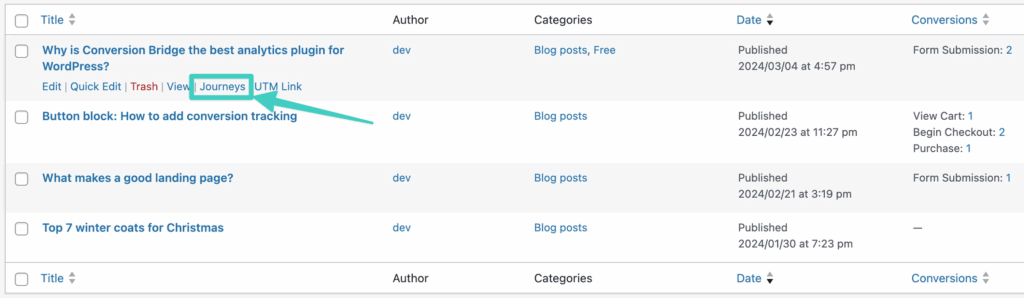
How to access:
- From the Posts or Pages list in WordPress admin
- Hover over a post/page title
- Click "Journeys" in the row actions
- The Journeys table opens filtered to show only journeys that included that post/page
What it shows:
- Only journeys where the user visited that specific post/page
- The table header shows "Journeys for: [Post/Page Title]"
- All other filters still work in this view
Viewing Individual Journey Details
Click on any session ID in the table to view the complete journey details.
Journey Detail View
The journey detail view shows:
- Session Information:
- Session ID
- Referrer (where the user came from)
- UTM parameters (if present)
- Timeline of Events:
- All pageviews in chronological order
- All conversion events
- Timestamps for each event
- Page titles and URLs
- Event details and parameters
- Visual Timeline:
- Events displayed in order
- Clear distinction between pageviews and conversions
- Easy-to-read format
How to access:
- Click any session ID in the table
- A modal (thickbox) opens showing the complete journey
- Click outside the modal or the close button to return to the table
Table Features
Sorting
The table supports sorting by multiple columns:
- Session: Sort alphabetically by session ID
- Value: Sort by conversion value (numeric)
- Date: Sort by conversion date/time
How to sort:
- Click on a column header to sort by that column
- Click again to reverse the sort order
- Sort indicators show the current sort column and direction
Pagination
When you have many conversion journeys, the table uses pagination:
- 20 journeys per page (default)
- Navigation controls at the top and bottom of the table
- Shows current page and total pages
- Click page numbers or "Next"/"Previous" to navigate
Caching and Refresh
The table uses caching to improve performance:
- Cache duration: 1 hour
- Cache indicator: Shows "Data last updated on [date/time]" at the top
- Refresh button: Click to force a refresh of the cached data
- Auto-refresh: Cache automatically refreshes after 1 hour
When to refresh:
- After making changes that might affect journey data
- If data seems outdated
- When testing new tracking implementations
Advanced Filtering Strategies
Finding High-Value Conversions
- Filter by date range (e.g., last month)
- Sort by Value column (descending)
- Review top journeys to understand what drives high-value conversions
Analyzing Campaign Performance
- Use UTM Campaign filter to select specific campaigns
- Review the journeys to see:
- Which pages users visit
- How long the journey takes
- Conversion rates
Identifying Conversion Paths
- Filter by Event Type to focus on specific conversions
- Review multiple journeys to identify common patterns
- Look for pages that appear frequently in successful journeys
Troubleshooting Low Conversion Rates
- Filter by traffic source (UTM Source)
- Compare journeys from different sources
- Identify which sources have longer or more complex journeys
- Optimize content for underperforming sources
Use Cases
E-commerce Analysis
Scenario: Understanding purchase journeys
- Filter by Event Type: "Purchase"
- Review journeys to see:
- Which product pages lead to purchases
- How many pages users visit before buying
- Common paths to checkout
- Use insights to optimize product pages and checkout flow
Form Conversion Optimization
Scenario: Improving form submission rates
- Filter by Event Type: "Form Submission"
- Analyze journeys to identify:
- Landing pages that lead to form submissions
- Pages users visit before submitting
- Common drop-off points
- Optimize content and forms based on findings
Campaign Attribution
Scenario: Measuring campaign effectiveness
- Filter by UTM Campaign: "[Your Campaign Name]"
- Review all journeys from that campaign
- Analyze:
- Conversion rates
- Average journey length
- Most common conversion paths
- Compare with other campaigns using different filters
Content Performance
Scenario: Identifying high-performing content
- Filter by a specific post/page using the row actions
- Review all journeys that included that content
- See:
- How many conversions included that page
- What other pages users visited
- What conversions resulted
Best Practices
Regular Review
- Review Conversion Journeys weekly or monthly
- Look for patterns and trends
- Identify opportunities for optimization
Combine with Other Reports
- Use Conversion Journeys alongside UTM Reports
- Compare journey data with analytics platform data
- Get a complete picture of user behavior
Focus on High-Value Conversions
- Prioritize analyzing journeys with high conversion values
- Understand what drives your most valuable customers
- Optimize for high-value conversion paths
Test and Iterate
- Make changes based on journey insights
- Test new content or navigation
- Review journeys again to measure improvement
Use Filters Strategically
- Start with broad filters (date range)
- Narrow down with specific filters (UTM, event type)
- Use search for specific investigations
Linking Journeys to User Accounts
By default a journey is anonymous. It follows a browser, not a person. If you turn this on, journeys are attached to the account someone is logged in to, so you can look up a customer and see the pages they viewed on the way to buying.
Turning It On
- Go to Settings → Conversion Bridge → Options
- Under Conversion Tracking, find Link Journeys To Users
- Tick Attach journeys to the user account that was logged in
- Click Save Changes
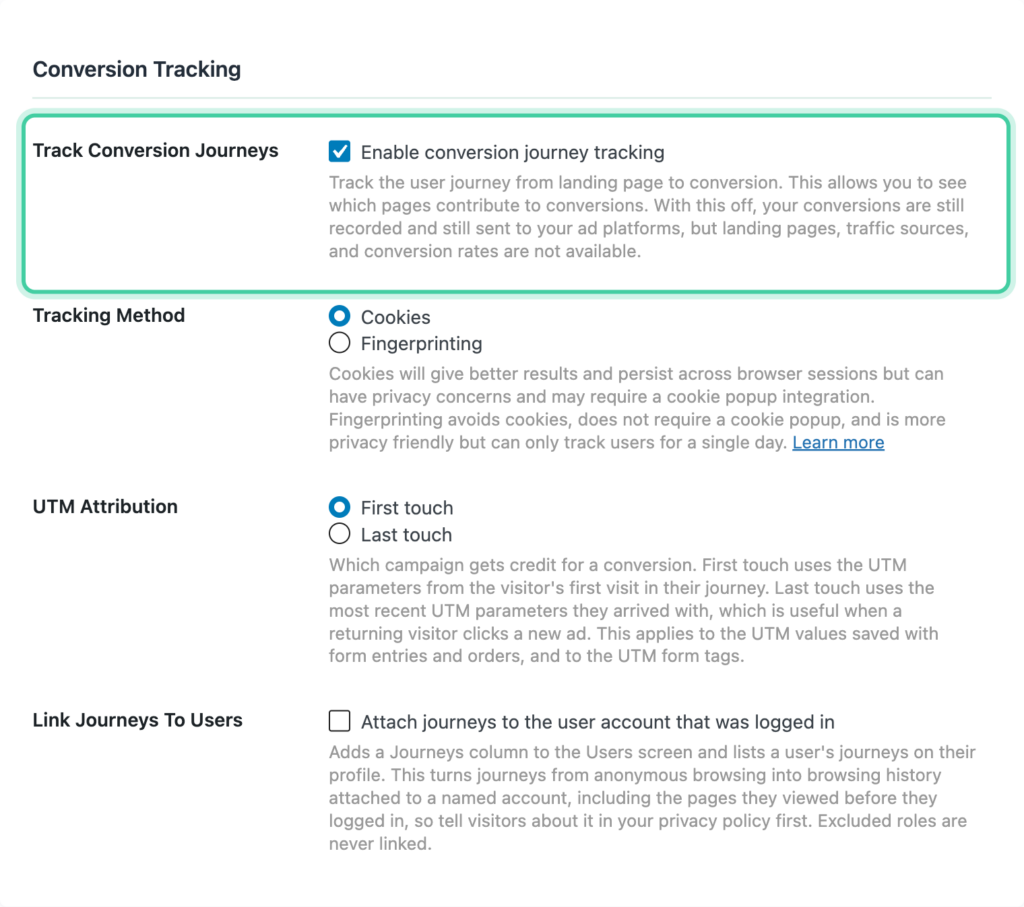
This needs conversion journey tracking to be on as well, and it is off by default.
This includes the pages someone viewed before they logged in, since that activity was already recorded on their browser. That turns anonymous browsing into browsing history attached to a named person, so tell your visitors about it in your privacy policy before you switch it on. Conversion Bridge adds suggested wording to the WordPress Privacy Policy Guide under Settings → Privacy → Policy Guide, and it includes a paragraph about account linking once this option is on.
When a Journey Gets Linked
A journey is linked to an account when someone logs in, when they register, when they load a page while already signed in, and when they complete a conversion while signed in. That last one matters for things like creating an account during WooCommerce checkout, where there is no ordinary login.
Some things are deliberately never linked:
- Users whose role you have excluded from tracking
- Anyone who has not given consent to be tracked
- Accounts you create yourself in the WordPress admin, or through WP-CLI or a scheduled task, so your own browsing never gets attached to a customer
Seeing a User's Journeys
Once it's on, the Users screen gets a Journeys column showing how many browsers each person has been recognised in. Click the number to jump to their profile.
On the profile itself, a Conversion Journeys section lists each one with when it started, when it was last active, and a View journey link that opens the full path.
One person often has several rows. A second row appears when they use another device, clear their cookies, or start a new session. That is expected, not a fault.
Rows can also show that no activity is recorded. That means those events have passed the retention period you set and have been deleted, which is working as intended.
Privacy Requests
Conversion Bridge plugs into WordPress's built-in privacy tools, so it answers data requests along with everything else on your site.
Exporting data. Under Tools → Export Personal Data, a person's linked journeys are included in the export. Each recorded action comes through with its date, what it was, the page title and address, where they came from, any campaign tags, and any details attached to the conversion like an order total.
Only journeys actually linked to that account are exported. Anonymous activity is not guessed at, because there is no reliable way to prove it belongs to that person.
Erasing data. Under Tools → Erase Personal Data, the link between the account and its journeys is removed. The activity records themselves are kept, but they no longer have anyone attached, so they go back to being anonymous. Your site statistics stay intact and the records are still deleted on the retention schedule you set.
Before you close an erasure request, it is worth checking the records. Page titles, web addresses, and campaign tags can sometimes contain personal details depending on how your site is set up.
Integration with Other Features
UTM Reports
Conversion Journeys work seamlessly with the UTM Reports tool:
- UTM Reports: Aggregate analysis of UTM performance
- Conversion Journeys: Individual journey details with UTM attribution
- Use both together for complete marketing attribution analysis
Conversion Tracking
Conversion Journeys automatically include all tracked conversion events:
- E-commerce purchases
- Form submissions
- Signups and registrations
- Custom conversion events
- Any event type configured in Conversion Bridge
Email Integration
Conversion Journeys can be included in conversion notification emails for any plugin integration that supports email notifications:
Supported Conversion Types:
- E-commerce purchases and orders
- Form submissions
- Signups and registrations
- Membership subscriptions
- Donations
- Any other conversion events that trigger email notifications
Benefits:
- Provides complete journey details in conversion emails
- Helps with customer support by showing the full user path
- Enables better understanding of how users reached conversion
- Automatically included when the integration supports it
- Configurable in each integration's email settings (where applicable)
How it works:
- The integration method varies by plugin integration
- Toggle/Settings Method: Some integrations provide a setting or toggle in their email configuration to enable/disable journey inclusion
- Template Tag Method: Other integrations require adding a template tag or placeholder (such as
{conversion_journey}or{{conversion_journey}}) within the email content/template - The journey shows all pageviews and events leading to the conversion
- Email-optimized formatting ensures readability in email clients
- Important: Check the documentation for your specific plugin integration to learn the exact method for including conversion journeys in emails
Tips and Tricks
Quick Filtering
- Use preset duration buttons for quick date filtering
- Combine UTM filters for precise campaign analysis
- Use search for specific investigations
Comparing Campaigns
- Filter by one campaign, review journeys
- Clear filters
- Filter by another campaign
- Compare journey patterns and conversion rates
Finding Patterns
- Review multiple journeys from the same source
- Look for common page sequences
- Identify pages that appear in most successful journeys
- Optimize those pages for better performance