
Conversion Bridge works with Concord to make sure your conversion tracking respects visitor consent choices. When Concord is active, tracking is held back until a visitor accepts cookiesA small piece of data stored in a user’s browser that helps websites remember user activity, preferences, or sessions across visits. through the consent banner.
Setup Instructions
Step 1: Set Up Concord
- Install and activate the Concord plugin on your WordPress site
- Connect it to your Concord account and publish your banner
- Make sure you have at least these two categories enabled:
- Analytics for analytics platforms like Google Analytics, Plausible, and Clarity
- Marketing for ad platforms like Google Ads, Meta Ads, and TikTok Ads
Step 2: Select Concord in Conversion Bridge
- Go to Settings → Conversion Bridge → Options in your WordPress admin and find the Cookie Consent section
- Select Concord as your cookie consent plugin
- Save your settings
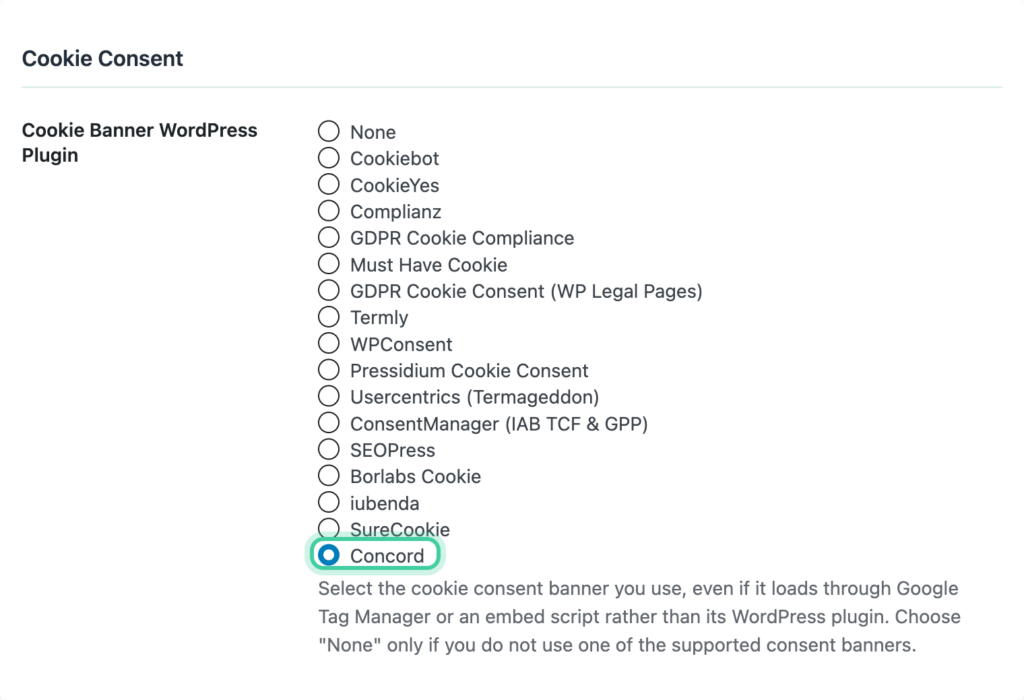
Conversion Bridge automatically detects Concord once the plugin is active.
Step 3: Configure Consent Signal Ownership
Consent signals tell each platform whether a visitor has given permission to be tracked. Both Concord and Conversion Bridge can send these signals, but only one should do it for each platform — otherwise you get conflicts.
We recommend setting Conversion Bridge as the signal owner for all platforms. Conversion Bridge listens to the consent choices visitors make through Concord and sends the right signals to every platform you have enabled. This ensures as much tracking as possible happens the moment consent is granted.
- Go to Settings → Conversion Bridge → Options, Cookie Consent section
- Set each platform to Conversion Bridge ownership
- Concord has Google Consent Mode built in. For the most accurate conversion tracking setup, we recommend turning Concord's version off and letting Conversion Bridge handle it instead
Learn more about how this works in the Consent Signal Ownership guide.
Step 4: Verify It Works
- Open your site in a private/incognito browser window
- You should see the Concord consent banner
- Reject all cookies and confirm that no tracking fires
- Accept cookies and confirm that tracking starts
You can add ?cb_console=1 to any page URL to see consent and tracking activity in your browser's developer console.
How It Works
- Until a visitor makes a choice, Conversion Bridge holds tracking back. It does not treat "hasn't decided yet" as permission.
- If a visitor accepts Analytics, your analytics platforms start tracking.
- If a visitor accepts Marketing, your ad platforms start tracking.
- If they reject, no tracking runs.
- If they later change their preferences through the Concord settings panel, tracking updates right away to match.
- Concord also has a "do not sell or share" option. If a visitor turns that on, Conversion Bridge treats marketing tracking as declined even when the marketing category itself was accepted.
- On cached pages, Conversion Bridge reads the visitor's saved choice directly so tracking still respects it.
Consent Category Mapping
Concord's categories map to Conversion Bridge like this:
| Concord Category | Conversion Bridge Type | Examples |
|---|---|---|
| Analytics | Analytics | Google Analytics, Plausible, Clarity, Hotjar |
| Marketing | Marketing | Google Ads, Meta Ads, TikTok Ads, LinkedIn Ads |
Strictly necessary and functional cookies are not used for tracking, so they don't map to anything in Conversion Bridge.
The cb_session_id Cookie
Conversion Bridge sets one cookie of its own, cb_session_id. It's a first-party cookie holding a random ID, it contains no personal information, and it's what connects the pages someone viewed to the conversion they complete later.
Concord already knows this cookie, so when it scans your site it should recognize cb_session_id and place it in the Analytics category on its own. If it ever shows up as unknown or in a different category, set it to Analytics manually.
Conversion Bridge already waits for Analytics consent before setting it, so a visitor who declines never gets the cookie. If you'd rather not set a cookie at all, you can switch to fingerprinting instead.
See The cb_session_id Cookie (and How to Categorize It) for the full details.