
Conversion Bridge works with Usercentrics to make sure your conversion tracking respects visitor consent choices. When Usercentrics is active, tracking only runs after a visitor gives permission through the consent banner.
If you use Termageddon for your privacy policy and cookie consent, this is the integration you need. Termageddon uses Usercentrics under the hood to power its consent banner, so the same setup covers both.
Setup Instructions
Step 1: Install Your Consent Banner Plugin
Termageddon and Usercentrics use two different WordPress plugins. They are easy to confuse, so make sure you install the right one for your account.
If you use Termageddon for your privacy policy and cookie consent banner:
- Sign up at termageddon.com if you haven't already
- Install the Termageddon + Usercentrics plugin from the WordPress plugin directory
- Connect it to your Termageddon account
If you use Usercentrics directly (without Termageddon):
- Create a Usercentrics account at usercentrics.com
- Install the Cookiebot CMP by Usercentrics plugin from the WordPress plugin directory. This is the current Usercentrics CMP plugin — it replaced the older "Usercentrics CMP" plugin and is the same plugin Cookiebot users install
- Connect it to your Usercentrics account
Both paths use Usercentrics under the hood, so the Conversion Bridge integration works the same way for both.
Step 2: Configure Your Consent Categories
In your Usercentrics dashboard, add the services (platforms) you want to manage consent for, such as Google Analytics, Meta Pixel, Google Ads, etc. Make sure your consent categories include at least:
- Analytics or Statistics — for analytics platforms like Google Analytics, Plausible, and Clarity
- Marketing or Advertising — for ad platforms like Google Ads, Meta Ads, and TikTok Ads
Step 3: Select Usercentrics in Conversion Bridge
- Go to Settings → Conversion Bridge → Options in your WordPress admin and find the Cookie Consent section
- Select Usercentrics (Termageddon) as your cookie consent plugin
- Save your settings
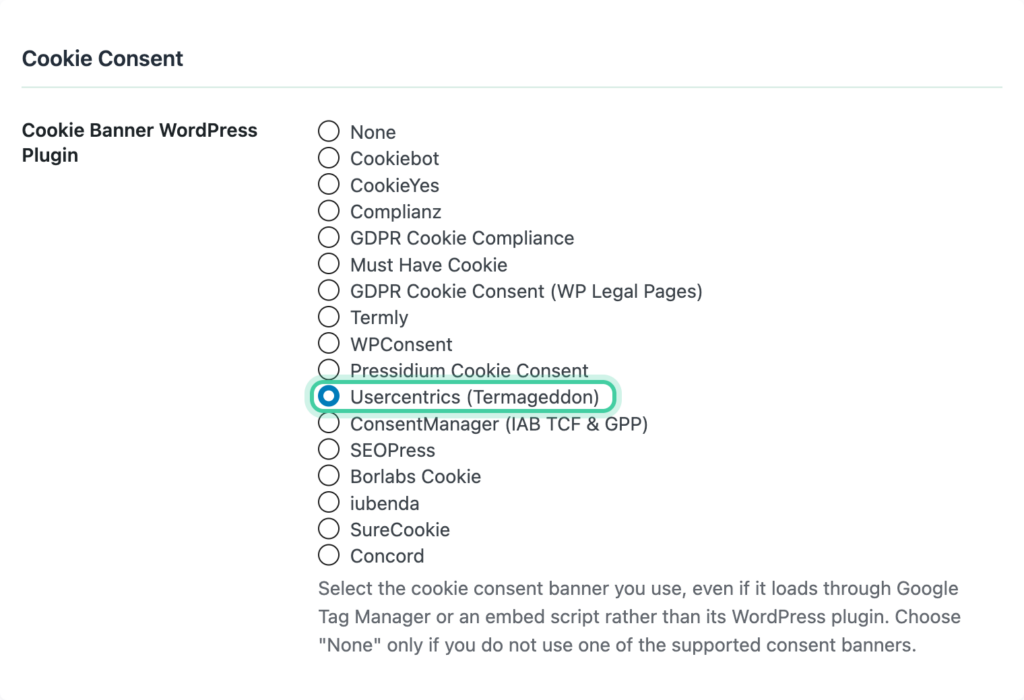
The Usercentrics option is always available to select — no additional detection is needed since Usercentrics runs entirely in the browser.
Step 4: Configure Consent Signal Ownership
Consent signals tell each platform whether a visitor has given permission to be tracked. Both Usercentrics and Conversion Bridge can send these signals, but only one should do it for each platform — otherwise you get conflicts.
We recommend setting Conversion Bridge as the signal owner for all platforms. Conversion Bridge listens to the consent choices visitors make through Usercentrics and sends the right signals to every platform you have enabled. This ensures as much tracking as possible happens the moment consent is granted.
- Go to Settings → Conversion Bridge → Options, Cookie Consent section
- Set each platform to Conversion Bridge ownership
Learn more about how this works in the Consent Signal Ownership guide.
Step 5: Add the Conversion Bridge Service
Add Conversion Bridge as a predefined service in your Usercentrics dashboard. This gives visitors a consent signal specifically for Conversion Bridge's own first-party tracking, which powers Conversion Journeys and the event reporting inside your WordPress admin.
- In your Usercentrics dashboard, go to your services list and add a new service
- Search the predefined service library for Conversion Bridge and add it
- Assign it to the Analytics (or Statistics) category
Conversion Bridge automatically recognizes the service name "Conversion Bridge" and ties consent for that service to its internal tracking.
Step 6: Check Your Service Names
Conversion Bridge automatically maps the most common Usercentrics service names to the correct tracking platforms. In most cases, this works without any extra setup.
The service names in your Usercentrics dashboard need to match what Conversion Bridge expects. If you've renamed a service (for example, calling it "GA4" instead of "Google Analytics"), the automatic mapping may not work.
To fix this, either:
- Rename the service in your Usercentrics dashboard to match one of the recognized names in the Supported Service Names section below
- Or keep your custom name and rely on category-level consent (Analytics or Marketing) instead of per-service consent
Step 7: Verify It Works
- Open your site in a private/incognito browser window
- You should see the Usercentrics consent banner
- Reject all cookiesA small piece of data stored in a user’s browser that helps websites remember user activity, preferences, or sessions across visits. and confirm that no tracking fires
- Accept cookies and confirm that tracking starts
You can add ?cb_console=1 to any page URL to see consent and tracking activity in your browser's developer console.
How It Works
- When a visitor lands on your site, all tracking is paused until they respond to the consent banner.
- If they accept Analytics cookies, your analytics platforms start tracking.
- If they accept Marketing cookies, your ad platforms start tracking.
- If they reject cookies, no tracking runs.
- If they later change their preferences through the Usercentrics settings panel, tracking updates immediately to match.
- Conversion Bridge checks consent at both the category level (Analytics, Marketing) and the individual service level (Google Analytics, Meta Pixel, etc.). Both work together automatically.
Consent Category Mapping
Usercentrics' consent categories map to Conversion Bridge like this:
| Usercentrics Category | Conversion Bridge Type | Examples |
|---|---|---|
| Analytics / Statistics / Functional | Analytics | Google Analytics, Plausible, Clarity, Hotjar |
| Marketing / Advertising | Marketing | Google Ads, Meta Ads, TikTok Ads, LinkedIn Ads |
Conversion Bridge reads these categories from Usercentrics and applies them to all your enabled platforms automatically.
Supported Service Names
Conversion Bridge automatically recognizes the following Usercentrics service names and maps them to the correct tracking platform. Service name matching is not case-sensitive.
Analytics Services
| Usercentrics Service Name | Conversion Bridge Platform |
|---|---|
| Google Analytics | Google Analytics 4 (GA4) |
| Google Analytics 4 | Google Analytics 4 (GA4) |
| Google Tag Manager | Google Tag Manager (GTM) |
| Microsoft Clarity | Microsoft Clarity |
| Clarity | Microsoft Clarity |
| HotJar | Hotjar |
| Plausible | Plausible Analytics |
| Usermaven | Usermaven |
| Conversion Bridge | Conversion Bridge (first-party event tracking) |
| ConversionBridge | Conversion Bridge (first-party event tracking) |
Marketing Services
| Usercentrics Service Name | Conversion Bridge Platform |
|---|---|
| Meta Pixel | Meta (Facebook) Ads |
| Facebook Pixel | Meta (Facebook) Ads |
| Google Ads | Google Ads |
| Google Ads Remarketing | Google Ads |
| TikTok / TikTok Pixel / TikTok Ads | TikTok Ads |
| Pinterest Tag | Pinterest Ads |
| Microsoft Advertising / Microsoft Ads | Microsoft Ads |
| LinkedIn Insight Tag / LinkedIn | LinkedIn Ads |
| Snapchat Pixel | Snapchat Ads |
| Twitter Pixel / X Pixel | X (Twitter) Ads |
| Reddit Pixel | Reddit Ads |
| Taboola Pixel | Taboola Ads |
| Outbrain Pixel | Outbrain Ads |
If a service in your Usercentrics dashboard is not in this list, Conversion Bridge will try to determine its category based on the service name. Services with names that include words like "analytics," "statistics," or "performance" are treated as analytics. Services with names like "marketing" or "advertising" are treated as marketing.