
Pixel Helper & Tag Inspector is a free Chrome extension that shows what a page sends to analytics and ad platforms, all in one side panel. It works on any website, and on sites running Conversion Bridge 1.17 or later it also shows what the site sent to each platform from its server.
Install and open the extension
- Install Pixel Helper & Tag Inspector from the Chrome Web Store.
- Click the puzzle piece icon in Chrome's toolbar and pin the extension so it's always one click away.
- Click the extension's icon to open the side panel. The panel follows whichever tab you're on.
- Reload the page you want to check, or click around it, and the panel fills in as the page sends data.
The extension needs Chrome 116 or later.
Reading the panel
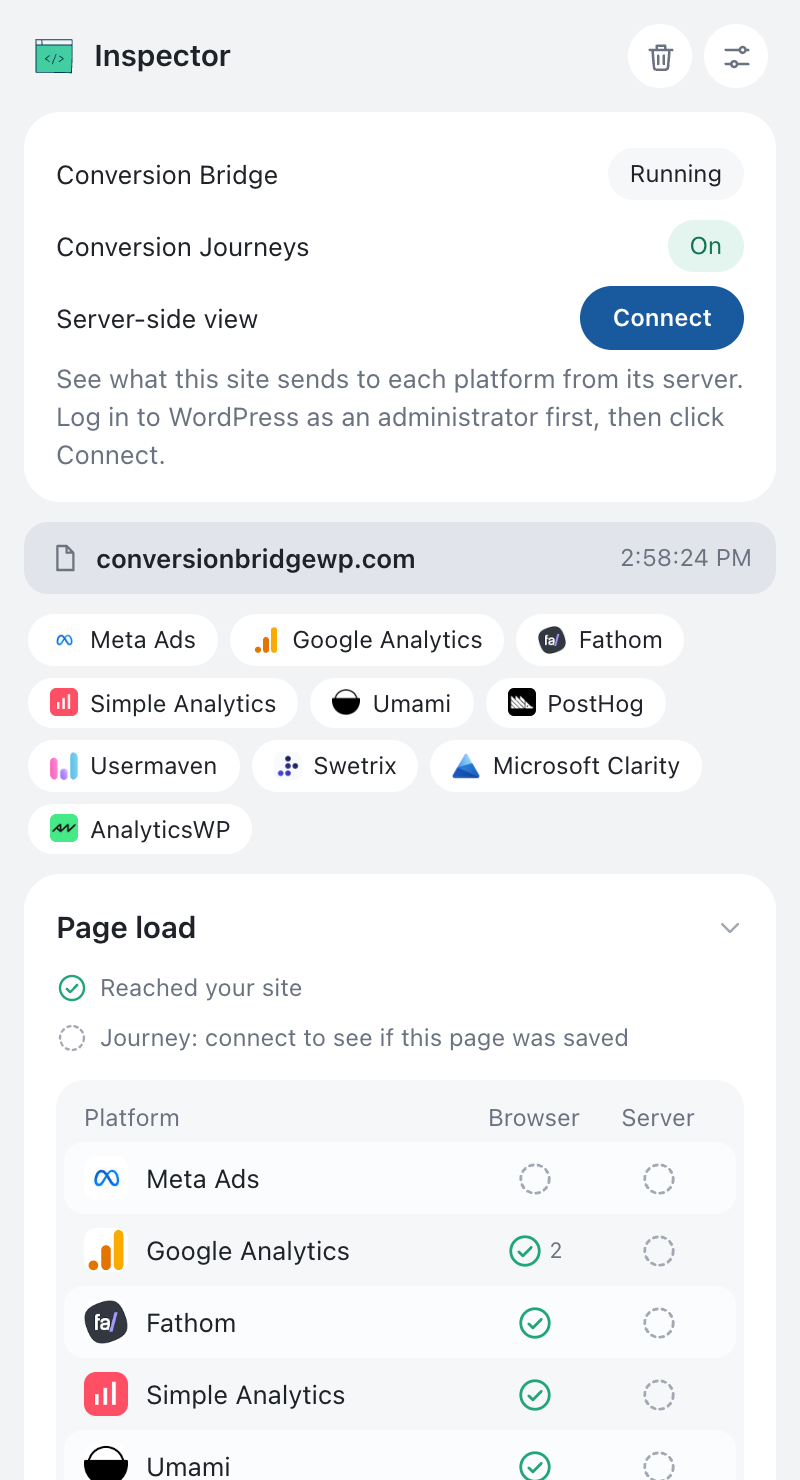
Each page view starts with a gray band showing the page's path and the time it loaded, and under that band you'll see:
- Platform chips for every analytics and ad platform that loaded or sent something on that page. A red chip means the platform's script was blocked (usually by an ad blocker) or didn't load (usually a wrong ID).
- A card for each event, such as a form submit or a purchase, with a row for every platform that received it.
- A Page load card with the page views and the background data platforms send on their own.
The icons in each row tell you what happened:
- Green check: the platform received it.
- Red x: it was blocked or the platform turned it down.
- Amber minus: the platform could have received it from the server for this event, but didn't.
- Gray dash: this doesn't apply here.
- Dashed circle: the script loaded but hasn't sent anything yet, or the panel can't know without connecting (see the server-side view below).
Hover any icon to see what it means. Click a row to see exactly what was sent, including the event name, account ID, value, currency and dedup ID, plus everything else that went with it.
Click a platform chip to show only that platform, and click more chips to add them to the filter. Click the arrow in a card's corner to fold it.
Options
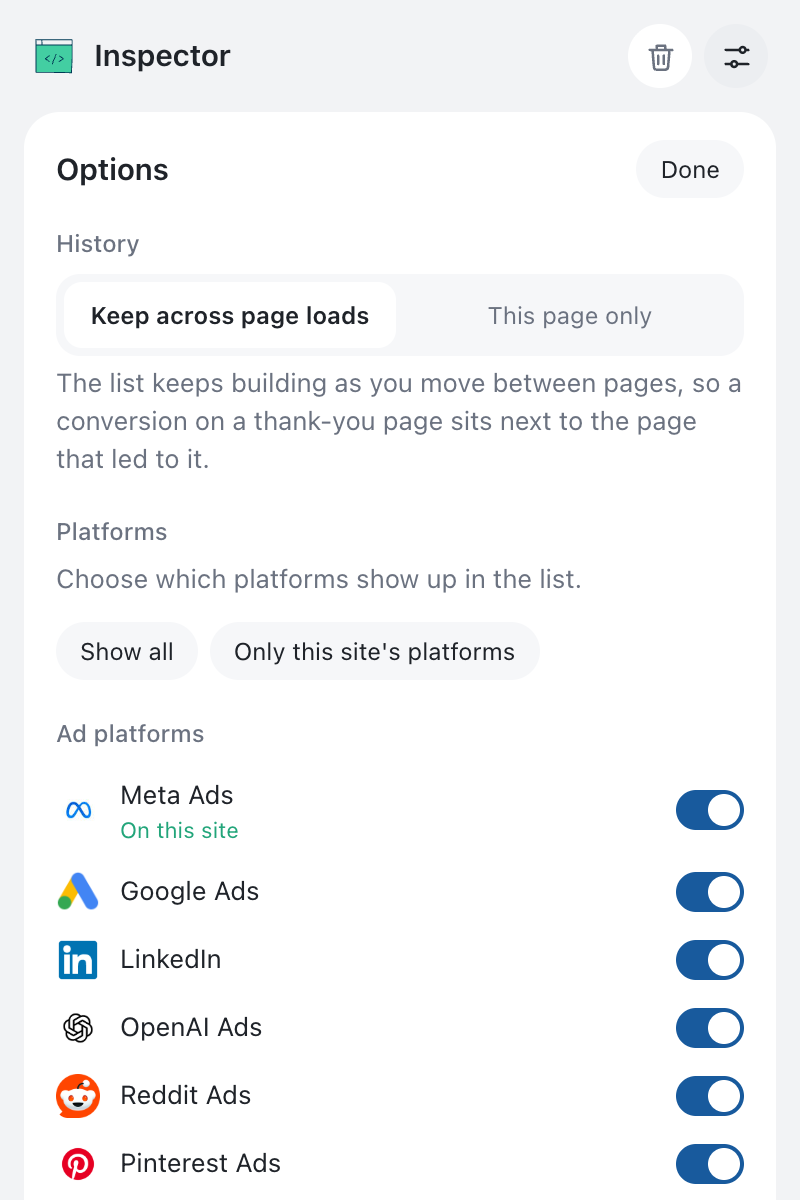
Click the sliders icon at the top of the panel to open the options.
- History decides whether the list keeps building as you move between pages or starts fresh on each page load. Keeping it across page loads is the default, so a conversion on a thank-you page stays next to the page that led to it.
- Platforms turns each platform on or off in the list. On a Conversion Bridge site, Only this site's platforms shows just the ones turned on in Conversion Bridge.
The trash can icon clears everything the panel has tracked in the current tab.
See server-side tracking on Conversion Bridge sites
Server-side events are sent from your website's server after the page has already loaded, so no browser extension can see them on its own. Conversion Bridge 1.17 and later can record them for you while you test, and the extension shows them next to the browser data.
- Log in to your WordPress dashboard as an administrator.
- Open any page on your site and open the side panel.
- Click Connect next to Server-side view.
- Reload the page or trigger a conversion, like submitting a form.
Each event card now shows a Server column. A green check means your site sent the event to that platform and the platform accepted it. Click the row to see exactly what your site sent and the platform's answer, including its error message if it turned the event down.
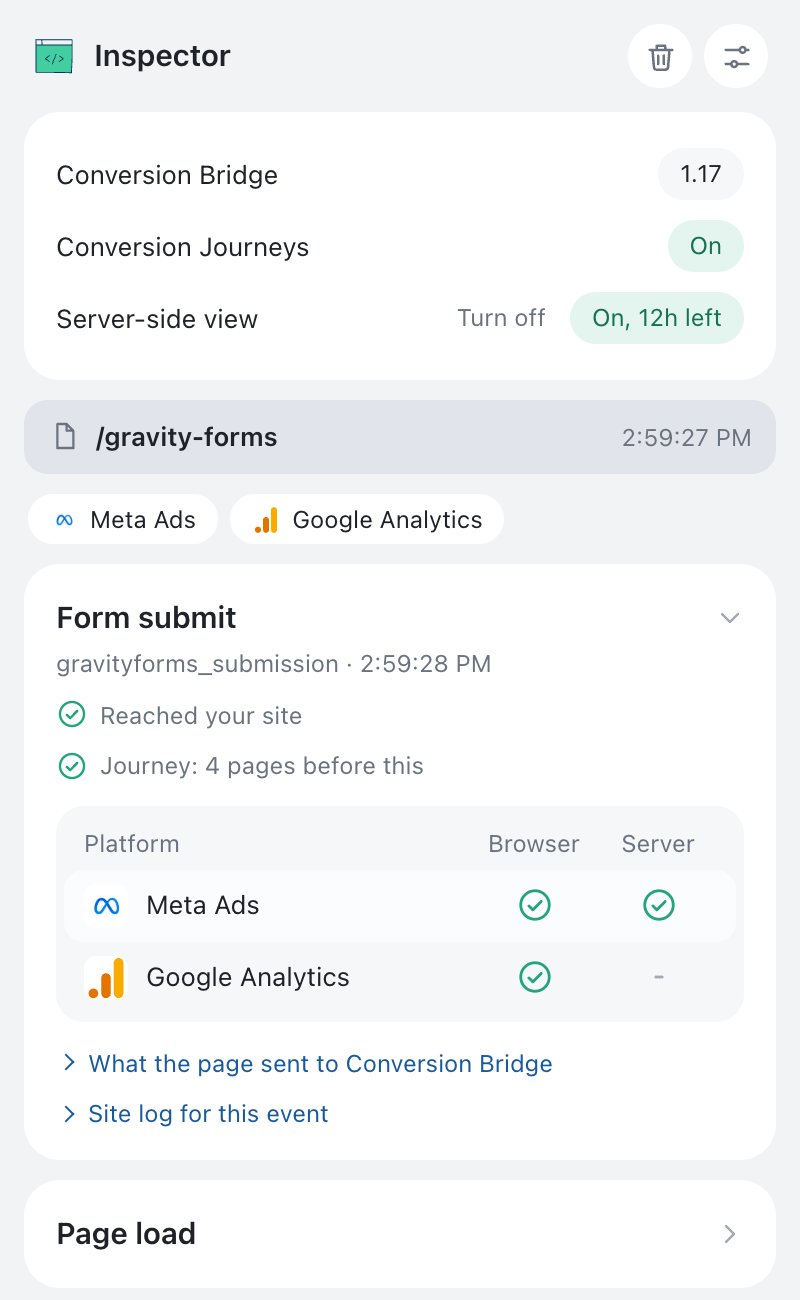
The connection lasts 12 hours, and you can click Turn off to end it sooner.
Only visits from your own browser are recorded while you're connected. Other visitors are never recorded, access tokens and other secrets are removed before anything is saved, and the records are deleted from your site after an hour.
Testing while logged in as an administrator
Many sites turn off tracking for logged-in administrators, which is the most common reason a test conversion doesn't show up anywhere. While the extension is connected, Conversion Bridge tracks your browser even if your role is normally excluded, and the panel shows Tracking you: On for testing so you know it's happening. Click Turn off and your role goes back to being excluded.
Your test conversions are sent to your platforms like any other conversion. If you don't want them in your ad platforms, use each platform's test setting in Conversion Bridge, like Meta's test event code.
Conversion Journeys
When Conversion Journeys is turned on, each Page load card says whether that page was added to the visitor's journey, and each conversion shows how many pages came before it. If Conversion Journeys is off, the panel says so at the top.
Common questions
Why does Conversion Bridge say it isn't tracking me? Your site's Conversion Bridge settings exclude your user role from tracking. Click Connect and reload the page, and you'll be tracked while you test.
Why does the Server column show a dashed circle? You haven't connected yet, so the panel can't know what your site sent. Click Connect at the top of the panel.
Why does Connect say Conversion Bridge is too old? The server-side view needs Conversion Bridge 1.17 or later. Update the plugin and try again.
Why is a platform's chip red? Its tracking script was blocked or didn't load. Ad blockers and privacy extensions block most tracking scripts, so turn yours off for the site while you test. If the chip says the script didn't load, check the ID for that platform in your settings.
Why did a platform's event show up as its own card? The panel ties a platform's event to a Conversion Bridge event by its ID, its name or its timing. If a platform used a different name and sent it several seconds later, it gets its own card instead.
Privacy
Everything the extension reads stays in your browser, and nothing is sent to me or anyone else. The extension has no tracking of its own. You can read the details in the privacy policy.
Getting help
If something in the panel doesn't look right, send me a message with the page you were testing and a screenshot of the panel.