
The Top Landing Pages tool in Conversion Bridge shows you which entry pages on your site actually lead to conversions. It connects every conversion event back to the page where the visitor first arrived (or the page they were on right before they converted), so you can see which content is doing the heavy lifting in your funnelRepresents the step-by-step process users take before completing a conversion, such as making a purchase or signing up. — not just which pages get traffic, but which pages turn that traffic into outcomes you care about.
Why Top Landing Pages Matters
Most analytics tools tell you which pages get the most pageviews. That's useful, but it doesn't tell you which pages are actually moving the needle. A blog post might get ten times the traffic of your pricing page and still produce zero sales. The Top Landing Pages tool answers the question your traffic report can't: which pages are doing the work?
This helps you:
- Identify your highest-converting entry pages so you can send more traffic to them
- Spot pages that get a lot of traffic but few conversions, which usually means a messaging or CTAA prompt that encourages users to take a specific action, such as clicking a button, submitting a form, or making a purchase. problem
- Compare event types per page (form fills vs. purchases vs. signups) to understand what each page is best at
- Tie landing page performance back to the conversion journeys those visitors actually took
Getting Started
Accessing the Tool
- Go to Settings > Conversion Bridge in your WordPress admin
- Click the Tools tab
- Select Top Landing Pages from the tools list
If no conversions have been tracked yet, the tool shows an empty-state message instead of the report. Once you have at least one tracked conversion event, the report will populate automatically.
What You Need
To get useful data from this report you need:
- Conversion events being tracked by Conversion Bridge (form submissions, purchases, signups, etc.)
- Conversion Journeys enabled, so each conversion is connected to the session it came from
- At least one conversion in the date range you're looking at
Understanding Attribution Models
The tool supports two attributionThe process of determining which channels, campaigns, or actions contributed to a conversion, helping you understand what influenced a visitor’s decision to take action. models. The model you pick changes which page gets credit for the conversion.
First-Touch Attribution
What it does: Credits the conversion to the first page the visitor saw in their session — the page they originally landed on.
When to use it: When you want to know which pages are best at attracting visitors who eventually convert. This is the right model for measuring top-of-funnel content like blog posts, landing pages from ads, or organic search entry points.
Example: A visitor lands on your "Pricing Comparison" article from Google, browses the site for ten minutes, then submits a contact form on your "Contact" page. With first-touch attribution, the conversion is credited to the Pricing Comparison article.
Last-Touch Attribution
What it does: Credits the conversion to the most recent page the visitor was on before the conversion event fired.
When to use it: When you want to know which pages are best at closing — the pages that actually push visitors over the line.
Example: Same visitor as above. With last-touch attribution, the conversion is credited to the Contact page, since that's where they were when they submitted the form.
Switching between first-touch and last-touch is one of the most useful things you can do with this report. The pages that attract visitors are often very different from the pages that close them.
Using the Filters
The filters at the top of the report let you narrow down what you're looking at.
Date Range
- After: Start date for the report
- Before: End date for the report
- Default: The last 30 days
- The date picker won't let you pick a date earlier than your earliest tracked event
Attribution Model
Toggle between First Touch and Last Touch using the radio buttons. Click Apply Filters to update the report.
Event Type
By default, the report includes every type of conversion event. Use the Event Type dropdown to focus on a specific event — for example, only form submissions, or only purchases. This is useful when you want to know which pages convert for a particular goal.
Applying and Resetting Filters
- Choose your date range
- Pick your attribution model
- Optionally pick a specific event type
- Click Apply Filters
Click Reset at any time to return to the defaults (last 30 days, first-touch, all event types).
Switching between report tabs (Overview, By Event Type, Over Time) keeps your filters in place, so you can analyze the same data three different ways without re-entering anything.
Report Views
The tool has three report views, each accessed from the navigation tabs above the report area.
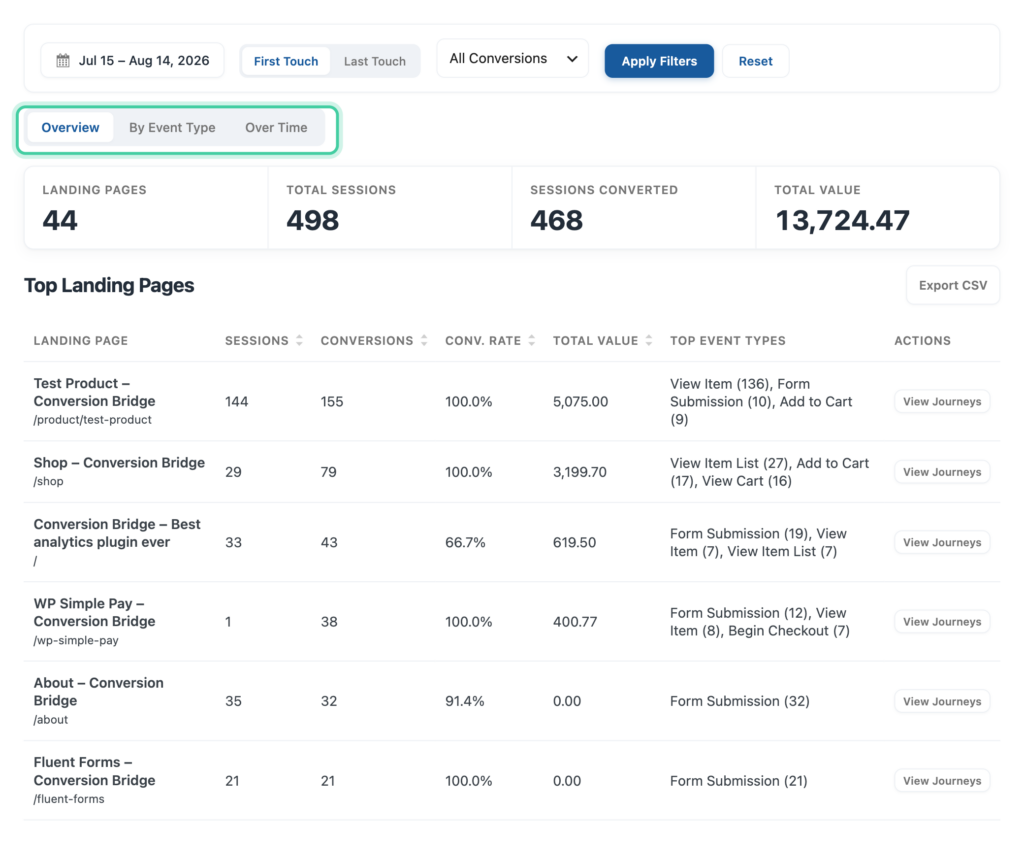
Overview Report
The Overview is the main view of the tool. It gives you headline metrics and a sortable table of your top landing pages.
Top metrics shown:
- Landing Pages: How many unique pages drove at least one conversion in the selected date range
- Total Sessions: Total visitor sessions across all landing pages
- Sessions Converted: Sessions that resulted in at least one conversion
- Total Value: Sum of conversion values from those sessions
Top Landing Pages table:
The table lists every page that produced at least one conversion, sorted by conversion count by default. For each page you'll see:
- Landing Page: The page title and URL
- Sessions: Total sessions that landed on this page
- Conversions: Number of conversions attributed to this page
- Conv. Rate: Percentage of sessions that converted (Conversions ÷ Sessions × 100)
- Total Value: Sum of conversion values from this page
- Top Event Types: The most common conversion types from this page (e.g. "Form Submit (12), Purchase (3)")
- Actions: A View Journeys button that opens the Conversion Journeys tab pre-filtered to this landing page, your current date range, and the event types it produced
Click any column header to re-sort the table. Click Export CSV to download the full table for use in a spreadsheet.
By Event Type Report
This report breaks down your conversions by what kind of conversion they were — purchases, form submissions, signups, and so on — so you can see which event types make up the bulk of your conversions across all landing pages.
What you get:
- A doughnut chart showing the share of each event type
- A sortable table with conversion count, percentage of total, total value, and average value per conversion
- CSV export of the full breakdown
This view is helpful when you want to see whether one event type is dominating your conversions, or when you want to confirm that a recently-added integration is actually firing.
Over Time Report
This report charts daily conversion counts for your top five landing pages over the selected date range. Each page gets its own line on the chart.
It's useful for spotting:
- Which pages are growing or declining over time
- Days when one page suddenly spiked (often a sign of a new campaign, social share, or traffic source kicking in)
- Whether a recent change to a page actually moved conversions in the right direction
Understanding the Metrics
Sessions
A session is a single period of a visitor's activity on your site. The session count for a landing page is the number of unique sessions that started on (first-touch) or ended on (last-touch) that page.
Conversions
The total number of conversion events attributed to the landing page based on your selected attribution model. A single session can include more than one conversion, so this number can be higher than the converting-sessions count.
Conv. Rate
Calculated as Converting Sessions ÷ Total Sessions × 100. A page with a high conversion rateImproves website performance by increasing the percentage of visitors who complete desired actions, such as purchases, sign-ups, or form submissions. is doing a good job of turning visits into actions, even if its raw traffic is modest.
Total Value
The sum of event_value across all conversions attributed to the page. This is your best signal for which pages drive revenue, not just activity.
Top Event Types
A short list of the most common event types from this page, with counts. Useful for understanding what each page is actually converting on — a feature page may drive demos, while a blog post may drive newsletter signups.
Reading the Report
Some patterns worth watching for:
- High traffic, low conversion rate. The page is good at attracting visitors but not at moving them. Usually means a messaging mismatch, weak CTA, or a missing form.
- Low traffic, high conversion rate. A hidden gem. Send more traffic here — paid ads, internal links, social posts.
- High total value, low conversion count. Each conversion from this page tends to be high-value. Treat it like a high-intent page and protect its load speed and CTA placement.
- Big gap between first-touch and last-touch. Your acquisition pages and your closing pages are different. That's normal, but it tells you to invest in both — not just the ones that get the final click.
Linking to Conversion Journeys
Every row in the Top Landing Pages table has a View Journeys button. Clicking it opens the Conversion Journeys tab pre-filtered to:
- The same date range you have selected
- The landing page from that row (when it matches a known WordPress page)
- The event types that page produced
This is the fastest way to go from "this page is converting" to "let me see exactly what those visitors did before they converted." For more on Conversion Journeys, see the Conversion Journeys guide.
Exporting Data
Both the Overview table and the By Event Type table include a Export CSV button. The CSV contains the same columns shown in the table, so you can:
- Pull the data into a spreadsheet for deeper analysis
- Share results with teammates or clients
- Track performance over time by saving exports periodically
- Combine the data with marketing spend to calculate ROIA broad measure of how much profit or value you gain from a specific investment, like a website, plugin, or marketing campaign. per landing page
Performance and Caching
The report caches its results for 15 minutes. If you've just tracked a new conversion and want to see it immediately, add &refresh=1 to the URL — that forces a fresh database query and rebuilds the report.
For very large date ranges (months of high-volume data), the first load may take a few seconds while the report calculates. Subsequent loads in the same 15-minute window will be near-instant.