
Version 1.14 is here, and it brings one of the most-requested features yet: a real home for any tracking script that doesn't already have a built-in integration. Plus a brand new way to set up Fluent Forms tracking, two new integrations, and faster page tracking across the board.
Let's run through what's new.
Custom Tracking Scripts
If you've ever needed to add outside scripts that Conversion Bridge doesn't have an official integration for, you know the options weren't great. Paste into your theme's header.php (and lose it on the next update). Drop it into functions.php (and pray nothing breaks). Add yet another plugin just to inject one script tag.
Conversion Bridge 1.14 adds Custom Tracking Scripts, a dedicated settings screen for any vendor snippet. Paste the full code, pick a consent category (Analytics, Marketing, or None), pick a placement (Head, After Body Open, or Footer), and optionally restrict it to specific pages. That's it.
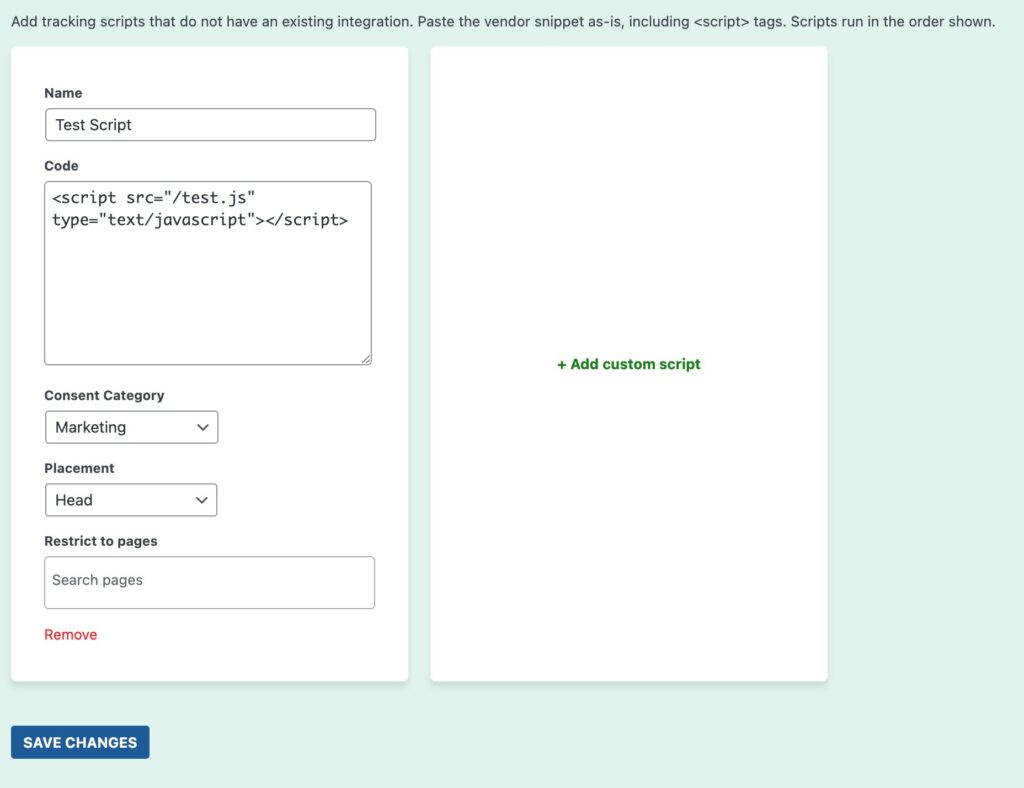
The important part: every script you add can be gated by the consent platforms Conversion Bridge integrates with. If a visitor declines marketing cookiesA small piece of data stored in a user’s browser that helps websites remember user activity, preferences, or sessions across visits., your custom marketing scripts won't load until they accept. No extra wiring, no special-case code. It just works the way the rest of Conversion Bridge already works.
Weekly Email Design Overhaul
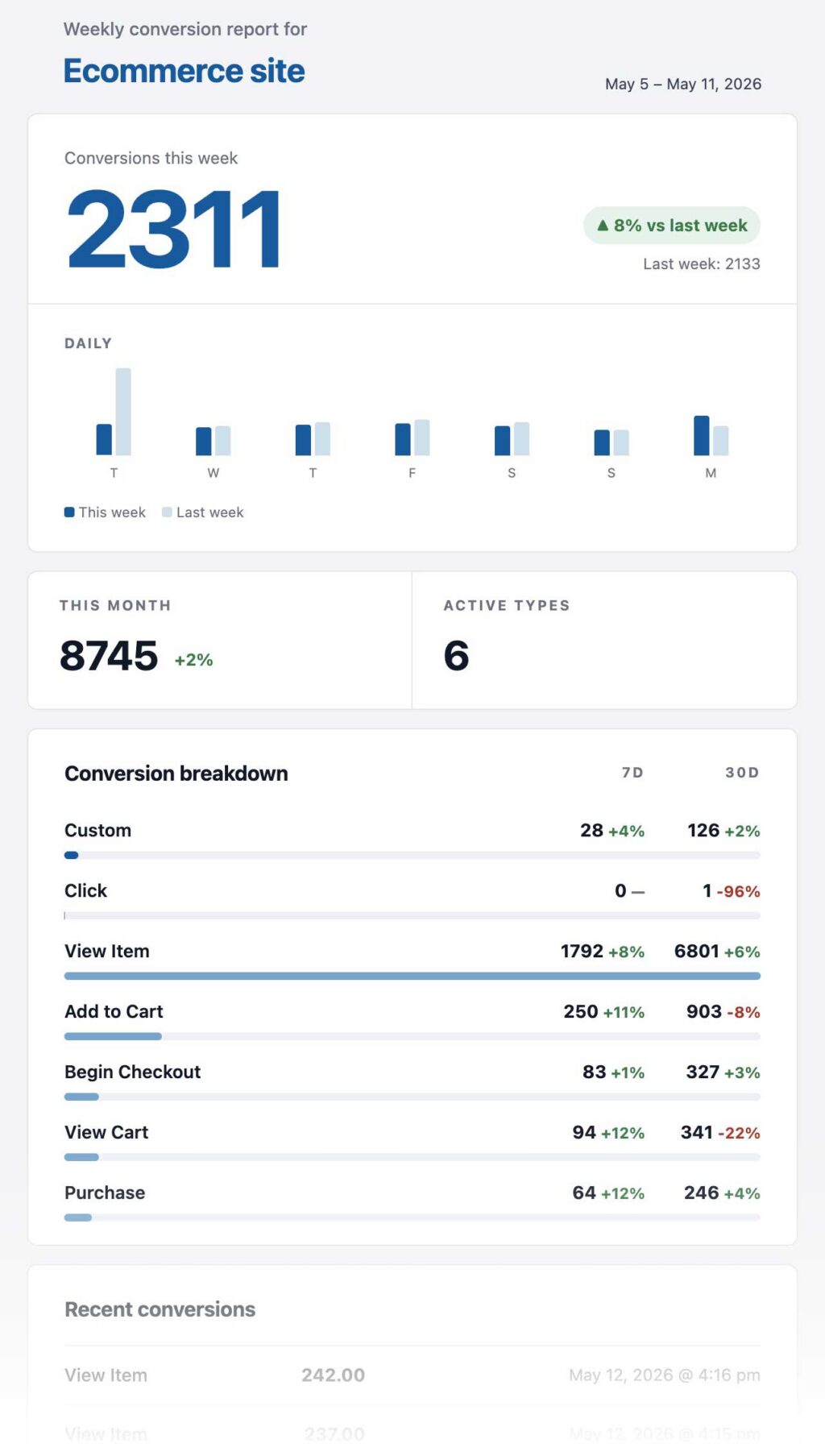
The weekly conversion report email got a full facelift in 1.14. Cleaner layout overall, with the most important numbers easier to read at a glance. If you have the weekly report enabled, you'll notice it the next time it shows up in your inbox.
If you've been pasting tracking snippets into theme files for years, this one is going to feel really good.
New Integration: Bit Form
Bit Form is a fast, flexible WordPress form builder with drag-and-drop building, conditional logic, multi-step forms, and payment fields. It's been growing in popularity, and now Conversion Bridge tracks every Bit Form submission as a conversion.
Each form on your site appears as its own option in the integration settings, so you can pick exactly which forms count. Submissions automatically capture email, phone, country, and name fields for enhanced conversions, and the full conversion journey is saved with every submission. You can also include the journey directly inside Bit Form notification emails.
New Integration: FunnelKit Automations
FunnelKit Automations (also known as Autonami) is a marketing automation and CRM plugin for WordPress. It doesn't trigger conversions on its own (forms and e-commerce plugins do that), but it's where a lot of WordPress sites store their actual contact list.
This integration adds the visitor's full conversion journey directly inside each FunnelKit contact profile. Open any contact and you can see every page they viewed and every conversion event they triggered before becoming a contact. It's incredibly useful for sales follow-up: glance at a contact's journey before you reply and you'll know exactly what to say.
Fluent Forms: Native Per-Form Settings
Fluent Forms tracking has worked well for a long time. The old approach (per-form checkboxes inside the Conversion Bridge settings page) auto-detected email and name fields for enhanced conversions and let you set per-platform conversion IDs that applied to every tracked form. Solid baseline, but not flexible enough for forms that needed more.
In 1.14, Conversion Bridge registers itself as a native Fluent Forms integration. Open any form, go to Settings → Integrations → Conversion Bridge, and you'll find a dedicated configuration screen for that specific form. This unlocks a lot more:
- Map any form field to email, first name, last name, phone, or full address (city, state, postal code, country) for enhanced conversions, even when your form uses custom labels or non-standard field types the old auto-detect couldn't pick up
- Map the conversion value to any field, including the Payment Summary block and the
{submission.payment_total}shortcode for live calculated totals - Set per-platform conversion IDs (Google Ads, LinkedIn, X) on the specific form, instead of the same IDs applying to every tracked form
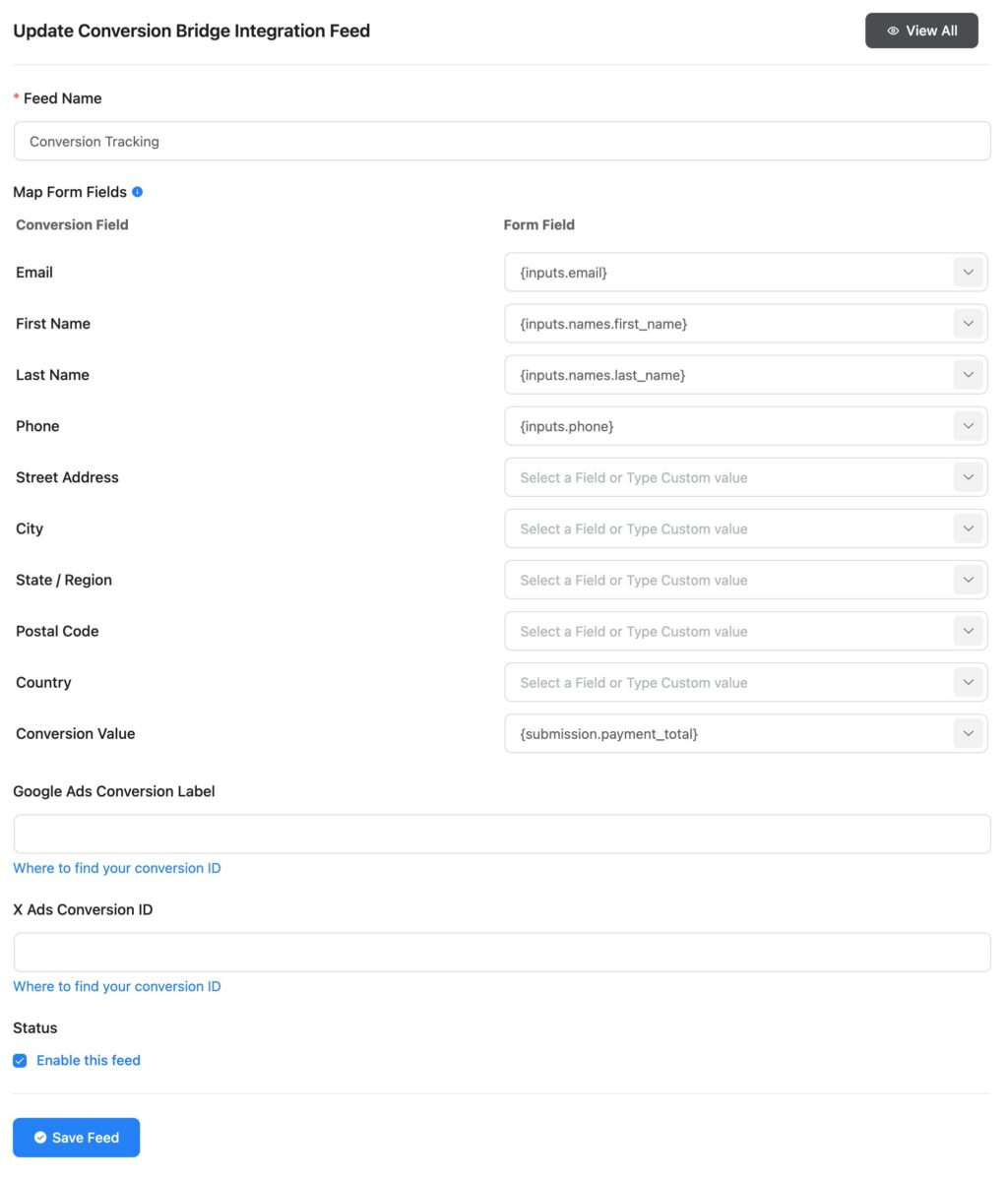
If you already have Fluent Forms tracking set up the old way, nothing breaks. Those settings continue to work exactly as they did. But for any new form, or any existing form that would benefit from richer field mapping or its own conversion value, the new native integration is the recommended way to set it up.
Conversion Journeys Now Show Timing
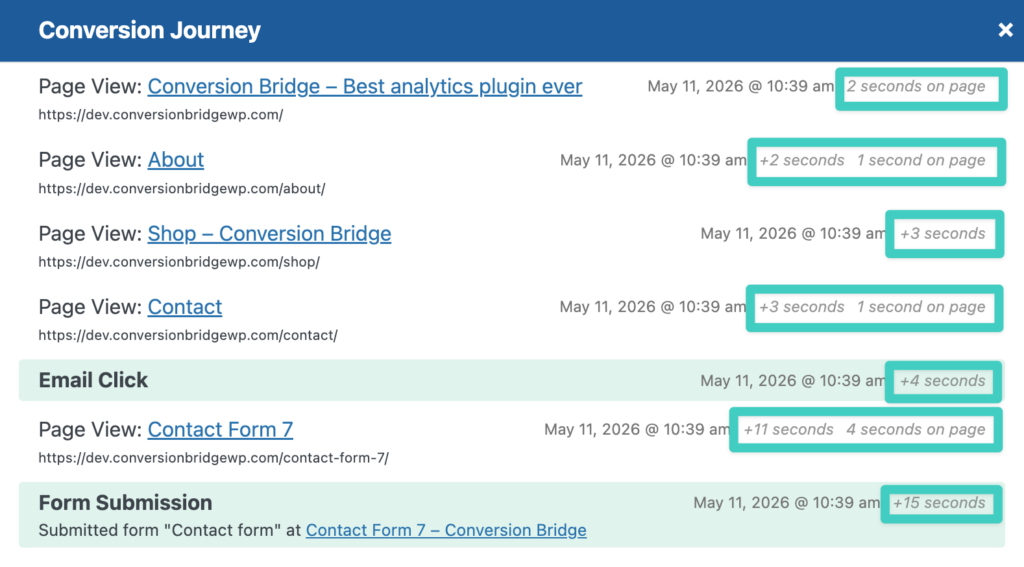
Conversion journeys have always shown the page-by-page path a visitor took before converting. Now they also show how long it took. Two new pieces of timing data are visible in every journey:
- The total elapsed time from the visitor's first event to the conversion
- The time spent on each individual page along the way
That extra context tells you a lot. A conversion that took six visits over three days is a very different story than a conversion that took six page views in five minutes. Now you can see both at a glance.
Microsoft Ads: Better Conversion Goals, Revenue Reporting, and Dynamic Remarketing
Microsoft Ads got a meaningful upgrade in 1.14.
Every event now has a clear name. Each conversion type (purchases, add-to-cart, form submissions, and so on) is sent with its own name instead of a generic event. That makes setting up conversion goals in Microsoft Ads simpler and more reliable.
Revenue values are sent properly. Conversions that carry a dollar amount now show up correctly in Microsoft Ads revenue reports and revenue-based bidding.
A new Enable Dynamic Remarketing option. Flip this on if you want Microsoft Ads to build product audiences for retargeting and dynamic product ads. Conversion Bridge sends the right product and order data alongside every purchase, add-to-cart, view-cart, and product-view event.
Google Tag Manager: Smarter Consent Bridging
The GTM Consent Mode Bridge got more reliable in three specific ways:
- Catches more consent updates. The bridge now picks up the standard consent-update format Google's own documentation uses, on top of the format it already supported. Less chance of consent signals slipping through.
- Works even when GTM is excluded. If you've disabled Conversion Bridge's GTM script output (because another plugin is loading GTM), the consent bridge still runs.
- Works when your consent platform is loaded inside GTM, not as a WP plugin. If you've deployed CookieYes (or a similar banner) inside Google Tag Manager rather than as an active WordPress plugin, Conversion Bridge will still bridge consent signals to it.
If you're running Google tags through GTM and trying to get Consent Mode right, this should make life noticeably easier.
MemberPress: Full Address for Enhanced Conversions
MemberPress now sends phone, city, state, postal code, and country alongside email and name for enhanced conversions on purchase events. That's a big match-quality boost for Google Ads and Meta, especially when your memberships have address fields filled in at checkout.
There's also a fix in this release for recurring subscriptions where the initial transaction total is $0 (free trial, prorated upgrade). Those now report the subscription amount as the conversion value instead of $0, so renewals don't get lost in your reporting.
Faster Event Tracking (and a Faster Plausible Proxy)
A few performance things in this release that you'll notice if you have a lot of traffic.
Event tracking is significantly faster. Pageviews and conversions no longer slow down a visitor's page load, even when several analytics and ad platforms are connected. Pages come back faster, especially on busier sites.
Dashboard widget loads quickly, even on busy sites. On sites that have collected a lot of conversion data, the conversion widget on the WordPress dashboard could noticeably slow things down. Now the widget loads after the rest of the page, and the numbers it shows are cached for an hour. Big speed improvement if you have a busy site.
Plausible proxy is more resilient. If Plausible's service has a bad day, your site no longer waits on it. The proxy bows out gracefully and your pages keep loading at full speed.
UTM Reports: Filter by Event Type
UTM Reports can now be filtered by a specific conversion event type. Want to see UTM data for purchases only? Or just for form submissions? Just pick the event from the filter and the whole report scopes to it. Makes campaign analysis a lot more focused.
Tools Moved Under WordPress Tools Menu
The UTM Link Builder, UTM Reports, and Top Landing Pages tools now appear under Tools in the WordPress admin (and also under the Analytics menu when an analytics dashboard is enabled). It's a small reorganization, but it puts the tools where you'd actually expect to find them in WordPress instead of buried inside the Conversion Bridge submenus.
Gravity Forms: UTM Sidebar on Entry Details
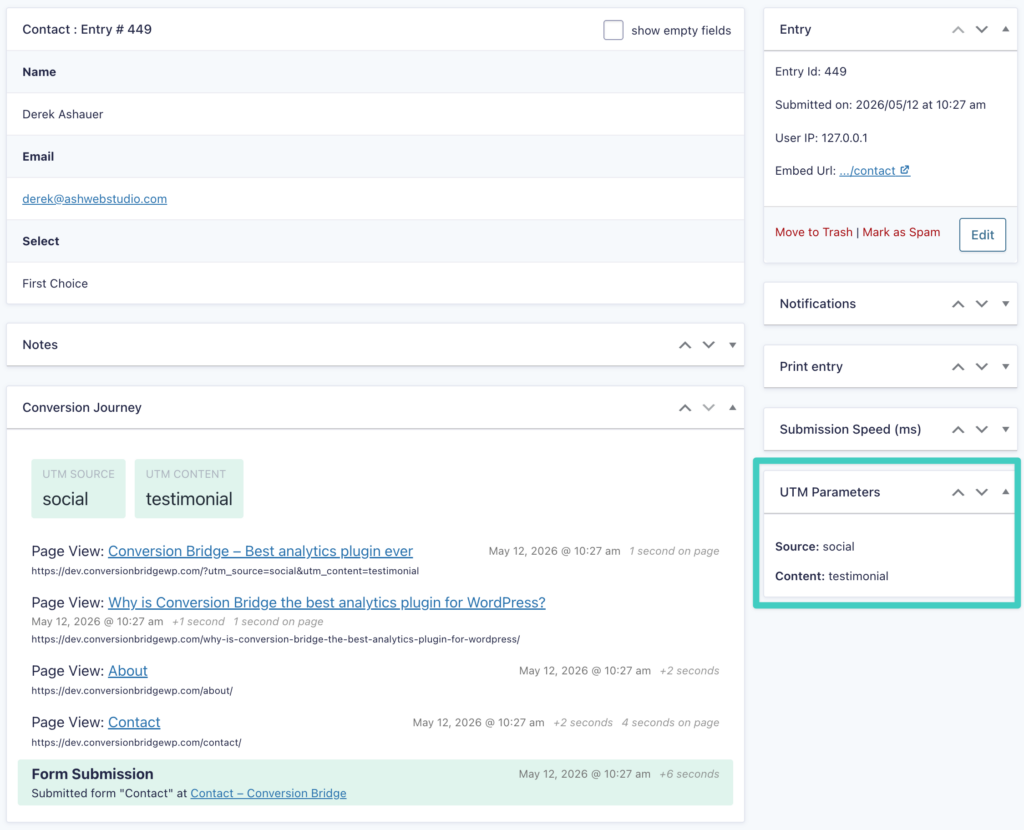
When you open a Gravity Forms entry that has UTM data captured, a new UTM ParametersUTM parameters are tags added to a link that show where traffic comes from and which campaigns lead to real conversions. sidebar box on the entry detail page shows source, medium, campaign, term, and content side-by-side. The campaign behind every submission is now one click away, no scrolling through entry metadata.
Don't forget! A previous release that included the auto-captured UTM data with every entry allows this data to be included in entry exports or used in the entry display columns.
Freemius Now Auto-Detected
The Freemius integration used to require pasting a small code snippet into your site before it would even show up in the Conversion Bridge settings. Now, when the Freemius for WordPress plugin is active on your site, the integration shows up automatically. The code-snippet path is still there for anyone integrating Freemius manually without the plugin.
Other Updates
A handful of smaller things worth knowing about:
- Phone Click Tracking moved to Core. Phone link click tracking moved out of the Google Ads integration and into the Core WordPress integration, alongside email link click tracking. Your existing Google Ads Phone Click Conversion ID was migrated automatically when you updated.
- Meta attributionThe process of determining which channels, campaigns, or actions contributed to a conversion, helping you understand what influenced a visitor’s decision to take action. improvement. Meta Conversions API now matches Meta's native behavior when figuring out which ad click to credit, in the rare cases where the visitor came back to your site through a different path.
- Notification email placeholder fix. Form and order notification emails no longer leave a literal
{conversion_journey}placeholder if no journey is available. Instead they show "No conversion journey found". - WPConsent fixes. Two consent edge cases got cleaned up: when WPConsent is set to opt-out mode and a visitor arrives without a stored consent choice, consent now grants correctly. And a timing issue where the banner could load before Conversion Bridge was ready is fixed.
- Dashboard widget cache fix. The dashboard widget wasn't actually caching the way it was supposed to.
How to Update
If you have an active license, head to Plugins in your WordPress admin and click Update Now on Conversion Bridge. The update will migrate your old Google Ads Phone Click setting to the Core integration automatically.
New to Conversion Bridge? Take a look at what it does and try it on your WordPress site.
Questions?
Reach out through the support system any time. I read every message.
Happy tracking!