
Performance plugins like Perfmatters, WP Rocket, and LiteSpeed Cache can make your site noticeably faster. One of their most powerful tools is delaying JavaScript, which holds scripts back until a visitor moves their mouse, scrolls, or taps.
That works great for a chat widget. It's a problem for tracking. If your tracking scripts are delayed and a visitor leaves without interacting, that visit is never recorded. No pageview, no campaign attributionThe process of determining which channels, campaigns, or actions contributed to a conversion, helping you understand what influenced a visitor’s decision to take action., no conversion journey. Nothing looks broken, the data just quietly shrinks.
What Delaying JavaScript Does to Tracking
Delay settings hold a script back until the visitor interacts with the page. Visitors who land, read, and leave without moving their mouse or scrolling never trigger that interaction, so delayed tracking scripts never run for them.
The result:
- Visits from bounced visitors are missing entirely.
- Campaign data (UTM parametersUTM parameters are tags added to a link that show where traffic comes from and which campaigns lead to real conversions. and ad click IDs) is not captured on the landing page, so conversions later in the journey lose their source.
- Scripts that depend on each other can load in the wrong order, causing JavaScript errors that stop tracking even for engaged visitors.
Deferring JavaScript is gentler. Deferred scripts still run on every page load, just after the page finishes parsing. It rarely loses data, but ordering issues can still cause errors.
What Conversion Bridge Handles Automatically
Starting in version 1.16, Conversion Bridge automatically excludes its own scripts from the delay and defer features in:
- Perfmatters
- WP Rocket
- LiteSpeed Cache (including Guest Mode optimization)
There's nothing to configure. If you use one of these plugins, you can turn on their JavaScript delay features and Conversion Bridge keeps tracking every visitor from the moment the page loads.
This only covers Conversion Bridge's own scripts and the platform scripts it loads for you. If you delay other scripts on your site, those choices are left alone.
Adding an Exclusion Rule Yourself
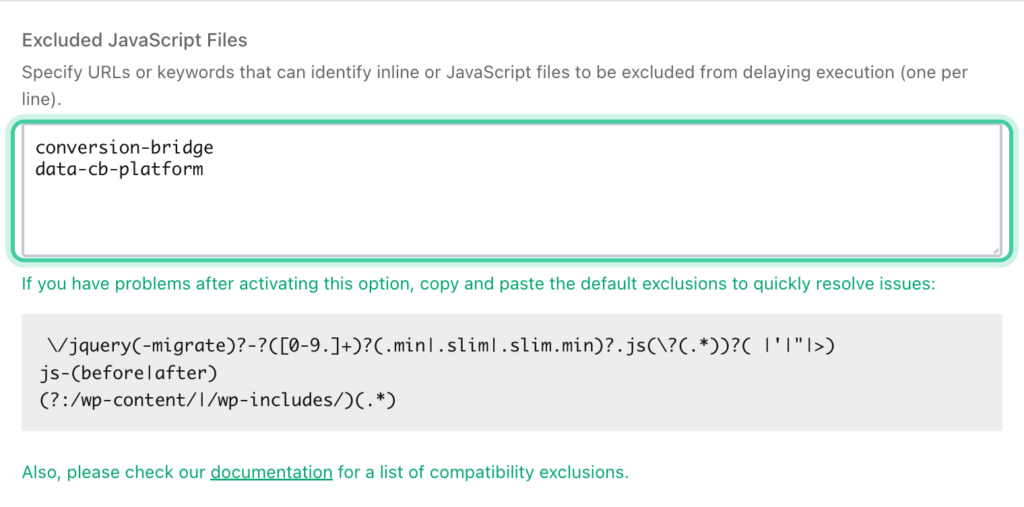
If you use a different performance plugin, or an older version of Conversion Bridge, two exclusion rules cover everything:
conversion-bridge
data-cb-platform
Add those two lines to your performance plugin's exclusion setting. It's usually named something like "Exclude from Delay," "Excluded JavaScript Files," or "Never Delay."
Here's why these two work. Performance plugins match exclusion rules against the whole script tag. Conversion Bridge's own scripts all carry conversion-bridge, with IDs like conversion-bridge--events. And every analytics or ad platform script Conversion Bridge loads for you carries a data-cb-platform attribute, which covers the couple of platforms (like Pirsch and WideAngle) whose scripts require their own special IDs.
Make sure to include the hyphen: conversion-bridge. The unhyphenated version matches some of the plugin's files but misses the script that fires your conversion events.
Common places to add it:
- Perfmatters: Assets → JavaScript → Delay Behavior exclusions (and Defer exclusions if you defer)
- WP Rocket: File Optimization → Delay JavaScript execution → Excluded JavaScript files
- LiteSpeed Cache: Page Optimization → Tuning → JS Excludes and JS Deferred / Delayed Excludes
- Flying Scripts, SiteGround Optimizer, Autoptimize, and others: look for the exclude or ignore list in their JavaScript settings
One Special Case: Custom Tracking Scripts
Scripts you add through the Custom Tracking Scripts feature get Conversion Bridge's markers when you assign them an analytics or marketing category, so the rules above cover them. A custom script with its category set to none is output exactly as you pasted it, with no markers added. If you want a "none" script excluded from delay, add a rule matching something unique in it, like its source URL.
Watch Out for Script Managers
Some performance plugins also include a script manager that lets you turn off individual scripts per page (Perfmatters' Script Manager, Asset CleanUp, and similar). These are manual on/off switches, so Conversion Bridge can't exclude itself from them.
If you use one, leave every script starting with conversion-bridge enabled on any page where you want tracking, which is usually every page. A conversion journey only works when the pages leading up to the conversion are tracked too.
How to Confirm Tracking Still Works
After changing performance settings, clear your caches and test as a real visitor:
- Go to Settings → Conversion Bridge → Options and turn on Server logging under the Advanced settings.
- In a private or incognito window, load a few pages. Don't move your mouse or scroll on the last one.
- Back on the Options tab, open the log and check that every pageview was recorded, including the one with no interaction.
If pageviews are missing, a delay rule is still catching a tracking script. See How to debug events: Enable logging for more on reading the log.