Microsoft Ads
Conversion Bridge automatically adds the Microsoft Ads UET (Universal Event Tracking) tag to every page on your site and fires conversion events when visitors complete actions like purchases, form submissions, and other tracked events.
Unlike platforms such as Google Analytics 4 or Meta, Microsoft Ads does not have a structured event system with predefined event names and parameters. Instead, it uses custom event parameters — event_category, event_label, and event_value — that you define yourself. Conversion Bridge sends these parameters automatically with every conversion event. You then create conversion goals in your Microsoft Ads account that match these parameters to start tracking conversions.
Setting up Microsoft Ads
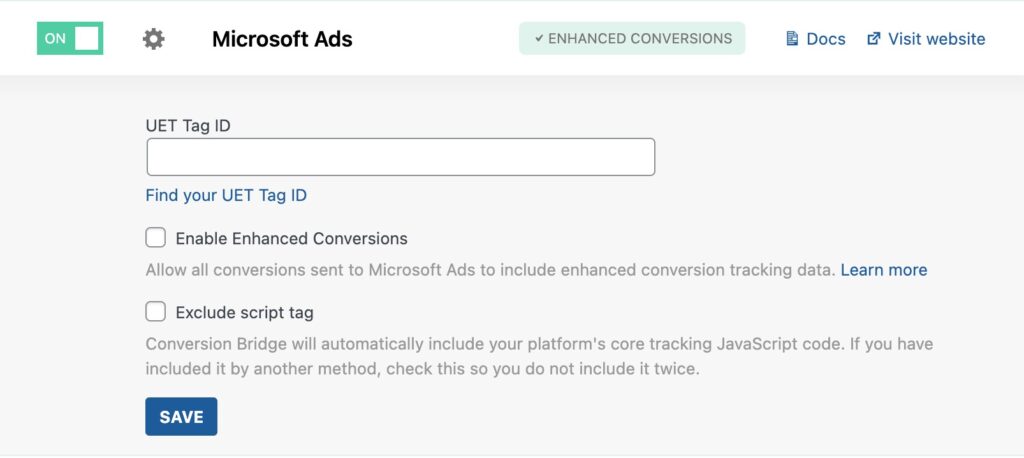
Obtaining your UET Tag ID and available settings
- Go to ads.microsoft.com and log in to your account
- Go to Conversions > UET Tag > Create
- After creating your tag, copy and paste the unique ID into the Conversion Bridge Settings
You can optionally enable Enhanced Conversions to help increase the effectiveness of your ad attributionThe process of determining which channels, campaigns, or actions contributed to a conversion, helping you understand what influenced a visitor’s decision to take action.. Conversion Bridge can securely include the email related to your conversion event to better help attribute the conversion to the user's ad click.
Learn more about Microsoft Ads Enhanced Conversions as well.
How Microsoft Ads Tracks Events
Microsoft Ads uses a simple event model based on custom parameters. When a conversion happens on your site, Conversion Bridge sends an event to Microsoft Ads using this format:
window.uetq.push('event', 'action_name', {
  event_category: 'event_type',
  event_label: 'your_label',
  event_value: 99.99
});The three key parameters are:
- Action name — The name of the event action (e.g.,
purchase,add_to_cart, or an empty string for pageview-type events) event_category— A category string that describes the type of event (e.g.,form_submit,signup,newsletter)event_label— The conversion label you configure in Conversion Bridge for each eventevent_value— The numeric conversion value associated with the event
You use these parameters when creating conversion goals in Microsoft Ads to tell it which events count as conversions. This is the main difference from platforms like GA4 — in Microsoft Ads, you must create a conversion goal that matches the event parameters Conversion Bridge sends. Without a matching goal, events are sent but not counted as conversions.
Event Data Sent by Conversion Bridge
E-Commerce Events (Purchases)
When a purchase event is tracked (from WooCommerce, Easy Digital Downloads, or other e-commerce integrations), Conversion Bridge sends the following data:
Action name: purchase
Event parameters:
event_label— Your configured conversion label for the purchase eventcurrency— The currency code (e.g.,USD,GBP)ecomm_totalvalue— The total order amountecomm_prodid— An array of product IDs in the orderecomm_pagetype— Set topurchaseitems— An array of line items, each containing:id— The product ID (or variant ID if applicable)quantity— Number of units purchasedprice— Price per unittransaction_id— The unique order/transaction ID
The ecomm_prodid and items data is used by Microsoft Ads for dynamic remarketing — allowing you to show ads for the specific products a visitor interacted with.
Add to Cart Events
When a visitor adds a product to their cart:
Action name: add_to_cart
Event parameters:
event_label— Your configured conversion labelecomm_pagetype— Set toproductecomm_prodid— Array of product IDsecomm_totalvalue— The value of the items addeditems— Array of line items withid,quantity, andpricecurrency— The currency code
View Item Events
When a visitor views a product page:
Action name: Empty (sent as a pageview-type event)
Event parameters:
ecomm_pagetype— Set toproduct- Product data when available
View Cart Events
When a visitor views their cart:
Action name: Empty (sent as a pageview-type event)
Event parameters:
ecomm_pagetype— Set tocart
Form Submissions, Signups, and Other Events
For non-ecommerce events like form submissions, newsletter signups, registrations, and similar actions, Conversion Bridge sends the event type as the event_category:
Action name: The event type (e.g., form_submit)
Event parameters:
event_category— The type of event (e.g.,form_submit,signup,newsletter,registration)event_label— Your configured conversion label for the eventevent_value— The conversion value, if one is configured
For example, a Gravity Forms submission would be sent as:
window.uetq.push('event', 'form_submit', {
  event_category: 'form_submit',
  event_label: 'contact-form',
  event_value: 25.00
});How to create a conversion goals in Microsoft Ads
Log In to Microsoft Ads
Go to ads.microsoft.com and log in to your account.
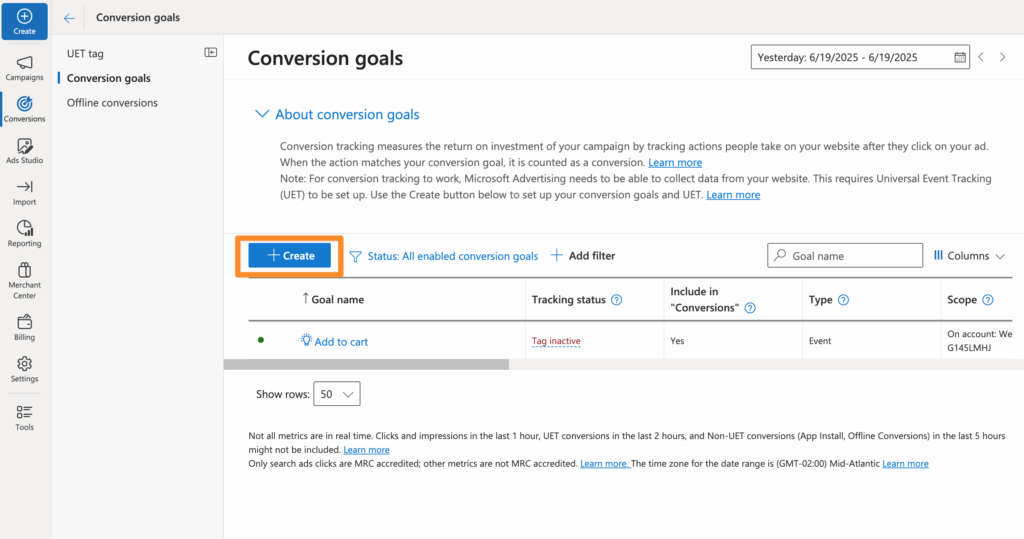
Go to Tools > Conversion Goals
In the top navigation menu, click on Tools, then choose Conversion goals from the dropdown. Click the blue Create button.
Choose a Goal Type
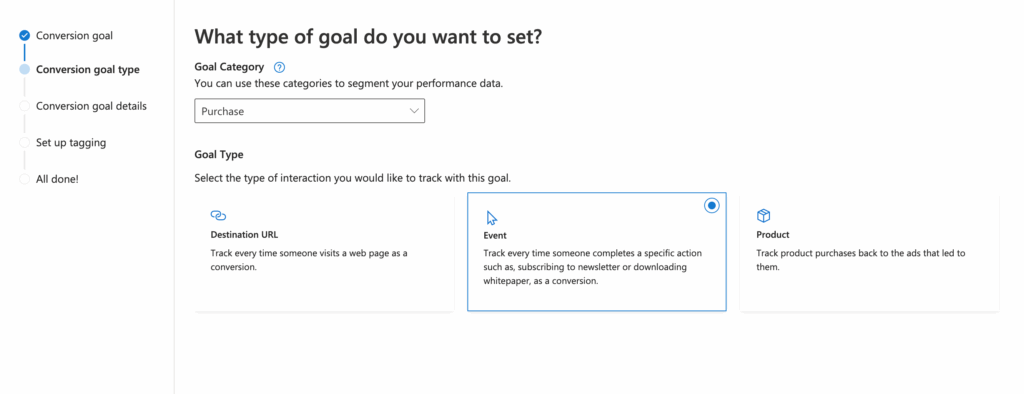
Select:
- Goal Category: Purchase (or whatever you need to configure)
- Goal Type: Event
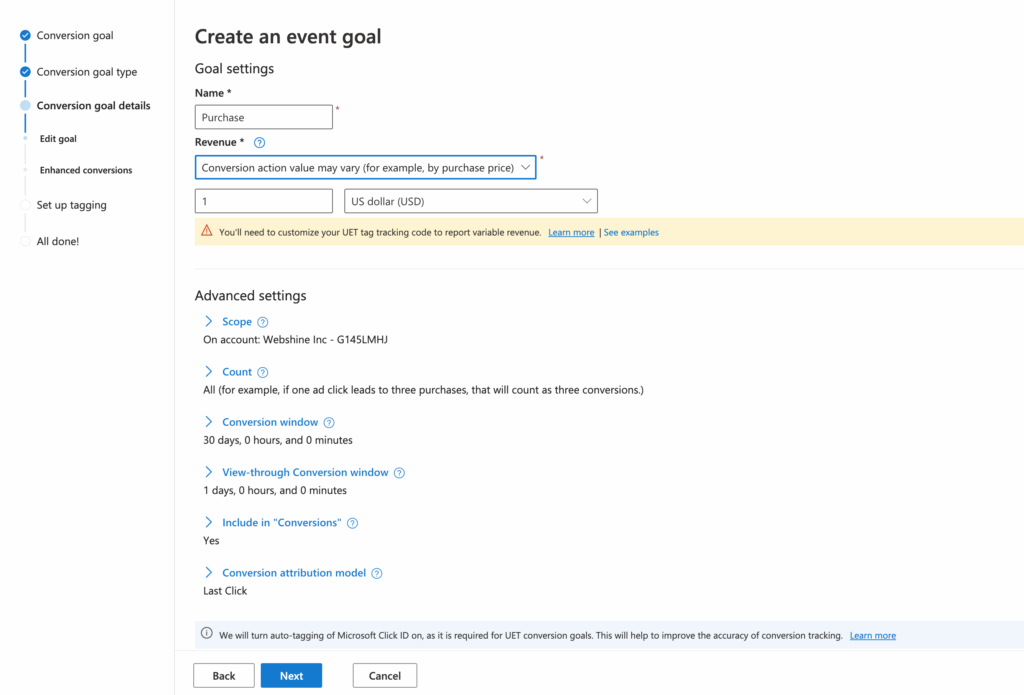
Configure Goal Details
Enter the unique name of the goal. For Revenue, select "Conversion action value may vary" as Conversion Bridge will send the unique purchase amount (and line items) along with the conversion event.
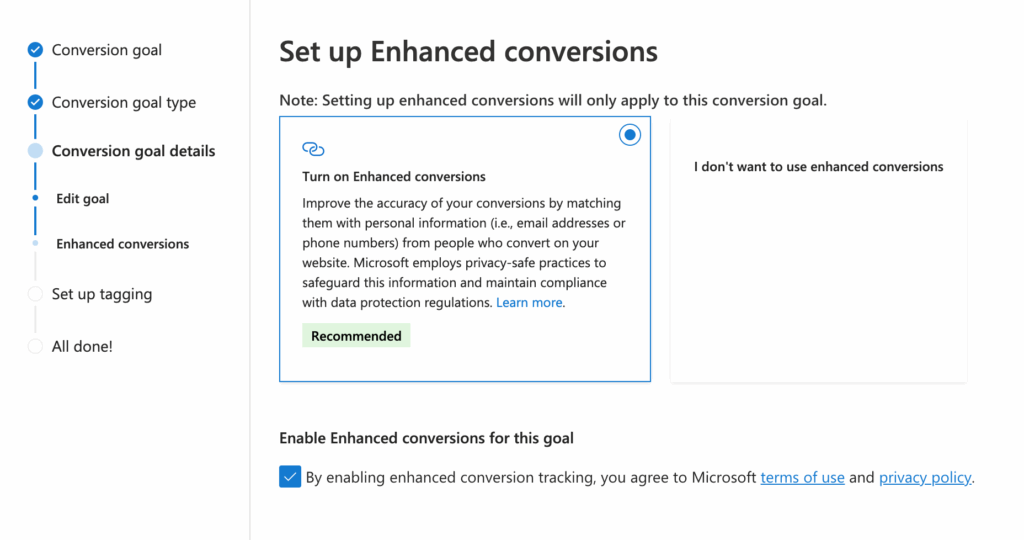
(Optional) Enable Enhanced Conversions
Enabling Enhanced Conversions helps increase the effectiveness of your ad attribution. Conversion Bridge can securely include the email related to your conversion event (purchase, form submission, newsletter signup, etc) to better help attribute the conversion to the user's ad click.
Learn more about Microsoft Ads Enhanced Conversions as well.
Setup Tagging
Indicate that your UET tag is already installed (reminder: Conversion Bridge is including this for you).
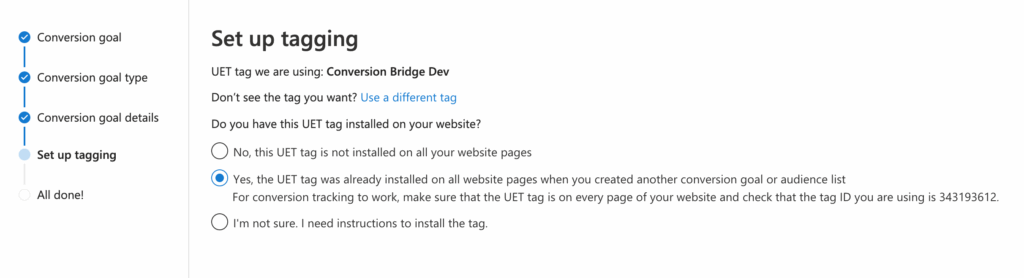
If you enabled Enhanced Conversions, it will give you some extra code snippet to include - you may ignore this as Conversion Bridge handles this for you.
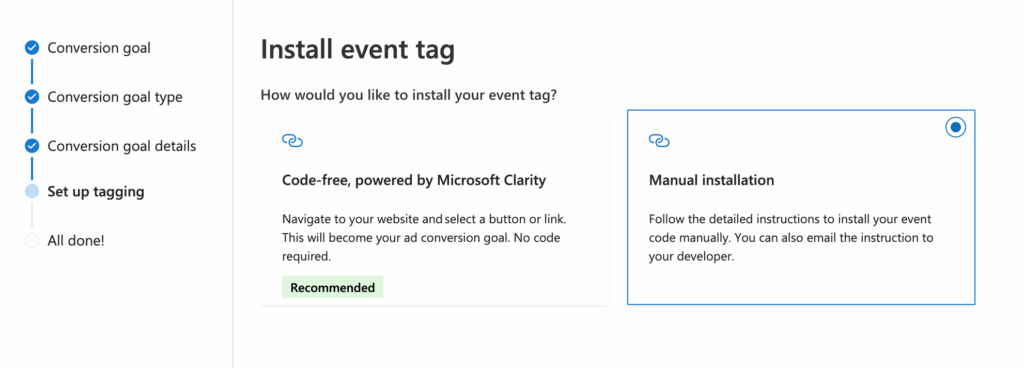
Install Event Tag
Select Manual - but you will not need to do anything as Conversion Bridge will actually take care of it for you. The rest of this setup is to quickly finish the conversion goal setup process.
Custom Parameters
This is where you tell Microsoft Ads which events should count as conversions for this goal. Microsoft Ads matches events using these parameters:
| Parameter | What it matches | Operators available |
|---|---|---|
| Action | The action/event name (e.g., purchase, form_submit) | Equals, Contains, Begins with |
| Category | The event_category value | Equals, Contains, Begins with |
| Label | The event_label value | Equals, Contains, Begins with |
| Value | The event_value number | Equals, Greater than, Less than |
You only need to fill in the parameters you want to match — leave the others empty. Microsoft Ads uses an AND relationship, meaning the event must match all specified parameters to count as a conversion.
Example: Tracking Purchases
To track purchase conversions:
- Action: Equals
purchase
That's all you need. Every purchase event Conversion Bridge sends will match this goal. The revenue value, product data, and other details are included automatically.
Example: Tracking a Specific Form
Suppose you have multiple forms and want to track only your "Free Consultation" form. In Conversion Bridge, you've set the conversion label for that form to consultation-lead.
- Action: Equals
form_submit - Label: Equals
consultation-lead
This goal will only count form submissions where the label matches consultation-lead. Other form submissions with different labels will not be counted.
Example: Tracking All Form Submissions
If you want one goal that captures all form submissions regardless of which form:
- Action: Equals
form_submit
Example: Tracking Newsletter Signups
If your newsletter integration sends events with the type newsletter:
- Category: Equals
newsletter
Example: Tracking High-Value Conversions Only
If you want to only count conversions above a certain amount:
- Action: Equals
purchase - Value: Greater than
100
Tips for Creating Conversion Goals
- Use the conversion label to distinguish between different forms, products, or events of the same type. This is the most flexible approach because you control the label in Conversion Bridge settings.
- Create separate goals for each type of conversion you want to track (purchases, form submissions, signups, etc.) so you can optimize ad campaigns for specific actions.
- Use "Contains" or "Begins with" operators when you want a single goal to match multiple related events. For example, Label contains
leadwould match labels likeconsultation-lead,demo-lead, andlead-form. - After creating a goal, use the Microsoft UET Tag Helper Chrome extension to verify events are firing correctly. Allow 24–48 hours for conversion data to appear in your Microsoft Ads reports.
Consent Mode
Conversion Bridge supports Microsoft Ads consent mode. When a supported cookie consent banner is enabled on your site, Conversion Bridge automatically manages consent signals for Microsoft Ads.
- On page load, ad storage consent is set to denied by default
- When a visitor grants marketing consent through your cookie banner, Conversion Bridge updates Microsoft Ads consent to granted
- If a visitor denies consent, the denied state remains
This works automatically — no additional configuration is needed beyond enabling a supported cookie consent banner in Conversion Bridge.
Exclude Script
If you are including the Microsoft UET tag via another method (possibly via Clarity) you can disable Conversion Bridge's output of that script but still track conversions.
FAQs
No. Conversion Bridge automatically handles all tracking scripts for Microsoft Ads.
You can repeat these steps and change the condition value. For example, set "Goal Category" to "Add to cart".
Use the free Microsoft UET Tag Helper Chrome extension to verify that the purchase event is firing after performing a test of your conversion event.
Still need help?
If you have not yet found your answer in the documentation articles, please contact support
Contact support