
Google Ads Setup
Finding your Destination ID
Setting up conversion tracking in Google Ads is simple and requires just your tag ID from your account. Here is where to find it:
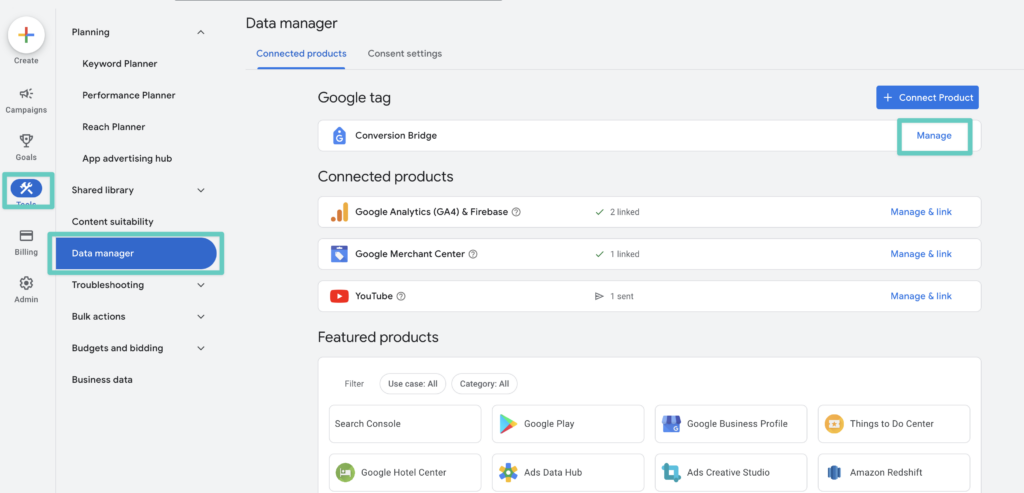
In Google Ads, go to Tools > Data Manager > Google Tag. Click on "Manage" next to the proper account.
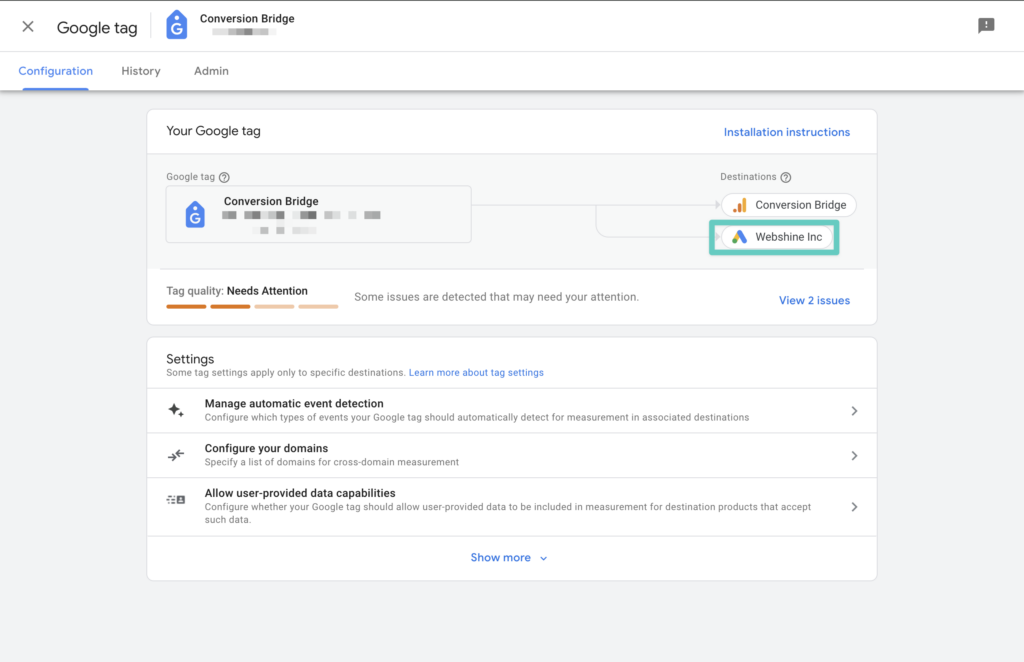
Click on the name of your business that has the Google Ads icon next to it. Yours may look slightly different:
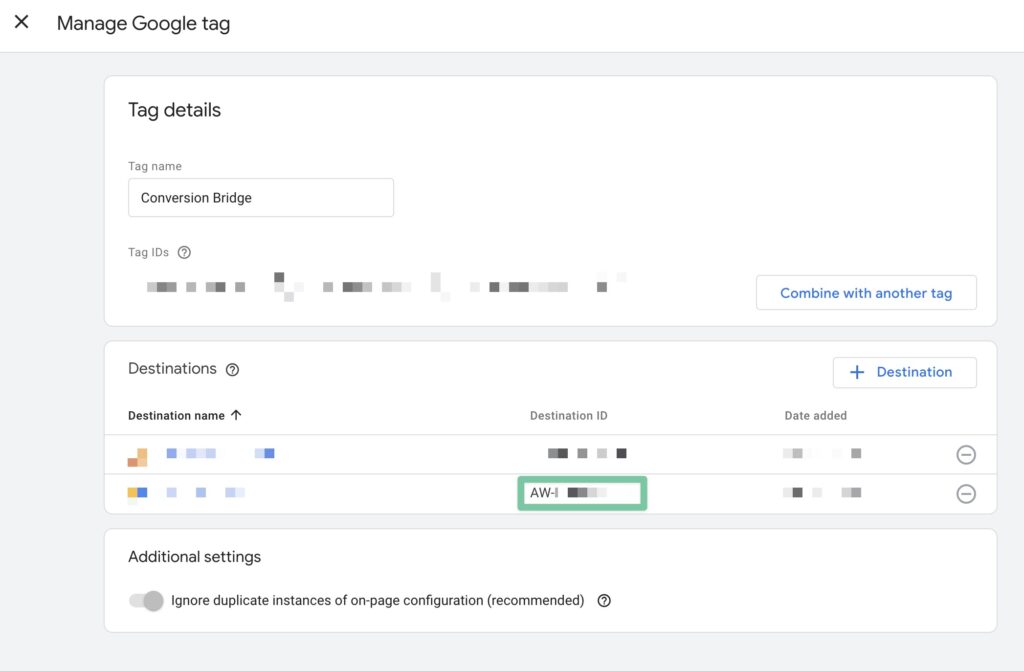
Copy the "AW-XXXXX" value you see listed and paste into your Conversion Bridge Settings
Google Ads Phone Call Tracking
Conversion Bridge supports Google Ads phone number replacement tracking on the Google Ads settings page (covered below).
Phone Number Click Tracking
Phone number click tracking (the "tel:" link tracking feature) was moved out of the Google Ads integration in version 1.14 and now lives in the Core WordPress integration, alongside email link click tracking. Your existing Google Ads Phone Click Conversion ID was migrated automatically when you updated, so no setup change is needed if you already had it configured.
To configure phone click tracking going forward:
- Go to Settings > Conversion Bridge > Integrations.
- Open the Core WordPress integration.
- Enable Phone link click tracking and enter your Google Ads Phone Click Conversion ID there.
The original Google Ads phone click setup instructions are kept below for reference.
Original Phone Click Setup (Reference)
If you have a phone number on your site you should be making it a link with the "tel:" protocol so they trigger a call from the current device when clicked. Conversion Bridge can automatically add Google Ads conversion tracking to all links with the "tel:" protocol throughout your entire site with this feature enabled and the Conversion ID entered.
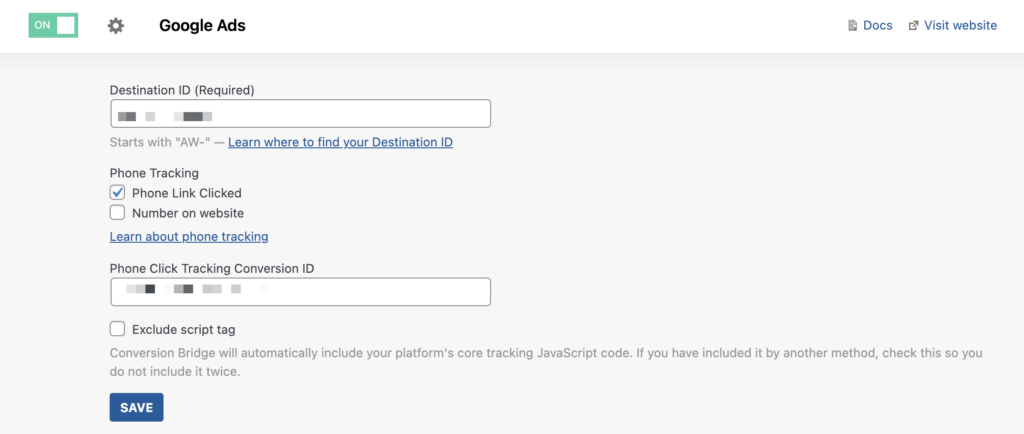
To get your Phone Click Tracking Conversion ID:
- Go to Google Ads > Goals > Conversions
- Create a new Conversion Action
- Select "Phone Calls"
- Select "Clicks on your number on your mobile website"
- Enter all the information however you want on the next settings screen
- Select "Install the tag yourself"
- Copy the Conversion ID into the Conversion Bridge settings
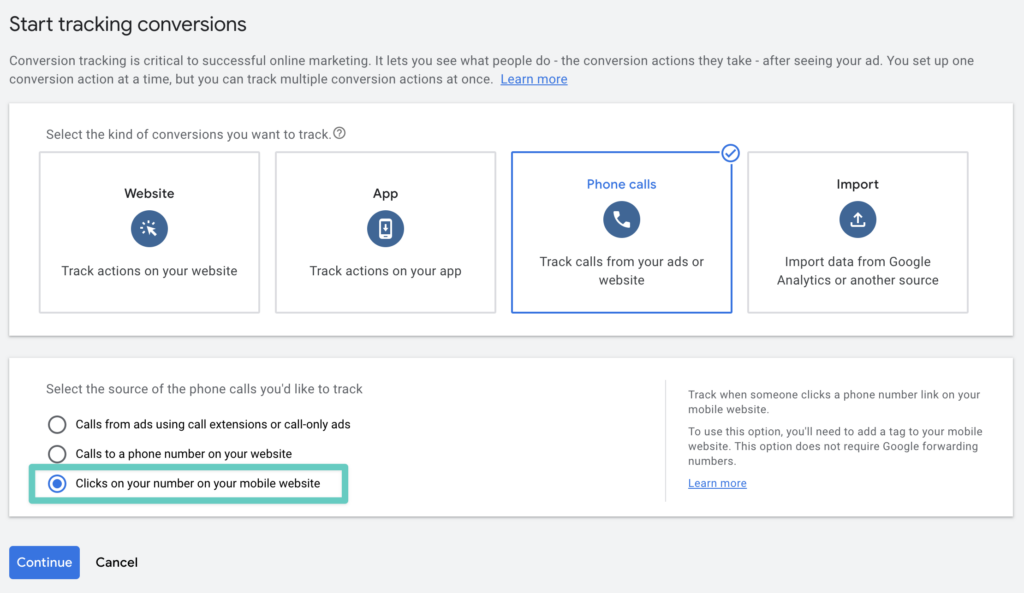
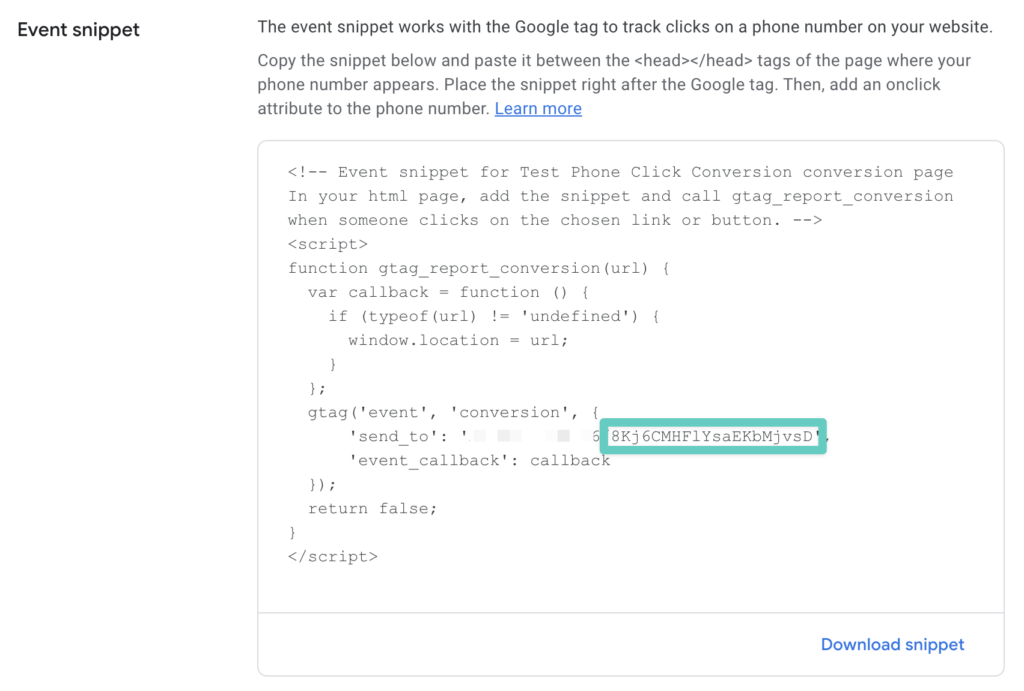
You will only need one piece of this snippet as highlighted in the screenshot below. This is your Google Ads Phone Click Conversion ID which is the second random character string of text after the slash.
Example: AW-########/XXXXXXXXXXXX
AW-######## = Your unique Google Ads Account ID entered in the Conversion Bridge Google Ads settings
*XXXXXXXXXXXX* = Google Ads Conversion ID
Phone Replacement
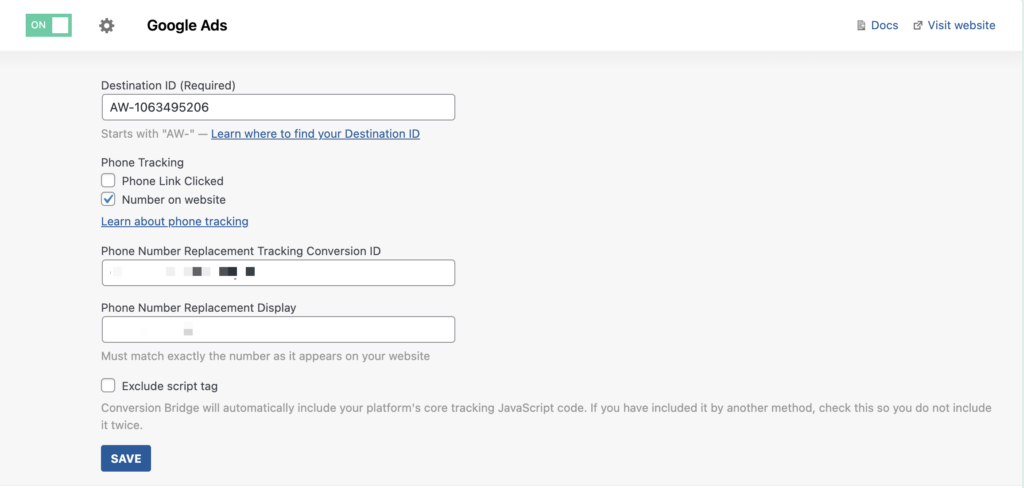
With Google Ads, you can setup phone replacement tracking so when a customer clicks an ad and lands on your site the phone number will get replaced with a unique one to help track a conversion from the ad.
To set up phone number replacement tracking:
- Go to Google Ads > Goals > Conversions
- Create a new Conversion Action
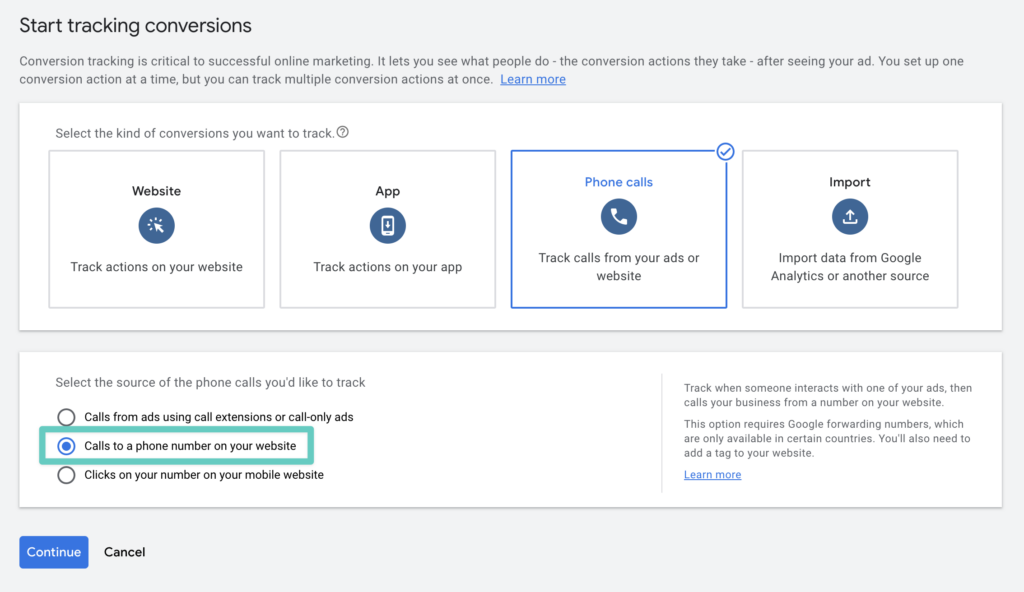
- Select "Phone Calls"
- Select "Calls to a phone number on your website"
- Enter all the information however you want on the next settings screen
- Select "Install the tag yourself"
- Copy the Conversion ID into the Conversion Bridge settings like above
- Enter exactly how your phone number is displayed on your website
Consent Mode
Conversion Bridge supports Google Ads Consent Mode. This helps Google understand whether a visitor has allowed marketing cookiesA small piece of data stored in a user’s browser that helps websites remember user activity, preferences, or sessions across visits..
When a supported cookie banner plugin is selected in Settings → Conversion Bridge → Cookie Consent, Conversion Bridge sets the default consent state to denied when the page loads. It then listens for the visitor’s choice. When they accept or reject cookies, Conversion Bridge updates Google Consent Mode in real time. Google then passes that state to Google Ads and any other Google tools on the page.
If no cookie banner plugin is selected, Conversion Bridge does not send any consent signals, and Google treats consent as granted.
Make sure Consent Mode is only enabled in one place. If your cookie banner already sends consent signals, do not turn on a second Consent Mode feature elsewhere. The Consent Signal Ownership setting controls this per platform.
June 2026 change: since June 15, 2026, the Consent Mode ad_storage signal is the only control over whether advertising data from your Google Analytics tag reaches Google Ads. The Google Signals setting in GA4 no longer stops that data flow. This makes a correct Consent Mode setup more important than before, and it is exactly what Conversion Bridge manages for you.
You can test your setup with Google’s Tag Assistant debugger to see consent changes as they happen.
Enhanced Conversions
Enhanced Conversions is when personally identifiable information is securely included in the conversion event to better help identify the person making the conversion. It can lead to improved accuracy for conversion tracking on your ads.
Learn more about how to setup Enhanced Conversions for Google Ads.
Still need help?
If you have not yet found your answer in the documentation articles, please contact support
Contact support