
This video walks through the whole Google Ads setup on a real store, from the Destination ID to creating conversion actions for a WooCommerce purchase and a WS Form contact form:
Finding your Destination ID
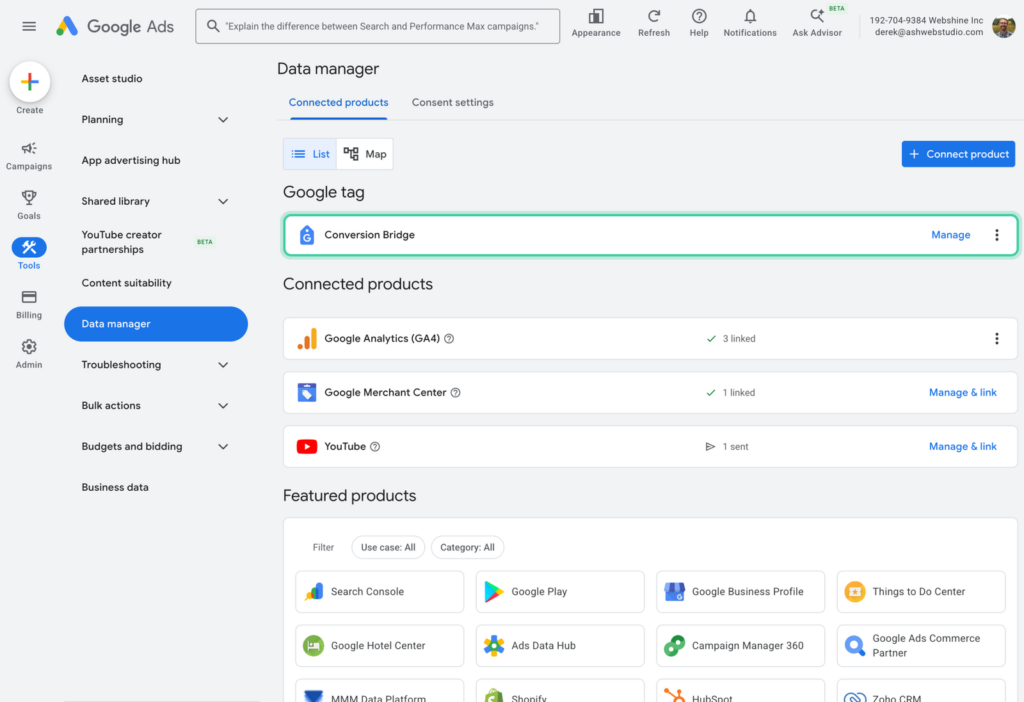
Conversion Bridge needs your Destination ID, which is the ID that starts with "AW-". In Google Ads, go to Tools → Data manager and click Manage next to your tag under Google tag.
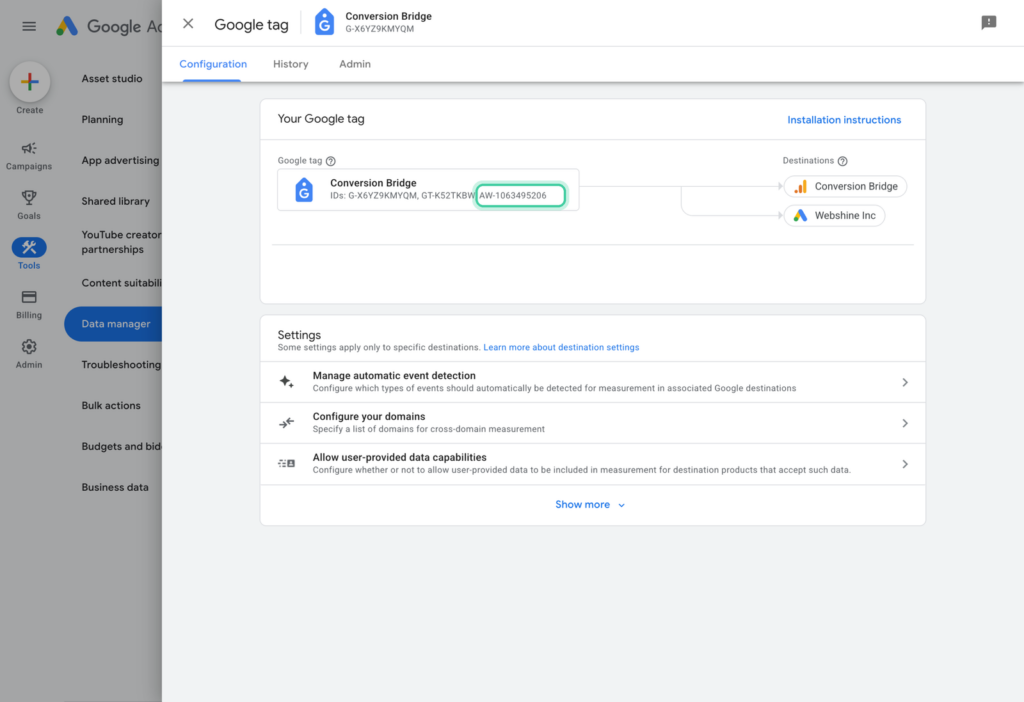
On the tag's Configuration tab, copy the ID that starts with "AW-". Your tag may list other IDs in front of it, like ones starting with "G-" or "GT-", and those aren't the one you need.
If your tag shows two different AW- IDs
Scroll down to Destinations on that same page. If the Google Ads account listed there has a different AW- ID than the one under Tag IDs, use the one under Destinations. That's the account your conversion actions belong to.
This happens when a tag was first set up in one Google Ads account and later pointed at another. The tag keeps its first ID as its name, but your conversions have to go to the account that owns them. To double-check, open one of your conversion actions and look at its tag setup. The part of the send_to value before the slash is the ID Conversion Bridge needs.
In WordPress, go to Settings → Conversion Bridge → Ads, turn on Google Ads, paste the ID into the Destination ID field and save. Enable Enhanced Conversions is on by default, so the name, email and phone number from each conversion are sent along to help Google match it to the person who clicked your ad.
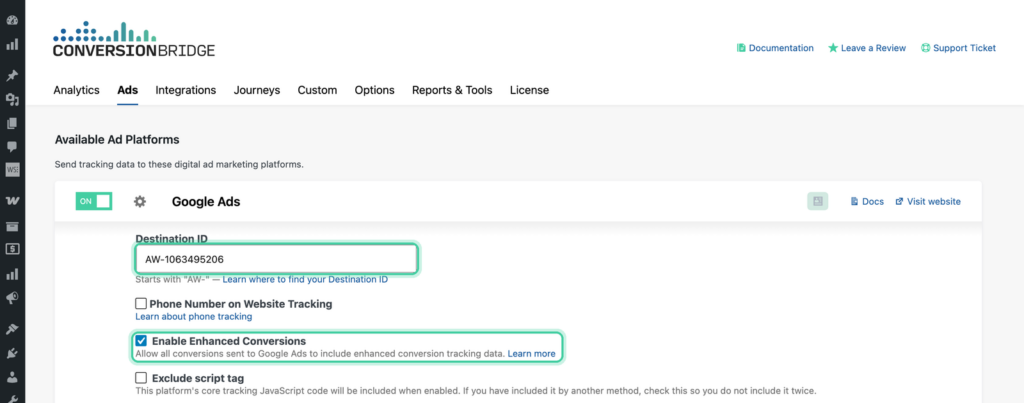
Next, create a conversion action in Google Ads for each thing you want to track and add its Conversion Label in Conversion Bridge. Google Ads Conversion Tracking walks through it with a WooCommerce purchase and a WS Form contact form.
Google Ads Phone Call Tracking
Conversion Bridge supports Google Ads phone number replacement tracking on the Google Ads settings page (covered below).
Phone Number Click Tracking
Phone number click tracking (the "tel:" link tracking feature) was moved out of the Google Ads integration in version 1.14 and now lives in the Core WordPress integration, alongside email link click tracking. Your existing Google Ads Phone Click Conversion ID was migrated automatically when you updated, so no setup change is needed if you already had it configured.
To configure phone click tracking going forward:
- Go to Settings > Conversion Bridge > Integrations.
- Open the Core WordPress integration.
- Enable Phone link click tracking and enter your Google Ads Phone Click Conversion ID there.
The original Google Ads phone click setup instructions are kept below for reference.
Original Phone Click Setup (Reference)
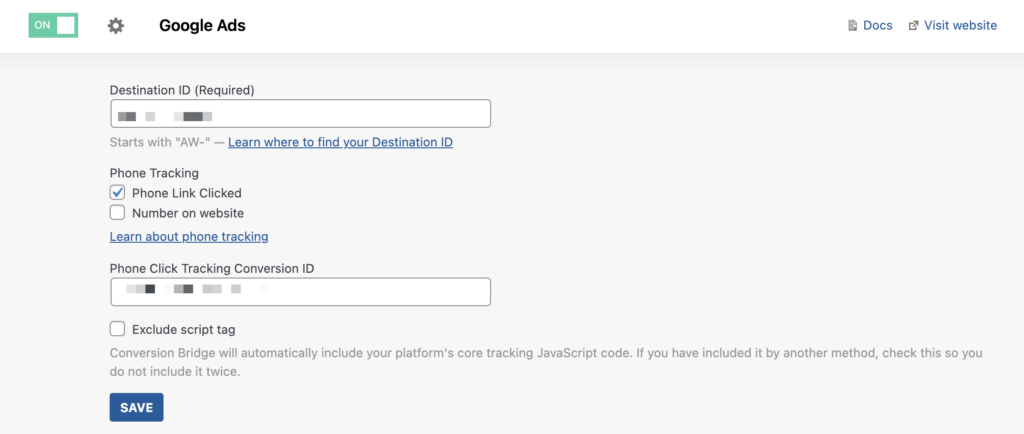
If you have a phone number on your site you should be making it a link with the "tel:" protocol so they trigger a call from the current device when clicked. Conversion Bridge can automatically add Google Ads conversion tracking to all links with the "tel:" protocol throughout your entire site with this feature enabled and the Conversion ID entered.
To get your Phone Click Tracking Conversion ID:
- Go to Google Ads > Goals > Conversions
- Create a new Conversion Action
- Select "Phone Calls"
- Select "Clicks on your number on your mobile website"
- Enter all the information however you want on the next settings screen
- Select "Install the tag yourself"
- Copy the Conversion ID into the Conversion Bridge settings
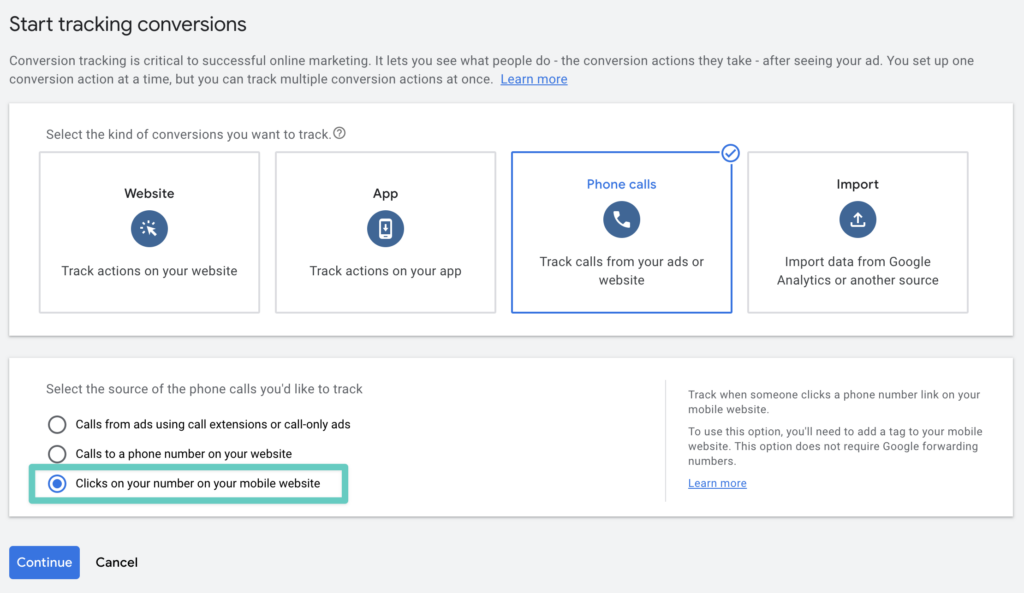
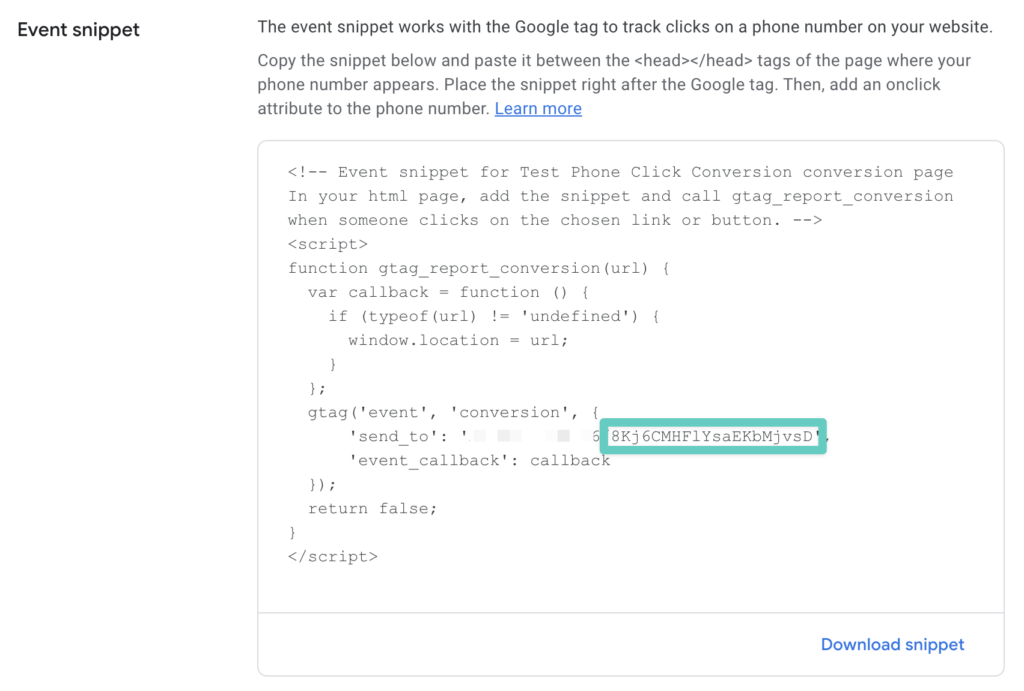
You will only need one piece of this snippet as highlighted in the screenshot below. This is your Google Ads Phone Click Conversion ID which is the second random character string of text after the slash.
Example: AW-########/XXXXXXXXXXXX
AW-######## = Your unique Google Ads Account ID entered in the Conversion Bridge Google Ads settings
*XXXXXXXXXXXX* = Google Ads Conversion ID
Phone Replacement
With Google Ads, you can setup phone replacement tracking so when a customer clicks an ad and lands on your site the phone number will get replaced with a unique one to help track a conversion from the ad.
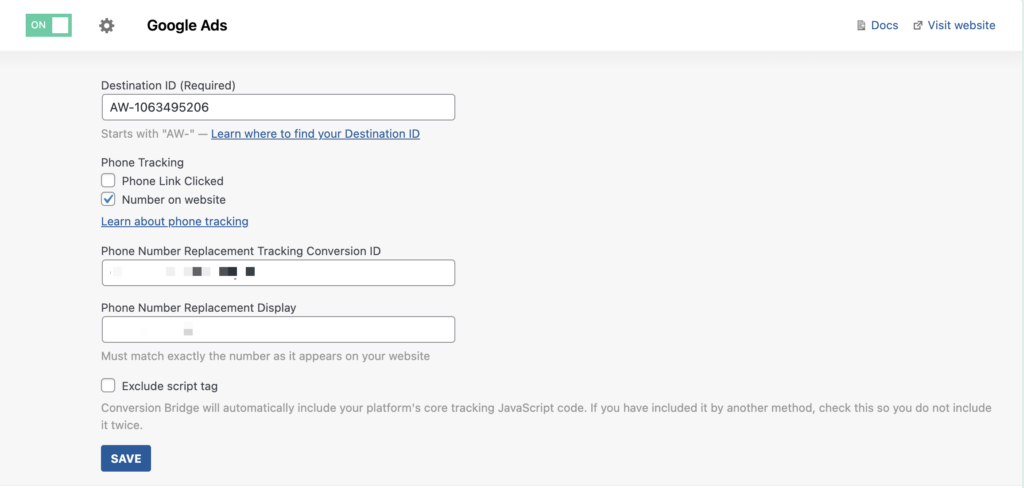
To set up phone number replacement tracking:
- Go to Google Ads > Goals > Conversions
- Create a new Conversion Action
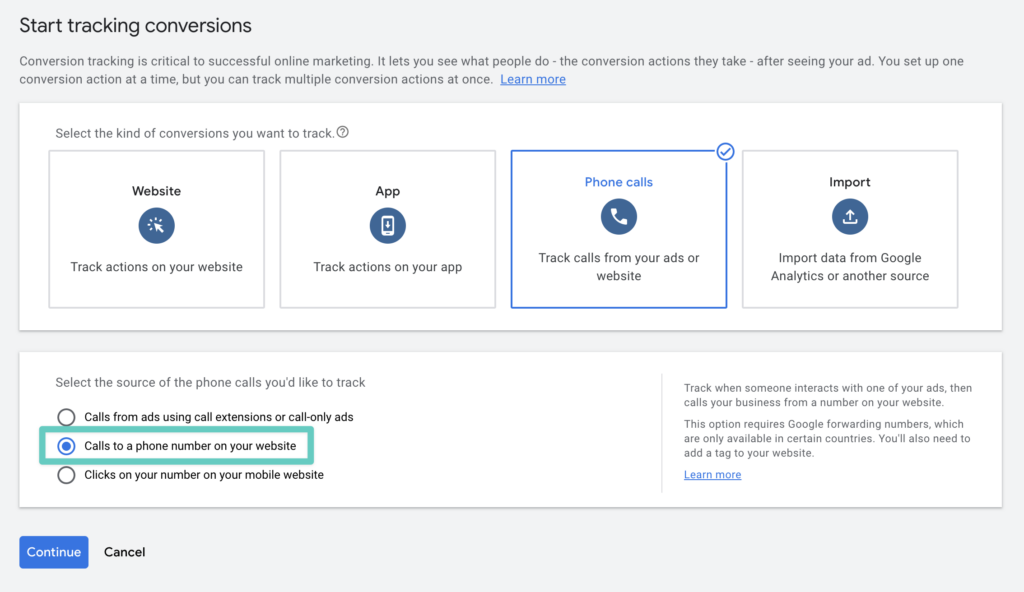
- Select "Phone Calls"
- Select "Calls to a phone number on your website"
- Enter all the information however you want on the next settings screen
- Select "Install the tag yourself"
- Copy the Conversion ID into the Conversion Bridge settings like above
- Enter exactly how your phone number is displayed on your website
Replacing the number in only certain places
By default, Google replaces your phone number everywhere it appears on the page. That is usually what you want. Sometimes it isn't, like when the same number sits in your footer, a contact page, and a schema block, and you only want the swap to happen in your header.
The optional Phone Number CSS Class setting handles that. Add a CSS class to the elements you want replaced, enter that class name in the setting, and Google only swaps the number inside those elements.
For example, wrap the number you want replaced:
<span class="tracked-phone">760-123-4567</span>
Then enter tracked-phone in the Phone Number CSS Class field.
Enter the class name on its own, without a leading dot. .tracked-phone will not match anything, and it fails quietly with no error to point you at the problem.
Leave the field empty if you want the number replaced everywhere it appears.
Consent Mode
Conversion Bridge supports Google Ads Consent Mode. This helps Google understand whether a visitor has allowed marketing cookiesA small piece of data stored in a user’s browser that helps websites remember user activity, preferences, or sessions across visits..
When a supported cookie banner plugin is selected in Settings → Conversion Bridge → Cookie Consent, Conversion Bridge sets the default consent state to denied when the page loads. It then listens for the visitor’s choice. When they accept or reject cookies, Conversion Bridge updates Google Consent Mode in real time. Google then passes that state to Google Ads and any other Google tools on the page.
If no cookie banner plugin is selected, Conversion Bridge does not send any consent signals, and Google treats consent as granted.
Make sure Consent Mode is only enabled in one place. If your cookie banner already sends consent signals, do not turn on a second Consent Mode feature elsewhere. The Consent Signal Ownership setting controls this per platform.
June 2026 change: since June 15, 2026, the Consent Mode ad_storage signal is the only control over whether advertising data from your Google Analytics tag reaches Google Ads. The Google SignalsA Google Analytics feature that uses data from people signed in to Google to report on visitors across devices and show age, gender, and interest information. setting in GA4 no longer stops that data flow. This makes a correct Consent Mode setup more important than before, and it is exactly what Conversion Bridge manages for you.
You can test your setup with Google’s Tag Assistant debugger to see consent changes as they happen.
Enhanced Conversions
Enhanced Conversions is when personally identifiable information is securely included in the conversion event to better help identify the person making the conversion. It can lead to improved accuracy for conversion tracking on your ads.
Learn more about how to setup Enhanced Conversions for Google Ads.
Server-side tracking
Conversion Bridge can also send your Google Ads conversions from your website's server, alongside the Google tag in the visitor's browser. When an ad blocker or a browser privacy setting stops the Google tag, the server copy still reaches Google. When both copies arrive, Google counts the conversion once, because they carry the same ID.
Your site sends these conversions straight to Google through a service account (a Google login for software instead of a person) in your own Google Cloud project. Nothing passes through a Conversion Bridge server, so your visitors' data only goes from your site to Google.
Server-side tracking uses the same conversion labels you already have. It needs a one-time setup in Google Cloud and Google Ads, and then everything else is done in Conversion Bridge.
Step 1: Create a Google Cloud project
Go to the Google Cloud console and sign in with the Google account you use for Google Ads. Create a new project and give it a name you'll recognize, like your site's name.
Step 2: Turn on two Google APIs
Conversion Bridge uses the Data Manager API to send conversions and the Google Ads API to read and create your conversion actions. With your new project selected, turn on both:
- Open the Data Manager API page and click Enable.
- Open the Google Ads API page and click Enable.
- Open the Google Ads API Overview page, expand Upgrade access level, check that the next level says Explorer, and click Apply for access.
A new project can only reach Google Ads test accounts until it has Explorer access, so the third step matters even if you never plan to create conversion actions from WordPress. In my case the approval came through within a few minutes.
Step 3: Create a service account and download its key
- Go to Service Accounts in the same project and click Create service account.
- Give it a name like "Conversion Bridge" and click Done. You can skip the optional permission steps, since access is granted inside Google Ads instead.
- Click the new service account, open the Keys tab, and choose Add key → Create new key → JSON. A small file downloads to your computer.
Keep the key file somewhere private and don't email it around or leave it in a shared folder, because anyone who has it can send conversions to your Google Ads account.
If Google says that service account key creation is disabled, your Google Workspace organization blocks it by default, and an admin of the organization needs to allow it under Organization Policies.
Step 4: Give the service account access to Google Ads
- In Google Cloud, copy the service account's email address. It ends in
.iam.gserviceaccount.com. - In Google Ads, go to Admin → Access and security, click the + button on the Users tab, paste the email, choose Standard access and add it.
If you manage several Google Ads accounts from a manager account, you can add the service account to the manager account once instead, and enter the manager's ID in the Manager Account ID field under advanced settings.
Step 5: Connect Conversion Bridge
- In WordPress, go to Settings → Conversion Bridge → Ads and open the Google Ads settings.
- Enter your Google Ads Customer ID, the 10-digit number at the top of Google Ads.
- Open the key file you downloaded in a text editor, copy everything in it, and paste it into the Service Account Key field.
- Click Save, then click Test connection.
Test connection checks every step and tells you in plain words which one still needs attention, with a link to the right Google Cloud page when an API is turned off. Once your key is saved, the field only shows which service account it belongs to, and the key itself is stored encrypted.
Creating conversion actions from WordPress
After the connection works, every Google Ads Conversion Label field shows a Choose from Google Ads link. That includes the fields in Conversion Bridge and the ones Conversion Bridge adds inside supported form plugins and page builders. You can pick one of your existing website conversion actions, or type a name, choose a category and click Create in Google Ads. The label fills itself in, and you save as usual. If your Destination ID is still empty, it gets filled in too.
A brand new conversion action can take a little while before Google accepts server-side conversions for it. In my testing it was about an hour. The Google tag in the browser records conversions for it right away.
What is sent to Google
- The conversion's ID (the order ID for purchases), its time, and its value and currency when it has one
- The Google click ID from the ad the visitor clicked, when there is one
- With Enhanced Conversions on, the visitor's email, phone number, name and address. These are hashed on your server before they are sent. Country and postal code are sent as plain text, because that's how Google asks for them.
Your visitors' IP address and browser details are never sent. A conversion from a visitor with no click ID and no customer details isn't sent server-side, since Google would have nothing to match it to.
When you use a supported cookie banner, a conversion is only sent server-side after the visitor accepts marketing cookies (or Google Ads on its own, if your banner lists it separately). Without a cookie banner, Conversion Bridge leaves the consent details empty rather than telling Google that consent was given.
Testing your setup
Server-Side Test Mode, under advanced settings, sends each conversion to Google with a flag that tells Google to check it and reply without recording anything. It's useful while you confirm your setup works. Turn it off when you're done.
If Google ever rejects a conversion, the reason shows on the Health screen under Settings → Conversion Bridge → Tools.